Workflows
How to record and mix a podcast in Logic Pro
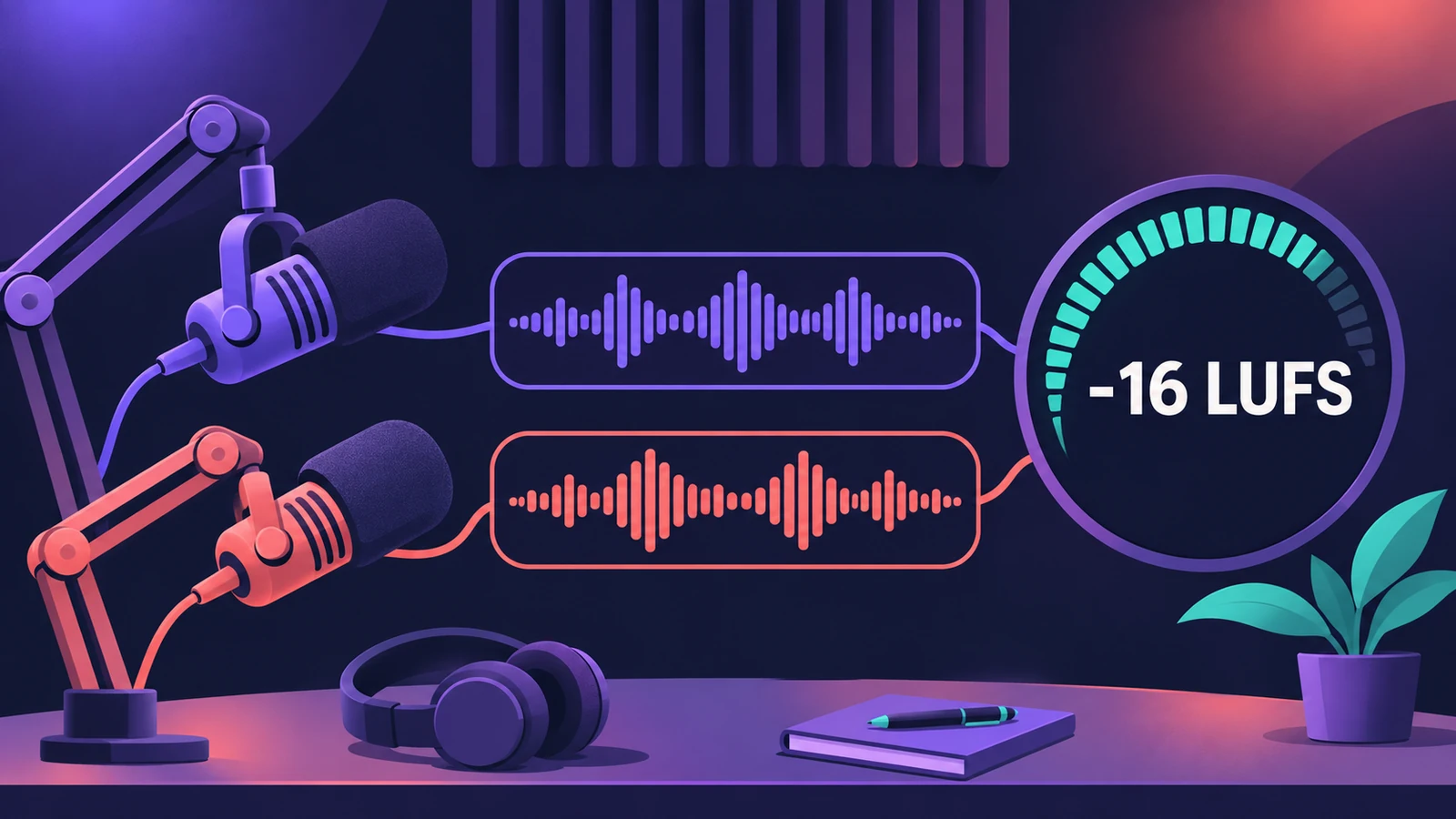
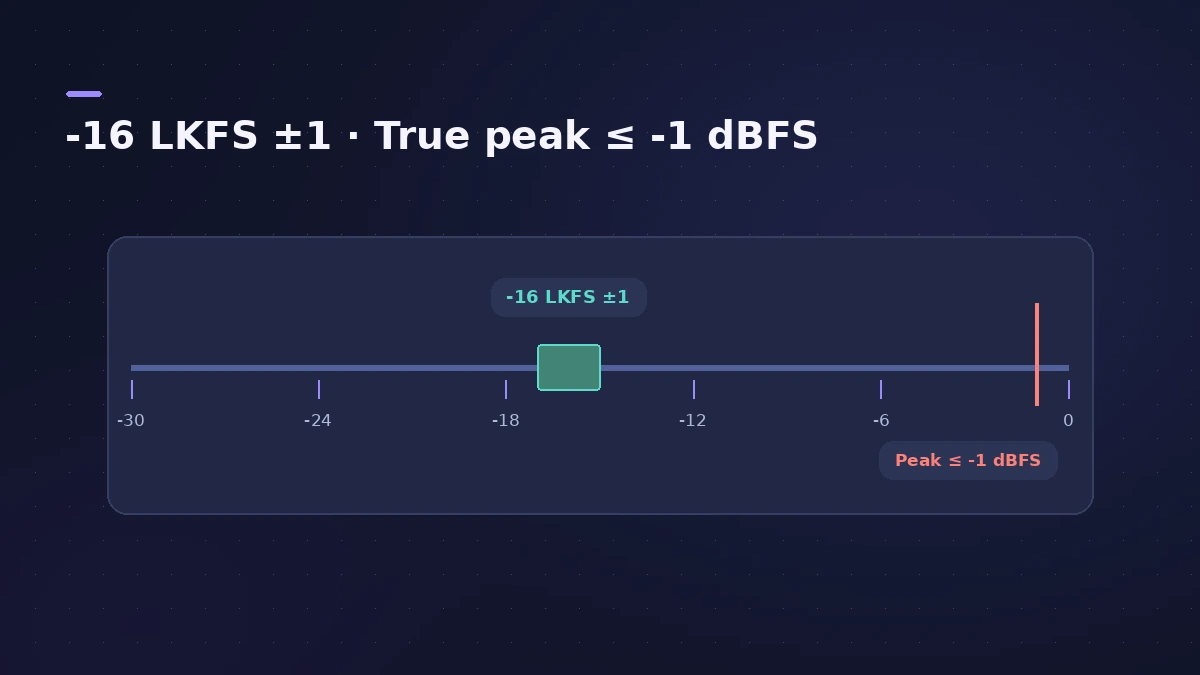
Logic Pro isn't a podcast app, but it handles every step: recording each voice on its own track, cleaning and levelling the speech, checking loudness and bouncing a WAV or MP3. Apple Podcasts recommends about -16 dB LKFS with true peaks no higher than -1 dBFS.
 Owen Hartley
Where to find it
Audio tracks > Stereo Out > Loudness Meter
Podcast chain at a glance
| Step | Tool | Target |
|---|---|---|
| Record | One audio track per voice | No clipping |
| Clean | Noise Gate, Channel EQ, DeEsser | Clear speech |
| Level | Compressor | Even voices |
| Loudness | Loudness Meter on Stereo Out | About -16 LUFS integrated |
| Peaks | Limiter with true peak detection | At or below -1 dBFS |
| Export | Bounce to WAV or MP3 | Host's spec |
Why -16 and not -14?
Music services such as Spotify normalise around -14 LUFS — see LUFS and loudness. Apple's podcast recommendation is a little quieter, at about -16 dB LKFS, so measure against the platform you publish to.
Step by step
-
1
One audio track per voice
Create an audio track for each microphone and set its input on your audio interface. Record everyone at once with multiple tracks.
-
2
Record with headroom
Set input levels so loud laughs don't clip, then record. For guests on a call, see record audio from other apps.
-
3
Edit the conversation
Cut mistakes and long pauses, and use remove silence to tidy gaps between phrases. Add fades at every cut to avoid clicks.
-
4
Clean and level each voice
Use Noise Gate for background noise between phrases, Channel EQ to remove rumble, Compressor for even level and DeEsser for harsh S sounds.
-
5
Measure loudness
Insert Loudness Meter on the Stereo Out, reset it and play the whole episode. Aim for an integrated value around -16 LUFS (LKFS), as Apple Podcasts recommends.
-
6
Catch the peaks
Finish with a limiter with true peak detection so peaks stay at or below -1 dBFS — see Adaptive Limiter.
-
7
Bounce the episode
Choose File > Bounce > Project or Section (Command-B) and export WAV for your host or an MP3. Apple Podcasts Connect accepts WAV, FLAC or MP3.
Common mistakes
- Recording two people into one track, so you can't fix one voice without the other.
- Measuring loudness on a short section instead of the whole episode.
- Setting the level after MP3 encoding — Apple says to precondition loudness before encoding.
Save it as a template
Once the tracks, plug-ins and Loudness Meter are set, save an empty copy as a project template and start every episode from it. For music beds, see LUFS and loudness for streaming-service targets.
Sources
- Apple Podcasts for Creators — Audio requirements
- Podnews — LUFS and LKFS FAQ for podcasters
- Apple — Logic Pro X 10.1 Help: Record audio (old)
- Apple — Logic Pro for iPad User Guide: Loudness Meter
- Apple — Logic Pro User Guide: Bounce a project to an audio file in Logic Pro for Mac
- Apple — Logic Pro User Guide: MP3 bounce options in Logic Pro for Mac
- Shure — How to record and mix vocals
Checked November 2026. Logic ProFiles is independent of Apple; menu names can differ slightly between Logic Pro versions.
Frequently asked questions
What loudness should a podcast be for Apple Podcasts?
+
Apple recommends that overall loudness stays around -16 dB LKFS, with a ±1 dB tolerance, and that true peaks don't go above -1 dBFS, measured per ITU-R BS.1770-5.
Which file format should I export?
+
Apple Podcasts Connect accepts WAV, FLAC or MP3 audio that meets its specifications. Check your hosting service's requirements too.
Are LUFS and LKFS the same?
+
They are two names for the same loudness measurement; Logic Pro's Loudness Meter shows LUFS.
Related
- How to use a USB microphone in Logic ProSet up a USB microphone in Logic Pro: choose it as the input device, pick the output for headphones, arm a mono track, set gain on the mic and use two USB mics.
- LUFS in Logic Pro — how loud for Spotify and Apple MusicMeasure LUFS in Logic Pro with the Loudness Meter and hit streaming targets: Spotify's -14 LUFS and -1 dB true peak, Apple's headroom advice and normalization.
- How to record vocals in Logic ProRecord vocals in Logic Pro: set up the mic and pop filter, arm an audio track, set the level, monitor without delay and record several takes to comp later.
- How to export MP3 from Logic ProBounce an MP3 straight from Logic Pro: tick MP3 in the Bounce dialog, choose the bit rate, VBR, quality and stereo mode, and add ID3 tags. Settings explained.
- DeEsser 2 in Logic ProReduce harsh S sounds with DeEsser 2 in Logic Pro: find the frequency with Channel EQ, choose Relative or Absolute mode, Split or Wide, and set Max Reduction.
- Logic Pro workflowsStep-by-step Logic Pro workflows by genre — house, techno, drum and bass, lo-fi, synthwave, orchestral, rock — plus beats, film scoring and podcasts.