Editing
Fades and crossfades in Logic Pro
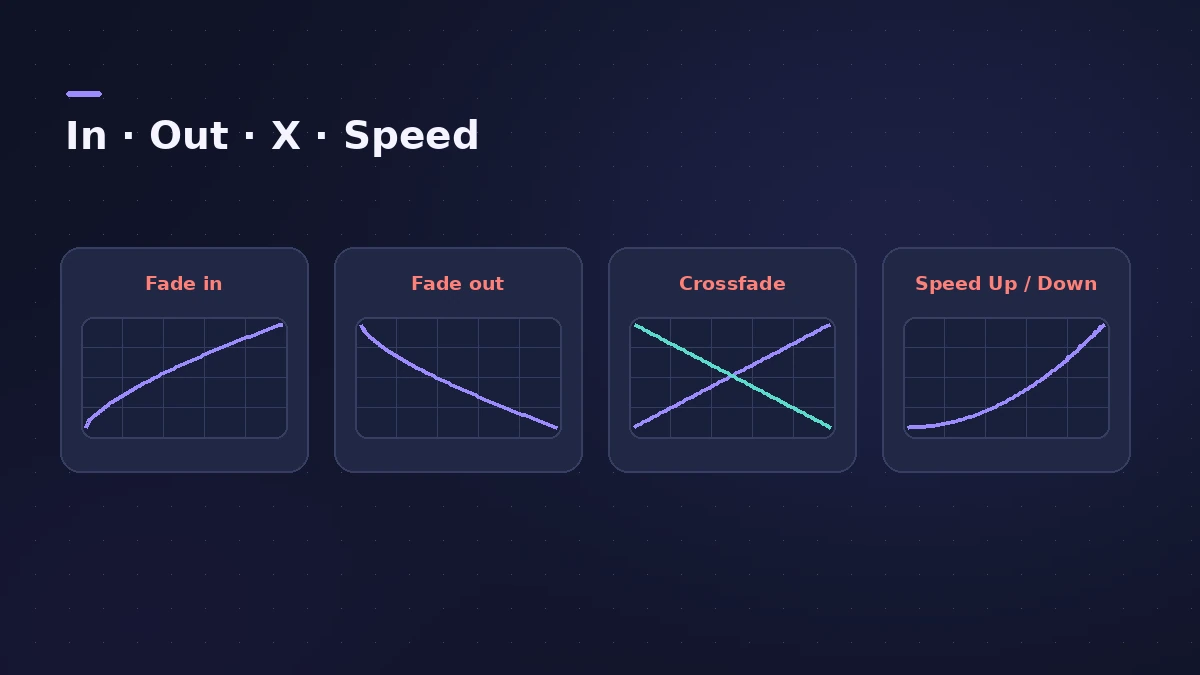
Drag over the start or end of an audio region with the Fade tool to add a fade-in or fade-out, or drag across the join between two regions for a crossfade. The same fades are in the Region inspector, where you can type exact lengths, change the curve and set several regions at once. Fades are non-destructive.
 Owen Hartley

Where to find it
Fade tool or Region inspector > Fade
Fade options in the Region inspector
| Parameter | What it does |
|---|---|
| Fade In / Fade Out | Length of the fade |
| Curve | Shape of the fade |
| Type | Includes crossfade options such as X (crossfade with the next region) |
| Speed Up / Slow Down | Change playback speed during the fade |
Step by step
-
1
Choose the Fade tool
Press T and choose the Fade tool, or set it as your Command-click tool.
-
2
Draw a fade
Drag over the start of a region for a fade-in or the end for a fade-out. Zoom in until you can see the waveform.
-
3
Crossfade two regions
Drag across the end of one region and the start of the next. This works even if they don't touch.
-
4
Adjust in the inspector
In the Region inspector, set Fade In, Fade Out and Curve, or change the type to a crossfade option. Select several regions to set them together.
Common mistakes
- Not seeing fades because you're zoomed out too far.
- Hard cuts between regions without a short crossfade, which can click.
- Dragging long fades by eye when you need an exact length — type it in the inspector.
Speed fades
Speed Up (on fade-ins) and Slow Down (on fade-outs) change the playback speed during the fade for a tape-start or tape-stop effect. To remove a fade, Option-click it with the Fade tool or set the value to 0. For level changes over time see automation.
Sources
- Apple — Logic Pro X 10.1 Help: Create fades (old)
- Apple — Logic Pro X 10.1 Help: Create automatic crossfades (old)
- Apple — Logic Pro X 10.1 Help: Speed fades (old)
- Apple — Logic Pro 9 manual: Creating crossfades and fades on audio regions (old)
- Apple — Logic Pro X 10.1 Help: Common tools (old)
Checked November 2026. Logic ProFiles is independent of Apple; menu names can differ slightly between Logic Pro versions.
Frequently asked questions
Do fades change the audio file?
+
No. Fades made with the Fade tool or Region inspector are applied on playback; the file stays unchanged.
Can Logic Pro crossfade automatically?
+
Yes. Logic Pro can create crossfades automatically on overlapping audio regions.
How do I delete a fade?
+
Option-click the fade with the Fade tool, or set Fade In or Fade Out to 0.
Related
- Audio File Editor in Logic ProEdit audio files in Logic Pro's Audio File Editor: trim, silence, normalize, fade, reverse, remove DC offset — and back up first, as edits are destructive.
- Region gain and normalize in Logic ProChange audio region gain in Logic Pro with the Gain tool or Region inspector (−30 to +30 dB), and normalize regions to a Peak or Loudness target.
- How to comp vocals in Logic ProComp the best parts of several takes in Logic Pro with Quick Swipe Comping: open the take folder, swipe the best phrases, compare comps and flatten.
- How to split and join regions in Logic ProSplit regions in Logic Pro at the playhead, at the locators or with the Scissors tool, and join them back with Join or the Glue tool, for audio and MIDI.
- Automation in Logic Pro — Read, Touch, Latch and WriteAutomate volume, pan, sends and plug-ins in Logic Pro: what Read, Touch, Latch, Write and Trim do, how to record automation with the fader and how to draw it.
- Editing in Logic ProEdit audio and MIDI in Logic Pro: comp takes, quantize, Flex Time, Smart Tempo, change tempo or key, Stem Splitter, audio to MIDI, fades and Remove Silence.