Editing
How to split and join regions in Logic Pro
Splitting cuts a region into pieces so you can move, copy or delete part of it. Use the Scissors tool, or put the playhead where you want the cut and split there. Joining does the opposite: select adjacent regions and join them into one, or click them with the Glue tool.
 Owen Hartley

Where to find it
Tracks area or Audio Track Editor
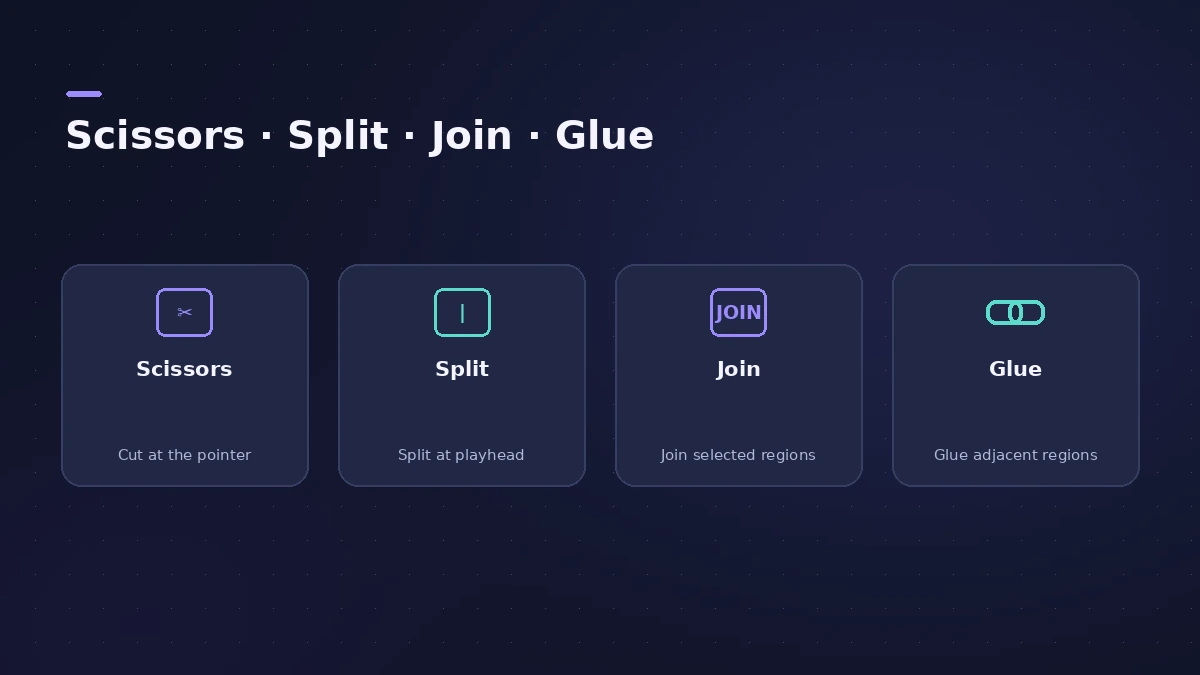
Split and join at a glance
| Task | How |
|---|---|
| Split at the playhead | Select region, place playhead, Split |
| Split by clicking | Scissors tool |
| Split at cycle edges | Split by locators |
| Join | Bounce and Join > Join, or the Glue tool |
Step by step
-
1
Split at the playhead
Select the region, move the playhead to the cut point and choose Split (Edit menu).
-
2
Or use the Scissors tool
Choose the Scissors tool and click where you want to cut. Drag across the region with it to scrub and find the spot.
-
3
Join regions
Select the regions and choose Bounce and Join > Join, or click them with the Glue tool.
-
4
Tidy the edit
Add short fades or a crossfade at audio cut points to avoid clicks.
Common mistakes
- Splitting audio mid-note, which can click — cut in a gap or add a fade.
- Joining audio regions on different tracks without noticing it creates a mixdown.
- Splitting the wrong region because several are selected.
Split at the locators
Logic Pro can also split a region at the edges of the cycle area. On iPad the shortcuts are Command-T to split by playhead and Command-J to join; check the Mac's key commands in key commands.
Sources
- Apple — Logic Pro User Guide: Get started with the Audio Track Editor
- Apple — Logic Pro X 10.1 Help: Common tools (old)
- Apple — Logic Pro for iPad User Guide: Tracks area keyboard shortcuts
- Apple — Logic Pro for iPad User Guide: Split and join regions
- Apple — Logic Pro User Guide for Mac 12.3 (table of contents)
Checked November 2026. Logic ProFiles is independent of Apple; menu names can differ slightly between Logic Pro versions.
Frequently asked questions
How do I cut a region in Logic Pro?
+
Use the Scissors tool, or place the playhead and choose Split.
What happens when I split an audio region?
+
You get two regions; Apple's iPad guide notes split audio segments get a dot and number added to the name.
Related
- Can't edit or move regions in Logic ProCan't move, edit or record on a Logic Pro track? It's probably protected (green lock) or frozen. Show Protect and Freeze in the track header and turn them off.
- Fades and crossfades in Logic ProAdd fade-ins, fade-outs and crossfades in Logic Pro with the Fade tool or Region inspector, change curve and type, use speed fades and auto crossfades.
- Logic Pro tools explainedThe Logic Pro tools explained: open the Tool menu with T, set Left-click and Command-click tools and the right mouse button, and what each common tool does.
- Remove Silence in Logic ProUse Remove Silence (Strip Silence) in Logic Pro to cut quiet passages from audio: set Threshold, minimum time, pre-attack and post-release, then replace.
- Editing in Logic ProEdit audio and MIDI in Logic Pro: comp takes, quantize, Flex Time, Smart Tempo, change tempo or key, Stem Splitter, audio to MIDI, fades and Remove Silence.