Learn Logic Pro
Logic Pro shortcuts — the default key commands worth learning
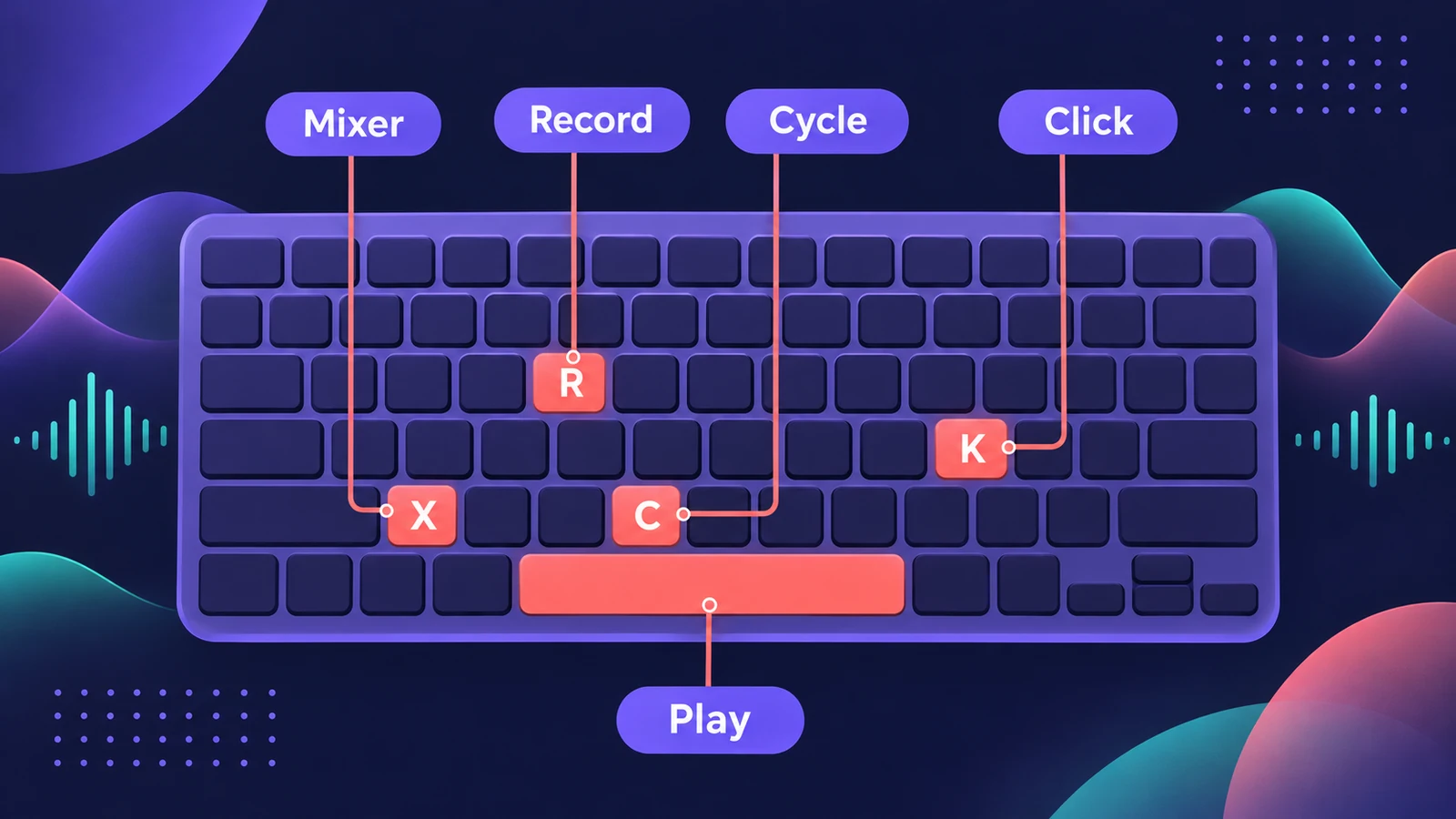
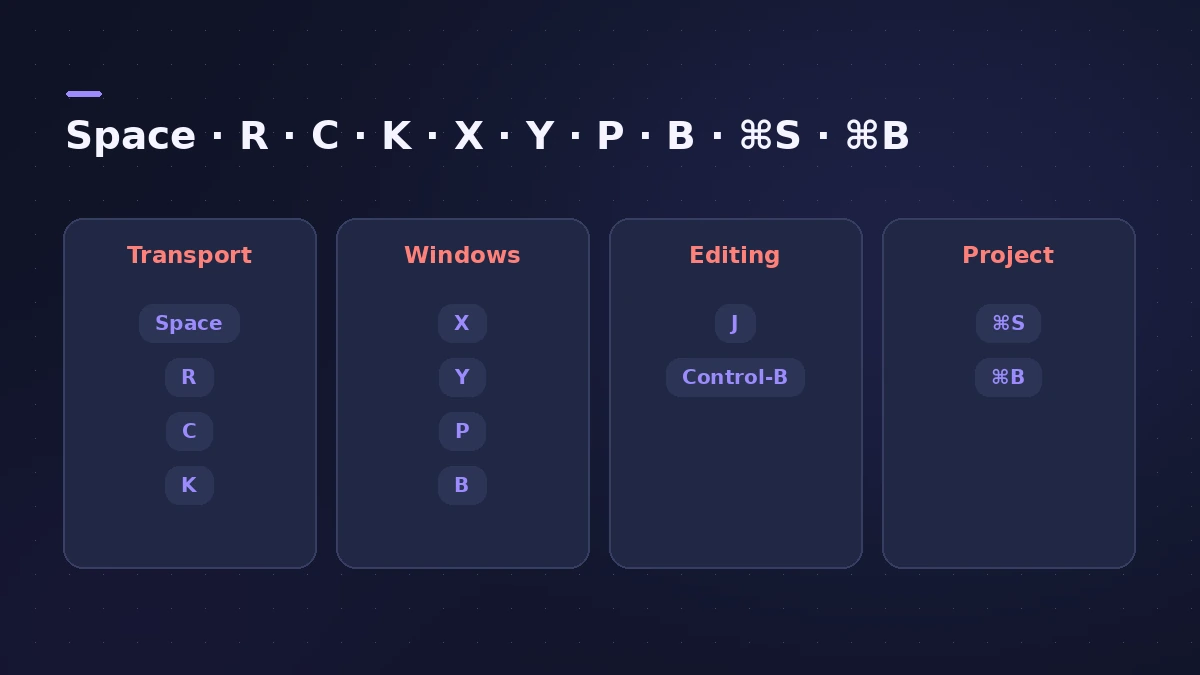
In Logic Pro's U.S. default preset, the Space bar plays and stops, R records, C toggles Cycle, K the metronome and X the Mixer. The tables below group about 40 defaults by job. Every entry comes from Apple's key command tables — the current Main Window Tracks table and the Logic Pro X 10.1 Global Commands table — so check the Key Commands window if one doesn't match your Mac.
 Owen Hartley
Transport and recording
| Function | Key |
|---|---|
| Play or Stop | Space bar |
| Play from Selection | Shift-Space bar |
| Record | R |
| Capture as Recording | Shift-R |
| Discard Recording and Return to Last Play Position | Command-Period (.) |
| Go to Beginning | Return |
| Rewind / Fast Rewind | Comma / Shift-Comma |
| Fast Forward | Shift-Period |
| Cycle Mode | C |
| Metronome Click | K |
| Count In | Shift-K |
| Solo Mode | Control-S |
| Create Marker | Option-Apostrophe (') |
Windows and views
| Function | Key |
|---|---|
| Show/Hide Mixer | X |
| Show/Hide Browser (Logic Pro 13) | B |
| Open Browser with search field (Logic Pro 13) | Command-F |
| Show/Hide Smart Controls (Logic Pro 13) | Y |
| Open Play Surface (Logic Pro 13) | Command-K |
| Show/Hide Piano Roll | P |
| Show/Hide Score Editor | N |
| Show/Hide Library (Logic Pro 12 and earlier) | Y |
| Show/Hide Smart Controls (Logic Pro 12 and earlier) | B |
| Show/Hide Loop Browser (Logic Pro 12 and earlier) | O |
| Open Main Window | Command-1 |
| Open Mixer window | Command-2 |
| Show/Hide Colors | Option-C |
| Open Settings | Command-Comma (,) |
| Project Settings | Option-P |
| Open Key Commands | Option-K |
Tracks and regions
| Function | Key |
|---|---|
| Toggle Track Record Enable | Control-R |
| Hide/Show Track Automation | A |
| Show/Hide Flex (F in Logic Pro 13) | F |
| Join Regions per Tracks | J |
| Bounce Regions/Cells in Place | Control-B |
| Bounce Tracks in Place | Control-Command-B |
| Create Track Stack | Shift-Command-D |
| Create Summing Stack | Shift-Command-G |
| Rename Track | Shift-Return |
| Rename Regions | Shift-N |
| Apply Quantization Permanently | Control-Q |
| Toggle Hide View | H |
Project and export
| Function | Key |
|---|---|
| New from Template | Command-N |
| New Empty Project | Shift-Command-N |
| Open | Command-O |
| Save | Command-S |
| Bounce | Command-B |
| Export Selection as MIDI File | Option-Command-E |
| Export Track as Audio File | Command-E |
| Export All Tracks as Audio Files | Shift-Command-E |
Change or add a key command
Open the Key Commands window with Option-K, type the function name in the search field to see its current key, then assign the key you want. Logic Pro 13 moved several view keys — B now opens the Browser and Y shows Smart Controls — so older tutorials may list different keys. The number keys recall screensets and T opens the Tool menu. Apple's tables list the U.S. default preset; other keyboard layouts can use different keys. Several commands that needed "Show Advanced Tools" in Logic Pro X are always available since Logic Pro 12 — see complete features.
Sources
- Apple — Logic Pro X 10.1 Help: Global Commands key commands (old)
- Apple — Logic Pro User Guide: Key commands for Main Window Tracks
- Apple — Logic Pro X 10.1 Help: Main Window Tracks key commands (old)
- Apple Support — Logic Pro for Mac release notes
- Apple — Logic Pro User Guide: Overview of Logic Pro settings
- Apple — Logic Pro User Guide: Bounce a project to an audio file
Checked November 2026. Logic ProFiles is independent of Apple; menu names can differ slightly between Logic Pro versions.
Frequently asked questions
How do I see all key commands in Logic Pro?
+
Open the Key Commands window with Option-K. You can search for any function, see its key and assign your own.
What is the shortcut to bounce in Logic Pro?
+
Command-B opens the Bounce dialog.
Why doesn't a shortcut work on my Mac?
+
Your key command preset may differ, or the focus is in another area of the window. Click the area first, then check the assignment in the Key Commands window.
Related
- Logic Pro for iPad keyboard shortcutsUse Logic Pro for iPad with a keyboard: hold Command to see shortcuts, move key focus with Command-Tab, view keys like X for Mixer, and Universal Control.
- Create custom key commands in Logic ProMake your own Logic Pro key commands: find the command, click Learn by Key Label, press the keys. Find unused shortcuts and export your set as a backup.
- Logic Pro glossaryLogic Pro glossary: region, take, comping, bounce, freeze, bus, channel strip, patch, quantize, latency, Smart Tempo and more — short definitions with links.
- Logic Pro referenceLogic Pro reference: a plain-English glossary, supported audio and MIDI file formats, where plug-ins are installed, and how to make custom key commands.
- Logic Pro key commands not workingSpace bar or shortcuts stopped working in Logic Pro? Reload a default key command preset, check key focus, and look for control surface or macOS conflicts.
- Logic Pro tutorial for beginners — your first song in 9 stepsA Logic Pro tutorial for beginners: set up audio, create a project, set tempo and key, record, add a Session Player, edit, mix, master and bounce a song.
- The Logic Pro interface explainedA tour of the Logic Pro window: control bar and LCD, Tracks area, inspector, Library, Browser, Mixer, editors and Smart Controls, with keys to toggle them.
- Automation in Logic Pro — Read, Touch, Latch and WriteAutomate volume, pan, sends and plug-ins in Logic Pro: what Read, Touch, Latch, Write and Trim do, how to record automation with the fader and how to draw it.
- Learn Logic Pro — tutorials for beginnersLearn Logic Pro on Mac: a beginner tutorial, the interface, the Logic Pro 13 Browser, audio interface setup, key commands, loops, patches and saving projects.