How to export stems from Logic Pro
Quick answer
Choose File > Export > All Tracks as Audio Files, set Save Format to WAVE and Bit Depth to 24, tick Include Audio Tail and Include Volume/Pan Automation, leave Normalize Off and click Save. Logic writes one file per track, each starting at the project start so they line up in any DAW. Tick Bypass Effect Plug-ins only if the engineer asked for dry tracks.
Platform and version
Export every track as its own file
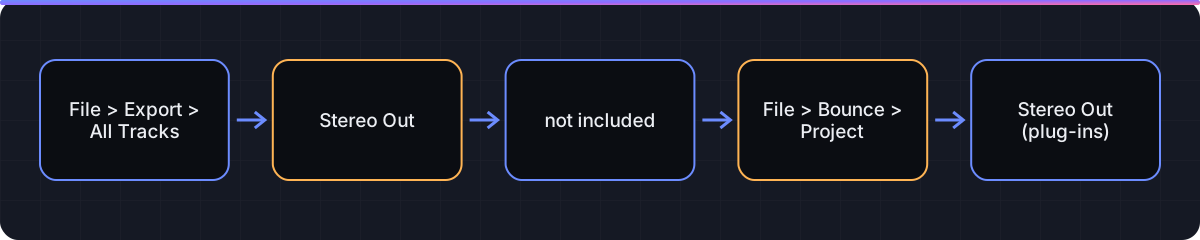
In Logic Pro, a track export renders each track through its own channel strip, fader and plug-ins, but not through Stereo Out. Every file begins at the project start, which is what makes stems line up when they are dropped into Pro Tools, Ableton Live or another Logic project. The option names below are as Apple documents them in the Logic Pro User Guide.
- Clean up first. Delete or mute tracks the engineer does not need, name every track properly (the file names come from the track names), and bypass or remove any limiter, Mastering Assistant or bus compressor on
Stereo Out. Track exports skip that strip anyway, but you want the stems to add up to the mix the engineer heard. - Decide about sends. Reverb and delay on aux channel strips are not exported as part of the tracks that feed them. If you want the effects printed into the stems, either export the aux tracks too (they appear as their own tracks when you add them to the Tracks area) or use Bounce in Place on each track first. If the engineer will add their own effects, leave sends out.
- Open the dialog. Choose
File > Export > All Tracks as Audio Files. To export only some tracks, select them in the Tracks area and chooseFile > Export > Selected Tracks as Audio Filesinstead (Apple's older guide names the single-track versionTrack as Audio File). - Name and locate. Enter a name and choose a new, empty folder. Logic appends each track's name to the files it writes.
- Set
Save FormatandBit Depth. WAVE and 24 for anything going to another DAW. Apple's guide lists these as pop-up menus; the sample rate follows the project. - Choose how multi-output instruments are handled. Under
Multi-Output Software Instruments,One File per Trackmixes a multi-output instrument such as Drum Kit Designer down to one file;One File per Channel Stripwrites the extra aux outputs separately so the engineer can balance kick, snare and overheads. - Decide on
Bypass Effect Plug-ins. Leave it unticked to print your insert chains into the stems. Tick it when the brief says dry. - Tick
Include Audio Tail. Logic extends each file until instrument releases and insert effects have decayed, instead of cutting at the last region boundary. - Decide on
Include Volume/Pan Automation. Ticked, your fader and pan rides are applied to the files. Unticked, Apple states the automation is copied but not performed, so the files play at the static fader position. Most mix engineers want rides printed on vocals and left off everything else; ask. - Set
Normalize.Offfor stems.Overload Protection Onlyif a hot track might clip. NeverOn, because normalizing each stem separately destroys the balance between them. - Optionally tick
Add resulting files to Project Audio Browser, then click Save.
Export Track Stack stems
A Summing Track Stack (a folder track with its own aux) is the easiest way to deliver grouped stems such as Drums, Vocals or Synths. Select the stack's main track and choose File > Export > Selected Tracks as Audio Files; the summed output of the stack exports as one file carrying the stack's name. If you select the subtracks inside the stack instead, each exports separately. For a session that needs both, run the export twice into two folders named Stems and Multitrack.
Naming for a mix engineer
Engineers import stems by name, so the track names are the deliverable. Before exporting, rename tracks to a consistent pattern such as 01 Kick In, 02 Kick Out, 10 Bass DI, 20 LeadVox. The leading number keeps the files in your mixer order when sorted. Avoid slashes, colons and emoji, which break file names on some systems. Put the song's tempo, key and sample rate in the folder name (for example SongName_128bpm_Am_48k_stems) and include a bounced rough mix in the same folder so the engineer knows what you intended.
Logic Pro for iPad
Apple's support article states that Logic Pro for iPad can export all tracks or selected tracks as individual audio files, packaged in a ZIP that uses the file type you chose. Tap the project name, tap Export, choose the track export, pick the format, then Share and save the ZIP to Files outside the app's default folders. The iPad guide lists separate pages for AIFF and WAVE options, M4A options and processing details; the Mac-only checkboxes above do not all appear on iPad.
Export options by delivery type
| Delivery | Save Format / Bit Depth | Bypass Effect Plug-ins | Include Audio Tail | Include Volume/Pan Automation | Normalize |
|---|---|---|---|---|---|
| Full multitrack for a mix engineer | WAVE / 24 | Usually unticked (print your sound); tick if the brief says dry | Ticked | Ask; vocal rides on, everything else off is a common request | Off |
| Grouped stems for a mastering engineer (stem mastering) | WAVE / 24 | Unticked | Ticked | Ticked | Off |
| Stems for a remixer or a live set | WAVE / 24 | Unticked | Ticked | Ticked | Off |
| Dry tracks for re-amping or re-mixing from scratch | WAVE / 24 | Ticked | Ticked | Unticked | Off |
| Moving the session to another DAW (your own continuation) | WAVE / 24 | Unticked, or export twice (wet and dry) | Ticked | Unticked, and bring automation across manually | Off |
| Logic Pro for iPad ZIP export | WAVE at the project bit depth | Set under Processing Details | Set under Processing Details | Set under Processing Details | Off |
Every file starts at the project start regardless of where the first region sits, so you do not need to add silence or a count-in. Check the folder once the export finishes: every file should have the same length (unless Include Audio Tail extended some) and the same sample rate.
Verify the stems before you upload them
Create a new empty project at the same sample rate and tempo, select all the exported files in the Finder and drag them onto the Tracks area; Logic offers to create one track per file. Press play. If the stems sound like your mix, they are ready. If they are louder or thinner than the mix, you probably relied on Stereo Out processing, which track exports leave out; tell the engineer what was on that strip, or bounce a reference mix for comparison.
Zip the folder before uploading so the file names survive the transfer. For the stereo reference mix, follow How to bounce in Logic Pro. If a long export stalls with a system overload alert, the buffer and disk advice on Logic Pro system overload applies, since track export renders every plug-in at once.
FAQ
Where is Export All Tracks as Audio Files in Logic Pro?
In the File menu: File > Export > All Tracks as Audio Files. If only some tracks are selected, the menu also offers Selected Tracks as Audio Files.
Do exported stems include the plug-ins on Stereo Out?
No. Track exports render each track through its own channel strip only. Anything on the output strip, such as a limiter or Mastering Assistant, is left out, so bypass it before exporting if the stems need to match the mix.
Why don't my stems line up when I import them elsewhere?
They should, because Logic starts every exported file at the project start. Mismatches usually come from importing at a different sample rate or from a DAW that trims leading silence on import; check both.
Should I tick Bypass Effect Plug-ins?
Only if the engineer asked for dry tracks. Leaving it unticked prints your EQ, compression and effects into the files, which preserves the sound you shaped.
What is the difference between stems and multitracks?
Multitracks are one file per track. Stems are grouped submixes such as drums, bass, vocals and music. Logic exports multitracks by default; export Summing Track Stacks with Selected Tracks as Audio Files to get stems.
Can I export stems with reverb from my send effects?
Not automatically, because sends go to aux channel strips rather than the source track. Export the aux tracks as well, or use Bounce in Place on each track with its sends before exporting.
How do I export stems in Logic Pro for iPad?
Tap the project name, tap Export, choose to export all or selected tracks as individual audio files, pick a format, then tap Share and save the resulting ZIP to Files. Apple's support article documents this flow.
Should I normalize stems?
No. Normalizing each file separately changes the balance between tracks. Leave Normalize Off, or use Overload Protection Only if one track might clip.
Related guides
Part of Bounce & export — see every guide in this hub.
 Guide
How to bounce a song in Logic Pro
The Bounce dialog option by option, with the right settings for a distributor master, a demo MP3, a video deliverable and a cycle-range section.
10 min read Guide
Mastering in Logic Pro with Mastering Assistant
Mastering Assistant on Stereo Out, step by step, with sourced loudness and true-peak figures, dither rules and an honest line on when a human mastering engineer is worth it.
10 min read Fix
Logic Pro system overload: how to fix the error (-10011)
What the System Overload alert means and Apple's documented order of fixes, from buffer size to freezing tracks.
10 min read
Sources checked
- Export tracks as audio files (Logic Pro User Guide for Mac)
- Bounce all tracks in place in Logic Pro for Mac (Logic Pro User Guide)
- Export tracks as individual audio files in Logic Pro for iPad (Logic Pro User Guide for iPad)
- Bounce and save your Logic Pro for iPad project (Apple Support)
Last checked 3 November 2026 by the Logic Pro Files Team.