Logic Pro latency: buffer size table and how to get the delay down
Quick answer
Latency you can hear in Logic Pro comes mostly from the I/O Buffer Size in Logic Pro > Settings > Audio > Devices. Apple's advice is to start at the lowest setting while recording and step up only if you get overload alerts, then use a large buffer for mixing. If plug-ins in the project add delay, turn on Record > Low Latency Mode, which bypasses the ones that exceed the limit you set. For audio recording, direct monitoring on the interface removes Logic from the monitoring path entirely.
Platform and version
Match the symptom to the first thing to check
| Symptom | What you see | First check | Go to |
|---|---|---|---|
| Everything you play arrives late, on every track | Resulting latency value shown under the I/O Buffer Size menu is high | I/O Buffer Size | Buffer size |
| Latency is fine in an empty project but bad in one specific project | Latency rises as you add plug-ins | Plug-ins with look-ahead on the live track or on Stereo Out | Low Latency Mode |
| You hear your voice twice while recording | A doubled, flanged sound | Software Monitoring on while also using direct monitoring on the interface | Monitoring |
| Lowering the buffer causes overload alerts | System Overload. The audio engine was not able to process all required data in time. (-10011) | Plug-in load on the live track; Processing Threads | System overload page |
| Latency is bad on headphones but not speakers | Headphones are Bluetooth | Output Device | Bluetooth |
| Recorded audio lands late or early on the timeline | Regions offset from the grid | Recording Delay in Audio > Devices; interface reports wrong latency | Recording Delay |
Diagnosis order
- Read the number Logic gives you. Open
Logic Pro > Settings > Audio > Devices. Under the I/O Buffer Size menu Logic shows the resulting latency, including the roundtrip value from input to output. Apple's article confirms this readout is where to look first. - Test in an empty project. Press
Shift-Command-N, add a software instrument, play it. If the delay is acceptable here, the extra delay in your project comes from plug-ins. - Check the live track's plug-ins. Dynamics plug-ins with look-ahead, linear-phase EQs and some mastering tools add their own delay that Logic compensates on playback but cannot hide while you play.
- Check the Stereo Out. A limiter with look-ahead on the master adds latency to everything you monitor.
- Check your output device. Bluetooth adds latency Logic cannot remove.
- Then apply the fixes below.
Fixes
Choose the right I/O Buffer Size
Choose Logic Pro > Settings > Audio > Devices (Preferences on macOS 12 or earlier), pick a value from I/O Buffer Size and click Apply. The one-way delay added by the buffer is the sample count divided by the sample rate. The table gives that figure; the real figure you hear is the roundtrip, which adds the input buffer, the interface's analog-to-digital and digital-to-analog conversion, and any driver safety buffer, so it is higher and varies by interface. Logic displays its estimate under the menu.
| I/O Buffer Size | One-way at 44.1 kHz | One-way at 48 kHz | Typical use |
|---|---|---|---|
| 32 samples | 0.73 ms | 0.67 ms | Tracking with few plug-ins on a fast Mac |
| 64 samples | 1.45 ms | 1.33 ms | Tracking software instruments |
| 128 samples | 2.90 ms | 2.67 ms | Tracking with a moderate plug-in load |
| 256 samples | 5.80 ms | 5.33 ms | Apple's suggestion for audio-only recording with Software Monitoring off |
| 512 samples | 11.61 ms | 10.67 ms | Mixing |
| 1024 samples | 23.22 ms | 21.33 ms | Mixing large projects |
Apple's guidance in its latency article: start at the lowest setting when recording and move up one step each time you see an overload alert. Expected result: at 128 samples or lower most players stop noticing the delay.
Turn on Low Latency Mode
Choose Record > Low Latency Mode. According to Apple, it routes audio around plug-ins that add latency, such as dynamics plug-ins with look-ahead, so that the delay along the current track's signal path stays under a limit. Set that limit in Logic Pro > Settings > Audio > General: turn on Low Latency Mode there and drag the Limit slider in the Plug-in Latency section, in milliseconds. Bypassed plug-ins show as orange in the channel strip and come back when you turn the mode off. Expected result: the live track feels as fast as an empty project. Turn it off before you mix, or bounce, so every plug-in is active.
Software Monitoring vs direct monitoring
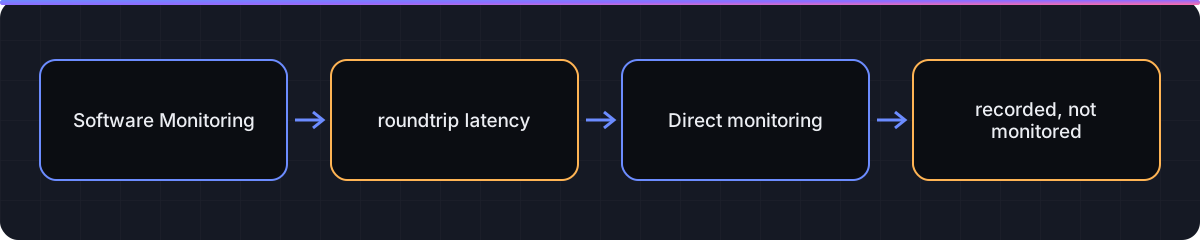
For audio recording you have two ways to hear yourself. Software Monitoring (Logic Pro > Settings > Audio > General) sends the input through Logic and its plug-ins, which costs the full roundtrip latency but lets you hear effects while you record. Direct monitoring is a mixer in the interface that sends the input straight to your headphones with no buffer; turn Software Monitoring off and use the interface's mix knob or control app instead. Use one or the other: both at once produces a doubled, phasey sound. Apple's overload article notes that with Software Monitoring off you can leave the buffer at 256 samples for audio recording with no felt delay, because Logic is no longer in the monitoring path. Software instruments must go through Logic, so direct monitoring does not apply to them.
Understand plug-in delay compensation
Choose Logic Pro > Settings > Audio > General and look at Plug-in Latency Compensation. Set to All, Logic delays every other track to line up with the slowest plug-in so playback stays in time, which is what you want for mixing. The cost is that every track, including the one you are recording, is monitored through that delay. Set to Audio and Software Instrument Tracks, aux and output plug-ins are not compensated, which keeps the live path shorter at the expense of timing on busses. For tracking, Low Latency Mode is the better tool because it leaves the setting alone and simply bypasses the offenders.
Processing Threads and the buffer
A smaller buffer gives the CPU less time per cycle, so a project that runs at 512 may overload at 64. Logic Pro > Settings > Audio has a Processing Threads menu that Apple recommends leaving on Automatic, and a Multithreading menu in Devices whose Playback & Live Tracks option spreads live input across cores. If low buffers overload, set Multithreading to Playback & Live Tracks, freeze finished tracks and follow the system overload page. Expected result: a lower usable buffer without alerts.
Avoid Bluetooth while playing
Apple's latency article is direct: wireless headphones and speakers add latency, so use them for listening and mixing only. Switch the Output Device to a wired interface or the headphone jack when you record or play instruments.
Fix the Recording Delay
If recorded regions land consistently early or late against the click, the interface is reporting its latency incorrectly. In Logic Pro > Settings > Audio > Devices, adjust Recording Delay in samples, negative to pull recordings earlier. Measure it by recording the click through a loop-back cable and reading the offset in the Sample Editor. This does not change what you hear; it changes where the audio is placed.
Verify the fix
- Open
Logic Pro > Settings > Audio > Devicesand read the resulting latency under the I/O Buffer Size menu. Note the roundtrip value. - Record-enable a software instrument track and play a few notes. If you can play in time without thinking about it, the buffer is low enough.
- Open your heaviest project, turn on
Record > Low Latency Mode, and play the same test on its live track. Orange plug-ins show what was bypassed. - Record 8 bars of a click through an audio track with Software Monitoring on, then with it off and direct monitoring on. Choose the one that feels right and leave the other setting off.
- Before bouncing, turn Low Latency Mode off and confirm no plug-ins are orange.
FAQ
What I/O Buffer Size should I use in Logic Pro?
Apple's advice is the lowest setting that does not cause overload alerts while recording, and a large setting while mixing. 128 samples is a common tracking value; 512 or 1024 for mixing.
How many milliseconds is 256 samples?
About 5.8 ms one way at 44.1 kHz and 5.3 ms at 48 kHz. Roundtrip latency is higher because it includes the input buffer and the interface's converters.
Where is Low Latency Mode in Logic Pro?
In the Record menu: Record > Low Latency Mode. The latency limit it enforces is set in Logic Pro > Settings > Audio > General.
Why does Low Latency Mode silence some plug-ins?
That is how it works: it bypasses plug-ins whose delay would push the live track over the limit, and shows them in orange until you turn the mode off.
Is direct monitoring better than Software Monitoring?
For audio recording without effects, yes, because the interface routes the input to your headphones with no buffer at all. For software instruments and for hearing effects while recording, you need Software Monitoring.
Does a higher sample rate reduce latency?
Yes, the same buffer in samples lasts fewer milliseconds at 48 or 96 kHz, but the higher rate raises CPU and disk load, which may force a larger buffer.
Why is latency worse on my AirPods?
Bluetooth adds delay that Logic cannot remove. Apple recommends Bluetooth only for listening and mixing, not recording or playing.
Related guides
Part of Fix a problem — see every guide in this hub.
 Fix
Logic Pro system overload: how to fix the error (-10011)
What the System Overload alert means and Apple's documented order of fixes, from buffer size to freezing tracks.
10 min read Fix
Logic Pro has no sound: follow the signal chain
A signal-chain walk from the interface to Stereo Out that finds why Logic Pro is silent: device, routing, mute/solo, monitoring, sample rate.
9 min read Guide
Logic Pro tutorial for beginners: your first song in nine steps
From install to a bounced file in nine steps, using only Logic Pro's stock instruments and plug-ins. Includes the starter settings table.
8 min read
Sources checked
- Manage input monitoring latency in Logic Pro for Mac (Apple Support)
- Avoid system overloads in Logic Pro for Mac (Apple Support)
- Change the number of cores used by Logic Pro for Mac (Apple Support)
- About the Multithreading setting in Logic Pro for Mac (Apple Support)
Last checked 3 November 2026 by the Logic Pro Files Team.