Fix Problems
Logic Pro system overload — how to find the cause and fix it
A system overload alert means Logic Pro's audio engine couldn't finish its work in time — either the processor ran out of headroom or the drive couldn't stream audio fast enough. Apple's own article gives you a way to tell which: the Performance Meter. Check it first, then apply the fixes for that side.
 Owen Hartley
Applies to: Logic Pro 13, 12 and 11 for Mac (menu names may say Preferences in older versions).
Most likely causes
- CPU overload — a Processing Threads meter peaks (most common)
- I/O buffer too small for the project (most common)
- Heavy software instrument track selected during playback (common)
- Disk overload — the Drive I/O meter peaks (common)
- Sample-accurate automation or a high sample rate adding load (occasional)
CPU or disk? Read the meter
| Meter that peaks | Likely cause | Start with |
|---|---|---|
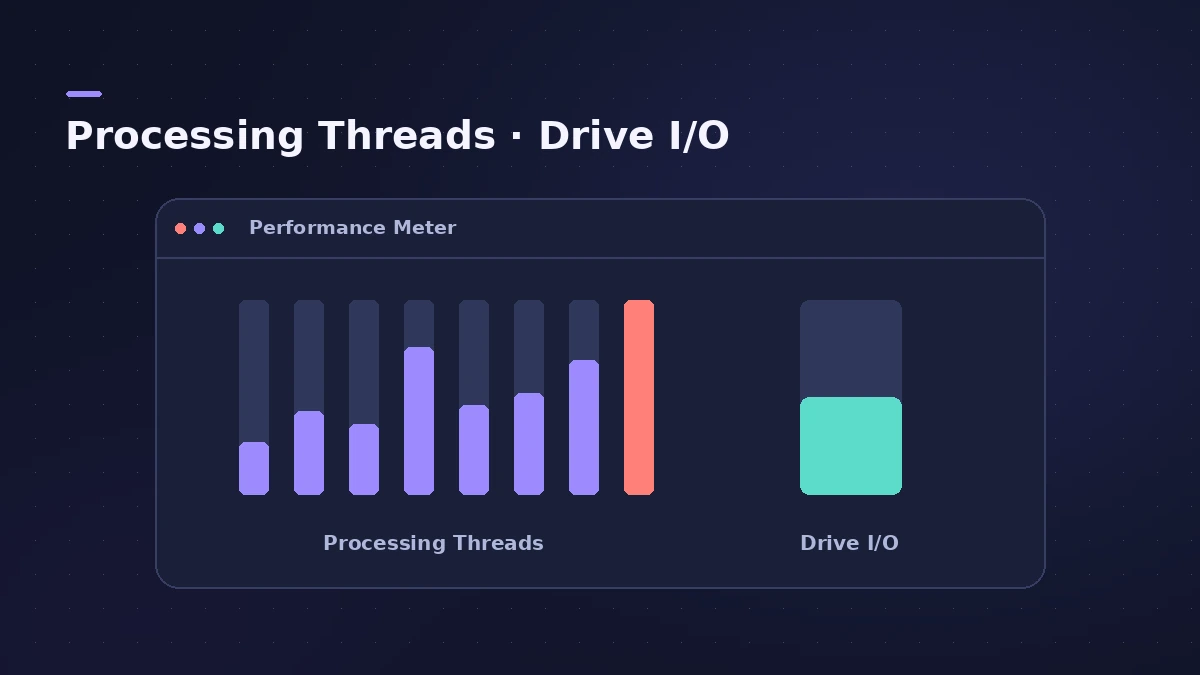
| Rightmost Processing Threads bar | One track (usually the selected instrument) is too heavy | Select an empty track, freeze, fewer voices |
| Several Processing Threads bars | Overall CPU load | Larger I/O buffer, Process Buffer Range Large, sends |
| Drive I/O | Drive can't stream audio fast enough | Dedicated SSD, Sampler VM off, lower sample rate — see disk too slow |
To find a heavy track, Apple suggests opening the Performance Meter, selecting the track and playing. If the rightmost Processing Threads meter fills up, that track can cause overloads. On Intel Macs with Hyper-Threading each thread shows two meters.
Recording and mixing need different settings
Apple's advice pulls in two directions. For recording you want the smallest buffer that runs cleanly so you hear yourself without delay. For audio-only recording, Apple suggests turning off Software Monitoring in Audio > General and setting the buffer to 256 samples. For mixing you can raise the buffer and set Process Buffer Range to Large, because latency no longer matters. Our buffer latency calculator shows what each buffer size costs in milliseconds, and the latency guide covers the recording side.
If the alert shows an error code
Two coded versions of the alert are common: -10010 "Disk is too slow" points at the drive, and -10011 at the processor. Apple's overload article covers both causes, so the fixes on this page apply to either.
Fixes, in order
1. Open the Performance Meter
In Logic Pro 11 and earlier, first turn on Enable Complete Features in Logic Pro > Settings > Advanced; in 12 and later all features are always on. Click the Display Mode triangle in the toolbar, choose Custom, then double-click the CPU or HD meter. Play the project and watch which meter peaks when the alert appears.
2. Raise the I/O buffer one step at a time
In Logic Pro > Settings > Audio > Devices, raise I/O Buffer Size one step and test again. A larger buffer lowers CPU load but adds recording latency — use small buffers to record and large ones to mix.
3. Set Process Buffer Range to Large
In the same pane, Apple recommends Large for Process Buffer Range. Higher settings add latency, so switch back if you're recording.
4. Select an empty track during playback
A selected software instrument track or track stack header adds load. Click an empty audio track before you press play.
5. Freeze plug-in-heavy tracks
Freezing renders a track so its plug-ins stop using the CPU. Skip freezing software instrument tracks if the overloads line up with Drive I/O peaks.
6. Move reverbs and delays to sends
Put CPU-heavy reverbs and delays on a shared send, not on every track. If you need reverb on a single track, Apple suggests SilverVerb or PlatinumVerb.
7. Turn off sample-accurate automation
In Audio > General, set Sample Accurate Automation to Off if you don't need it, or choose the option that covers only the parameters you automate.
8. Use fewer voices
Set instruments to the number of voices you actually play. Apple's example is a Sculpture part that plays two notes at once and needs only two voices.
9. Try a lower sample rate
Higher sample rates raise CPU and disk load. If disk activity triggers the alert, a lower rate can stop it.
10. Tune Sampler Virtual Memory
In Logic Pro > Settings > Audio > Sampler > Virtual Memory, turn Active on if overloads match Processing Threads peaks and off if they match Drive I/O peaks.
11. Quit other apps
Close everything except your audio interface's control or mixer software.
12. Use a dedicated SSD and more RAM
Save high-track-count projects to a dedicated external drive such as a USB-C SSD formatted as APFS or Mac OS Extended (Journaled). Apple also suggests more RAM if you use many plug-ins or Sampler instances.
Sources
- Apple — Avoid system overloads in Logic Pro for Mac (May 2026)
- Apple — Logic Pro User Guide: General Audio settings in Logic Pro for Mac
- Apple — Logic Pro User Guide: Devices settings in Logic Pro for Mac
- Apple — Manage input monitoring latency in Logic Pro for Mac (May 2026)
- Apple — Logic Pro User Guide: What's new in Logic Pro for Mac 12
Checked November 2026. Logic ProFiles is independent of Apple; menu names can differ slightly between Logic Pro versions.
Frequently asked questions
What causes system overload in Logic Pro?
+
The audio engine can't process everything in time. Apple separates two causes: processor load, shown by the Processing Threads meters, and drive bandwidth, shown by the Drive I/O meter.
What buffer size should I use to stop system overloads?
+
There is no single number. Apple says to raise the I/O buffer one step at a time until the interruptions stop, and suggests 256 samples for audio-only recording with Software Monitoring off.
Can I hide the system overload message?
+
Yes. Deselect "Display audio engine overload message" in Audio > General. Logic Pro then stops playback without showing the alert, so the overload itself still happens.
Related
- Freeze tracks in Logic ProFreeze tracks in Logic Pro to save CPU: show the Freeze button, choose Source Only or Pre Fader, press Play to render, and unfreeze to edit plug-ins again.
- How much RAM do you need for Logic Pro?How much RAM for Logic Pro: 16 GB for MIDI and light plug-ins, 32 GB for mixing, 64 GB+ for big orchestral templates. Memory is fixed when you buy.
- Is the MacBook Neo good for Logic Pro?Is the MacBook Neo good for Logic Pro? MusicRadar played 171 tracks of stock plug-ins at a 32-sample buffer, but 8 GB is fixed and there's no Thunderbolt.
- Can't edit or move regions in Logic ProCan't move, edit or record on a Logic Pro track? It's probably protected (green lock) or frozen. Show Protect and Freeze in the track header and turn them off.
- Clicks, pops and crackles in Logic ProHearing clicks, pops or crackles in Logic Pro? Raise the I/O buffer, check Multithreading, find the busy track and know when the noise is in the file.
- SilverVerb and EnVerb in Logic ProSilverVerb and EnVerb in Logic Pro: a CPU-light reverb with an LFO and filters, and an envelope-shaped reverb for unusual effects. What each one is for.
- Logic Pro error -10011 — what it means and how to fix itFix Logic Pro error -10011, when the audio engine can't process all required data in time. Raise the buffer, freeze tracks and cut CPU load step by step.
- "Disk is too slow or System Overload (-10010)" in Logic ProLogic Pro says Disk is too slow or System Overload (-10010)? Check the Drive I/O meter, move projects and samples to a fast SSD and tune Sampler Virtual Memory.
- Logic Pro latency — how to fix delay when recordingHearing a delay when you record in Logic Pro? Lower the I/O buffer, turn on Low Latency Monitoring Mode, use direct monitoring and avoid Bluetooth headphones.
- Buffer latency calculatorConvert Logic Pro's I/O buffer size to milliseconds at any sample rate. See one-buffer and input-plus-output delay for 32 to 1024 samples, with the formula.