Editing
How to comp vocals in Logic Pro
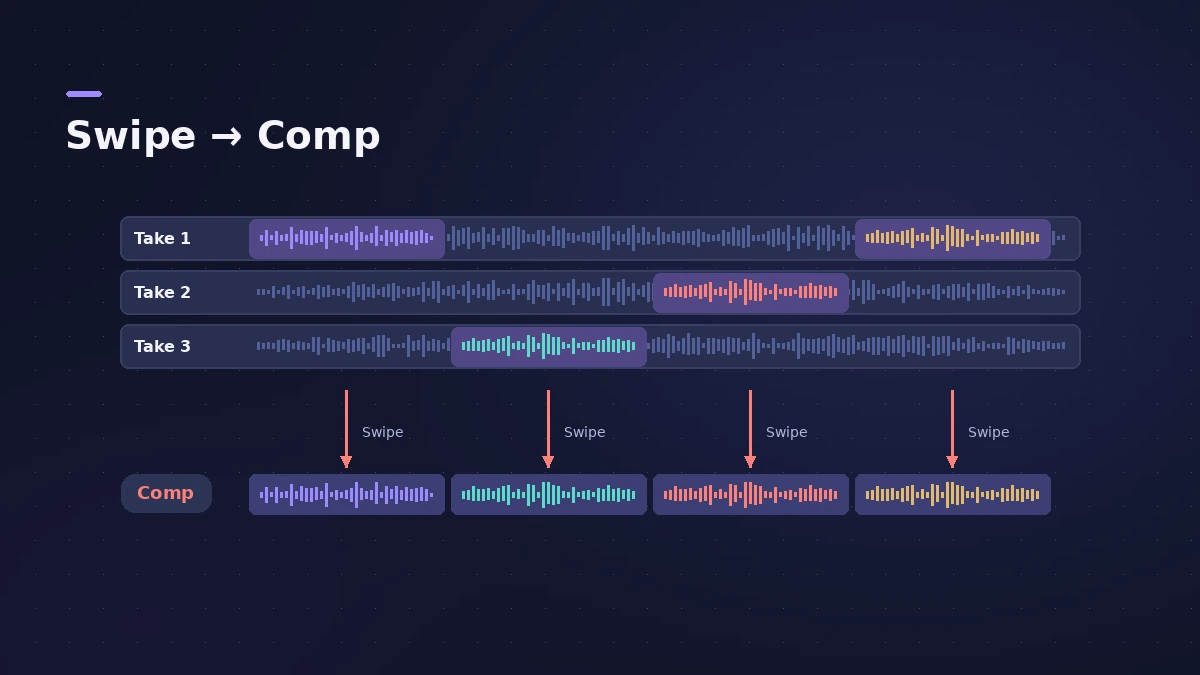
Comping means building one performance from the best parts of several takes. In Logic Pro you record takes into a take folder, open it, and with Quick Swipe Comping on you drag across the best phrase in each take — Logic Pro plays the selected parts as one comp. Your original takes stay untouched inside the folder.
 Owen Hartley

Where to find it
Take folder (Tracks area)
Quick Swipe Comping on vs off
| Mode | What dragging does |
|---|---|
| On | Selects the best parts of takes to build a comp |
| Off | Cuts, drags and moves takes or take folders |
Step by step
-
1
Open the take folder
Click the disclosure triangle on the take folder to show each take on its own lane.
-
2
Check Quick Swipe Comping is on
Click the Quick Swipe Comping button in the upper-left corner of the take folder, or choose it from the Take Folder pop-up menu.
-
3
Listen to each take
During playback, click a take to hear it.
-
4
Swipe the best parts
Drag across the best phrase in each take. Selecting a section in one take deselects the same section in the others, so only one take plays at any point.
-
5
Try another comp and flatten
Use the comp menu at the top of the folder to start a new comp and compare versions. When you're happy, flatten the folder to a clean region.
Common mistakes
- Comping with Quick Swipe Comping off — then dragging moves takes instead of selecting them.
- Cutting mid-word; move the edit into a breath or gap.
- Flattening too early, before you've compared alternative comps.
Smooth joins
Logic Pro crossfades the joins between comp sections; check them with headphones. For crossfades elsewhere see fades and crossfades, then tune the comp with Flex Pitch.
Sources
- Apple — Logic Pro User Guide: Create and save comps
- Apple — Logic Pro User Guide glossary: Quick Swipe Comping
- Apple — Logic Pro X 10.1 Help: Create and save comps (old)
- Apple — Logic Pro X 10.1 Help: Preview take recordings (old)
- Apple — Logic Pro 9 manual: Creating comps (old)
- Apple — Logic Pro for iPad User Guide: Comp your audio recordings
- Logic Studio Training — The fastest way to comp vocals in Logic Pro
Checked November 2026. Logic ProFiles is independent of Apple; menu names can differ slightly between Logic Pro versions.
Frequently asked questions
Does comping delete my other takes?
+
No. The takes stay in the take folder; the comp only decides which take plays at each point.
Why does dragging move the take instead of selecting it?
+
Quick Swipe Comping is off. Turn it on from the take folder's button or pop-up menu.
Can I comp MIDI takes?
+
Apple's iPad guide notes Quick Swipe Comping is for audio take folders; for MIDI, pick the best take or edit notes directly.
Related
- Track Alternatives in Logic ProUse Track Alternatives in Logic Pro like playlists: create New or Duplicate versions, prelisten and exchange, rename, and delete inactive ones to save space.
- Cycle recording and take folders in Logic ProRecord several takes of one section in Logic Pro: set a cycle area, choose Create Take Folder, record multiple passes, then preview takes and comp.
- Autotune in Logic Pro — Flex Pitch and Pitch CorrectionTune vocals in Logic Pro without extra plug-ins: fix notes by hand with Flex Pitch, or use the Pitch Correction plug-in for real-time autotune. Both explained.
- Fades and crossfades in Logic ProAdd fade-ins, fade-outs and crossfades in Logic Pro with the Fade tool or Region inspector, change curve and type, use speed fades and auto crossfades.
- Editing in Logic ProEdit audio and MIDI in Logic Pro: comp takes, quantize, Flex Time, Smart Tempo, change tempo or key, Stem Splitter, audio to MIDI, fades and Remove Silence.