Recording
Cycle recording and take folders in Logic Pro
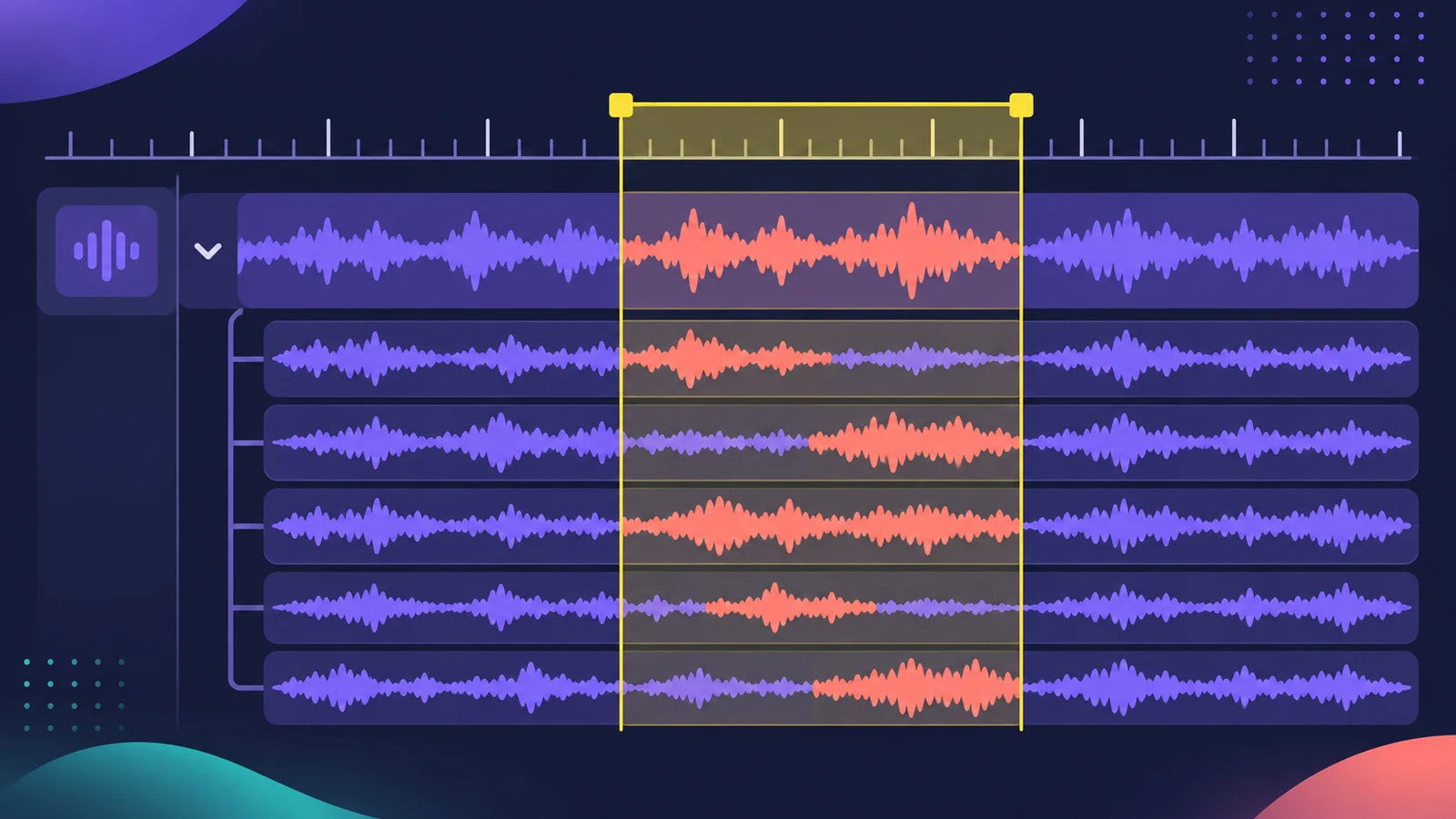
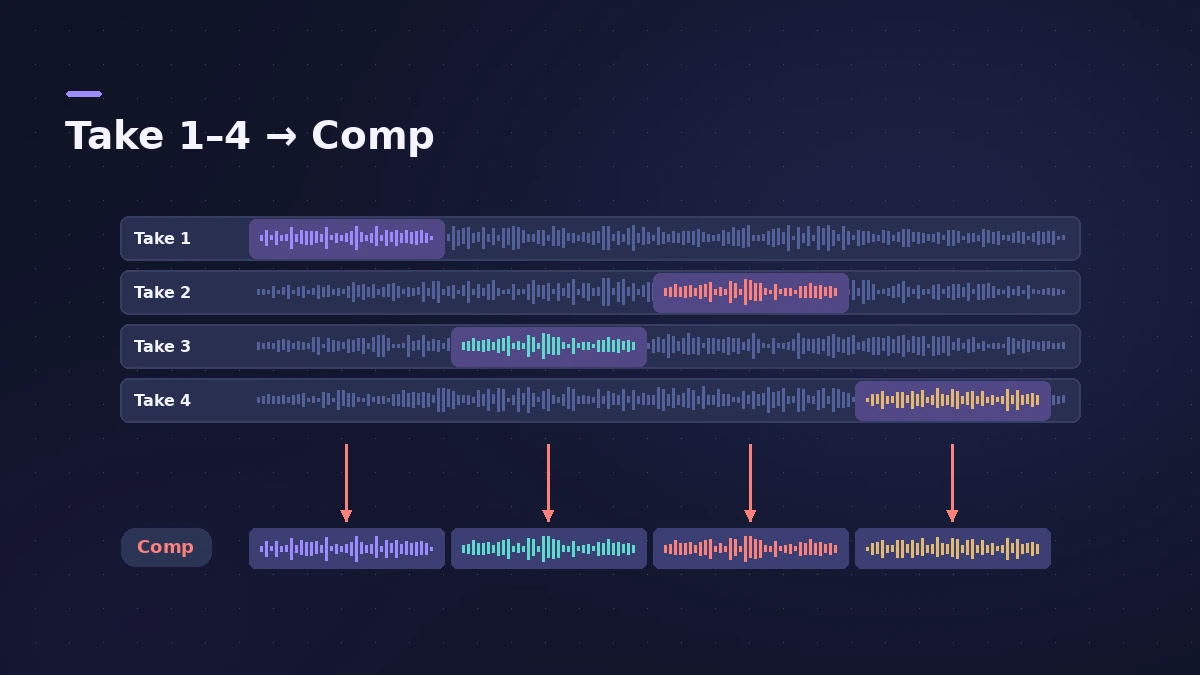
Set a cycle area over a section, press R and keep performing — each pass becomes a take. From the second pass, Logic Pro collects them in a take folder on the same track, so you can listen to each one and build a comp from the best parts. You can also send each pass to a new track instead.
 Owen Hartley
Where to find it
Record > Overlapping Audio Recordings
Overlapping recording options
| Option | What happens on each cycle pass |
|---|---|
| Create Take Folder | Passes collected as takes on one track |
| New tracks option | Each pass on its own new track |
Step by step
-
1
Choose take folders
Choose Record > Overlapping Audio Recordings > Cycle > Create Take Folder (also in File > Project Settings > Recording).
-
2
Set the cycle area
Drag in the upper part of the ruler over the section, or press C to turn on Cycle mode with the current area.
-
3
Record several passes
Arm the track and press R. Recording starts at the beginning of the cycle; perform as many passes as you like, then press Space.
-
4
Open the take folder
Click the disclosure triangle on the take folder to see each take on its own lane.
-
5
Pick or comp
Click a take to hear it, or select the best sections from several takes to build a comp.
Common mistakes
- Forgetting to set overlapping recordings, so each pass overwrites the last.
- Recording too long a cycle — shorter sections make comping easier.
- Changing mic position between passes, which makes comps sound uneven.
Takes on separate tracks
Prefer separate tracks? Apple's guide describes a Cycle option in the same menu that records each pass to a new track. To redo only a short phrase, use punch-in; to build the final take, see comping.
Sources
- Apple — Logic Pro X 10.4 Help: Record multiple audio takes (old)
- Apple — Logic Pro User Guide glossary: Take
- Apple — Logic Pro X 10.4 Help: Record to multiple audio tracks (old)
- Apple — Logic Pro X 10.1 Help: Record additional software instrument takes (old)
- Apple — Logic Pro User Guide for Mac 12.3 (table of contents)
Checked November 2026. Logic ProFiles is independent of Apple; menu names can differ slightly between Logic Pro versions.
Frequently asked questions
When does Logic Pro create a take folder?
+
After the second cycle pass; each further pass is added to the same folder.
Can I record MIDI takes too?
+
Yes. Choose Create Take Folders in the MIDI recording options.
What is comping?
+
Combining the best sections of several takes into one performance inside the take folder.
Related
- Region types in Logic ProEvery region type in Logic Pro: audio, MIDI, pattern and Session Player regions, aliases, take folders, folders and Apple Loops — and what each holds.
- Replace mode recording in Logic ProRecord over an old take in Logic Pro with Replace mode: Region Erase, Region Punch, Content Erase and Content Punch for audio, and replacing MIDI parts.
- Logic Pro recording settings explainedLogic Pro Recording settings explained: WAVE, AIFF or CAF, 16, 24 or 32-bit float, Auto Record Enable, and what happens when MIDI or audio recordings overlap.
- Track Alternatives in Logic ProUse Track Alternatives in Logic Pro like playlists: create New or Duplicate versions, prelisten and exchange, rename, and delete inactive ones to save space.
- How to record vocals in Logic ProRecord vocals in Logic Pro: set up the mic and pop filter, arm an audio track, set the level, monitor without delay and record several takes to comp later.
- How to punch in and out in Logic ProFix part of a take in Logic Pro with punch recording: Autopunch with set punch-in and punch-out points, or Quick Punch-In on the fly during playback.
- Flashback Capture — recover takes you didn't recordUse Flashback Capture in Logic Pro to recover MIDI or audio you played without recording: how it works, what it needs, cycle takes and the limits for audio.
- Recording in Logic ProHow to record in Logic Pro: vocals, electric and acoustic guitar, bass, drums and MIDI, plus cycle takes, punch-in, Flashback Capture and step input.