Recording
Replace mode recording in Logic Pro
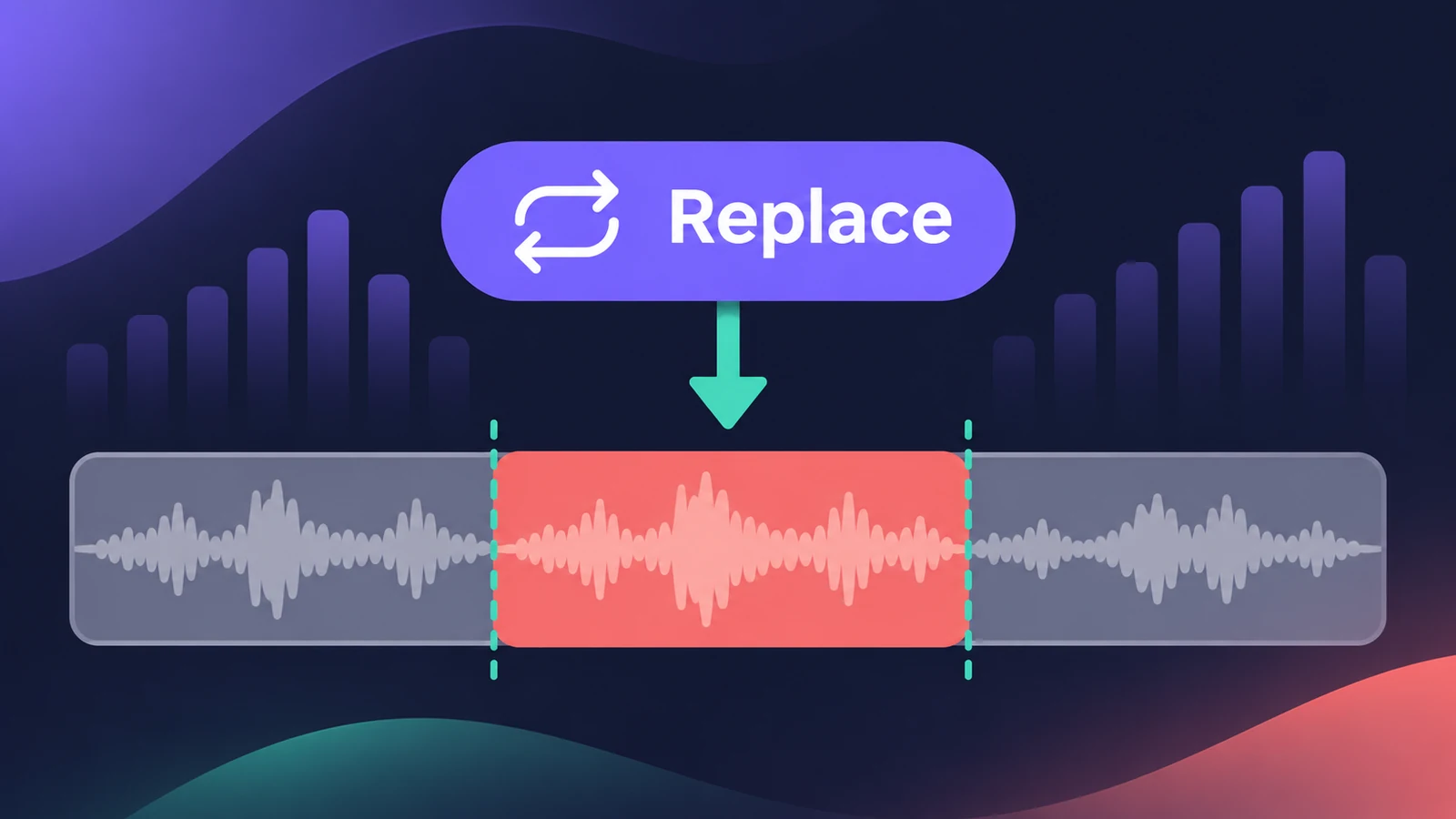
By default, recording over an existing region adds a take. Replace mode does what it says: the new recording replaces the old one, or part of it. For audio you choose exactly what gets erased; for MIDI, Replace overrides the overlapping-recording settings.
 Owen Hartley
Where to find it
Replace button in the control bar
Replace modes for audio
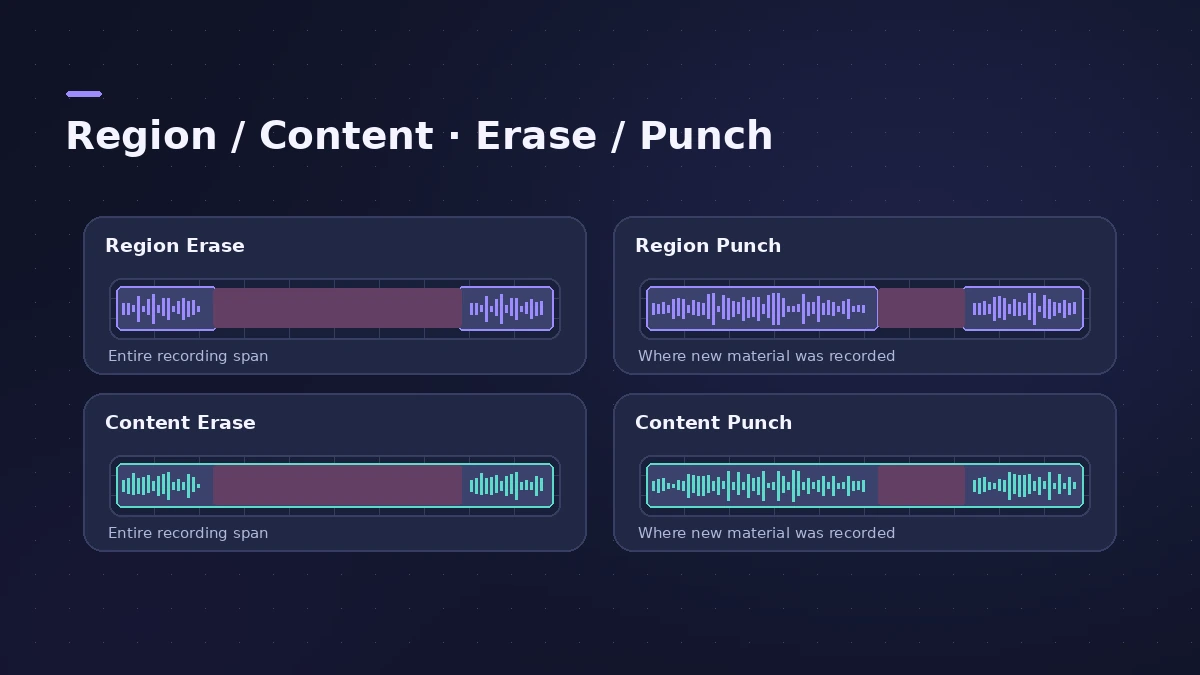
| Mode | What gets erased |
|---|---|
| Region Erase | Regions from start to end of recording, even if silent |
| Region Punch | Regions only where audio was recorded |
| Content Erase | Audio inside regions, start to end of recording |
| Content Punch | Audio inside regions, only where recorded |
Step by step
-
1
Show the Replace button
If it isn't in the control bar, add it by customising the control bar.
-
2
Choose a Replace behaviour
Long-click or right-click the Replace button and pick Region Erase, Region Punch, Content Erase or Content Punch.
-
3
Arm and position
Arm the track and move the playhead to where recording should start.
-
4
Record
Press R, play, then stop. The new recording replaces the old material.
-
5
MIDI in a cycle
For MIDI, set a cycle area and record with Replace on — the new performance replaces the part you recorded over.
Common mistakes
- Using Region Erase on a part with gaps — it erases from start to end of recording even where you didn't play.
- Leaving Replace on afterwards and wiping takes you meant to keep.
Keep the old take instead?
To keep both versions, record normally into a take folder — see cycle recording and takes — or fix one phrase with punch-in.
Sources
- Apple — Logic Pro X 10.4 Help: Replace audio recordings (old)
- Apple — Logic Pro X 10.1 Help: Replace software instrument recordings (old)
- Apple — Logic Pro 9 Help: Audio replace recording (old)
- Apple — Logic Pro for iPad Guide: Replace audio recordings
- Apple — Logic Pro for iPad Guide: Recording settings
Checked November 2026. Logic ProFiles is independent of Apple; menu names can differ slightly between Logic Pro versions.
Frequently asked questions
What's the difference between Region Erase and Region Punch?
+
Region Erase removes regions from the start to the end of recording, even if nothing is played; Region Punch erases only where audio was recorded.
Does Replace mode keep the original audio?
+
In the Content modes, the regions stay but the recorded audio inside them is replaced.
Related
- How to punch in and out in Logic ProFix part of a take in Logic Pro with punch recording: Autopunch with set punch-in and punch-out points, or Quick Punch-In on the fly during playback.
- Cycle recording and take folders in Logic ProRecord several takes of one section in Logic Pro: set a cycle area, choose Create Take Folder, record multiple passes, then preview takes and comp.
- Logic Pro recording settings explainedLogic Pro Recording settings explained: WAVE, AIFF or CAF, 16, 24 or 32-bit float, Auto Record Enable, and what happens when MIDI or audio recordings overlap.
- How to comp vocals in Logic ProComp the best parts of several takes in Logic Pro with Quick Swipe Comping: open the take folder, swipe the best phrases, compare comps and flatten.
- Recording in Logic ProHow to record in Logic Pro: vocals, electric and acoustic guitar, bass, drums and MIDI, plus cycle takes, punch-in, Flashback Capture and step input.