Editing
Region gain and normalize in Logic Pro
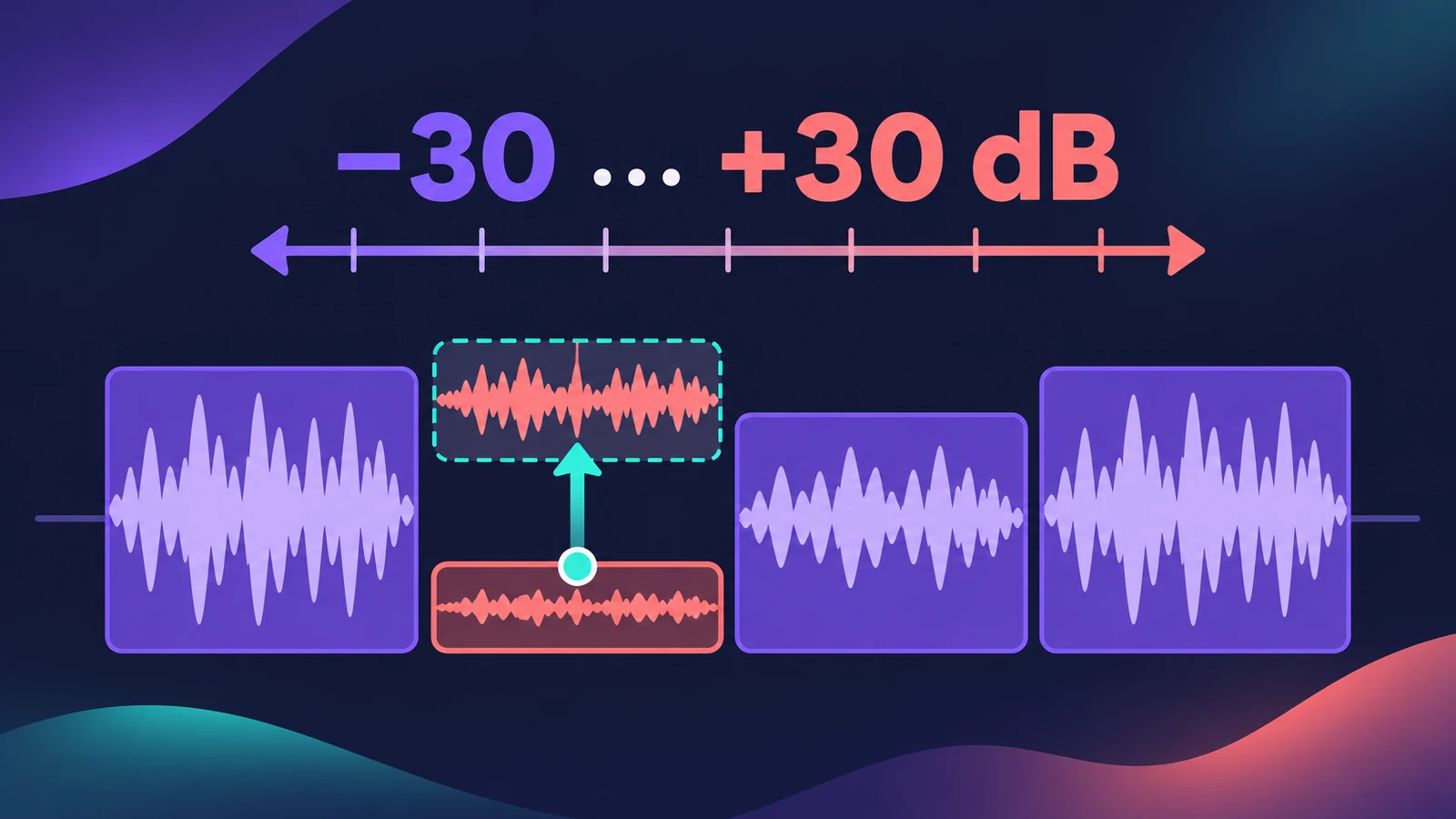
Region gain is Logic Pro's clip gain: it changes the level of an audio region before the channel strip, without touching the audio file. Gain ranges from −30 dB to +30 dB, and Normalize Region Gain can set regions to a peak or loudness target in one go.
 Owen Hartley
Where to find it
Region inspector > Gain, or Tool menu > Gain tool
Ways to change region level
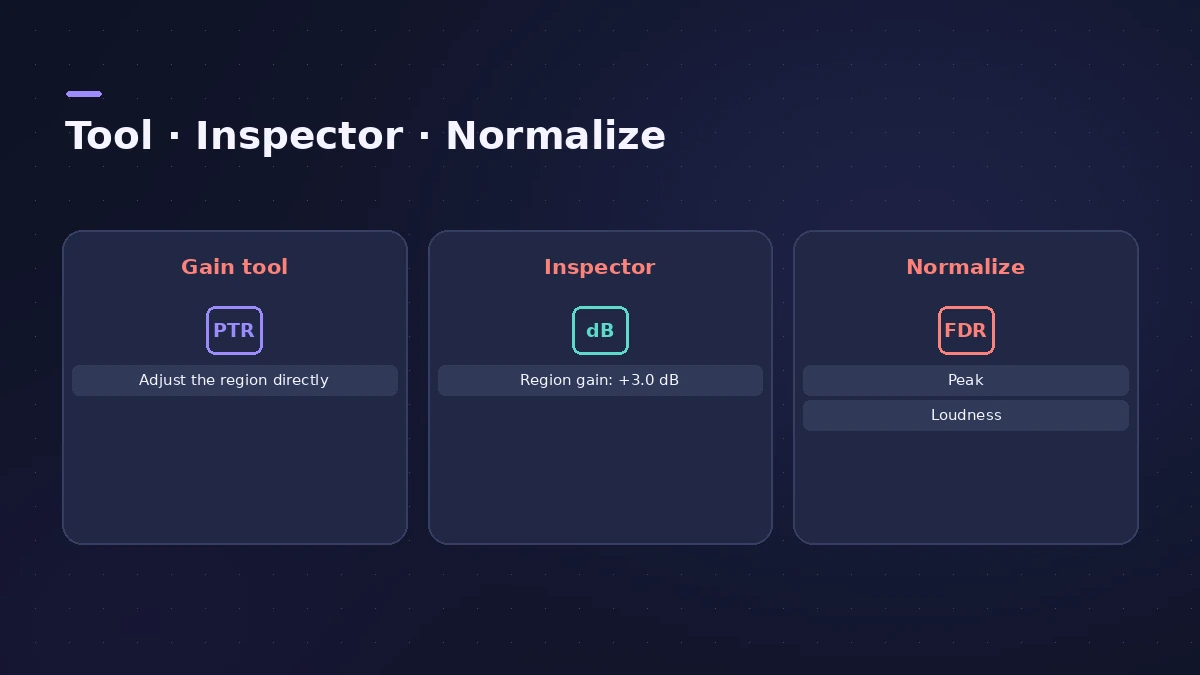
| Method | Best for |
|---|---|
| Gain tool | Quick changes by ear, including parts of regions |
| Region inspector | Exact dB values for several regions |
| Normalize Region Gain | Bringing many regions to a Peak or Loudness target |
Step by step
-
1
Select regions
Select one or more audio regions, or use the Marquee tool to select part of a region.
-
2
Use the Gain tool
Choose the Gain tool from the Tool menu and drag vertically over the region. With a Marquee selection, a new region is created with the change.
-
3
Or type a value
In the Region inspector, double-click Gain and type a number in dB; type a minus sign first to lower it.
-
4
Normalize several regions
Choose Normalize Region Gain, pick Peak or Loudness, set the Target Level and apply.
Common mistakes
- Riding the channel fader to fix one quiet phrase when region gain can fix just that region.
- Normalizing every region to the same peak and losing the natural dynamics between sections.
Related level tools
To change the file itself, use the Audio File Editor. For level in the mix, see automation and the Gain plug-in.
Sources
- Apple Support — Change the gain of audio regions in Logic Pro for Mac
- Apple — Logic Pro for iPad User Guide 3.0: Normalize audio regions in the Tracks area
- Berklee Library — Logic's Inspector: The Complete Guide
Checked November 2026. Logic ProFiles is independent of Apple; menu names can differ slightly between Logic Pro versions.
Frequently asked questions
Does Logic Pro have clip gain?
+
Yes — region gain, set with the Gain tool or in the Region inspector, from −30 dB to +30 dB.
Is Normalize Region Gain destructive?
+
Apple's iPad guide describes it as non-destructive: it changes only the region, not the original file.
Related
- Gain staging in Logic ProGain stage a Logic Pro mix: turn on pre-fader metering, set region gain and plug-in levels before the fader, keep peaks clear of clipping, leave headroom.
- Audio File Editor in Logic ProEdit audio files in Logic Pro's Audio File Editor: trim, silence, normalize, fade, reverse, remove DC offset — and back up first, as edits are destructive.
- Automation in Logic Pro — Read, Touch, Latch and WriteAutomate volume, pan, sends and plug-ins in Logic Pro: what Read, Touch, Latch, Write and Trim do, how to record automation with the fader and how to draw it.
- Gain plug-in in Logic ProUse Logic Pro's Gain plug-in to change level by dB, invert phase (polarity) on a snare-bottom mic, sum stereo to mono, swap left and right and adjust balance.
- How to mix a song in Logic Pro, step by stepA step-by-step mixing workflow for Logic Pro with stock plug-ins: organise tracks, balance levels, EQ, compress, add space with sends, automate, check loudness.
- Editing in Logic ProEdit audio and MIDI in Logic Pro: comp takes, quantize, Flex Time, Smart Tempo, change tempo or key, Stem Splitter, audio to MIDI, fades and Remove Silence.