Mix & Master
Automation in Logic Pro — Read, Touch, Latch and Write
Automation makes your mix move: a vocal that rises in the chorus, a delay that only appears on the last word, a filter sweep. Each track has an automation mode that decides whether Logic Pro plays back, records or ignores those movements. Touch is the mode you'll use most.
 Owen Hartley
Where to find it
Track header or channel strip > Automation Mode menu
Automation modes
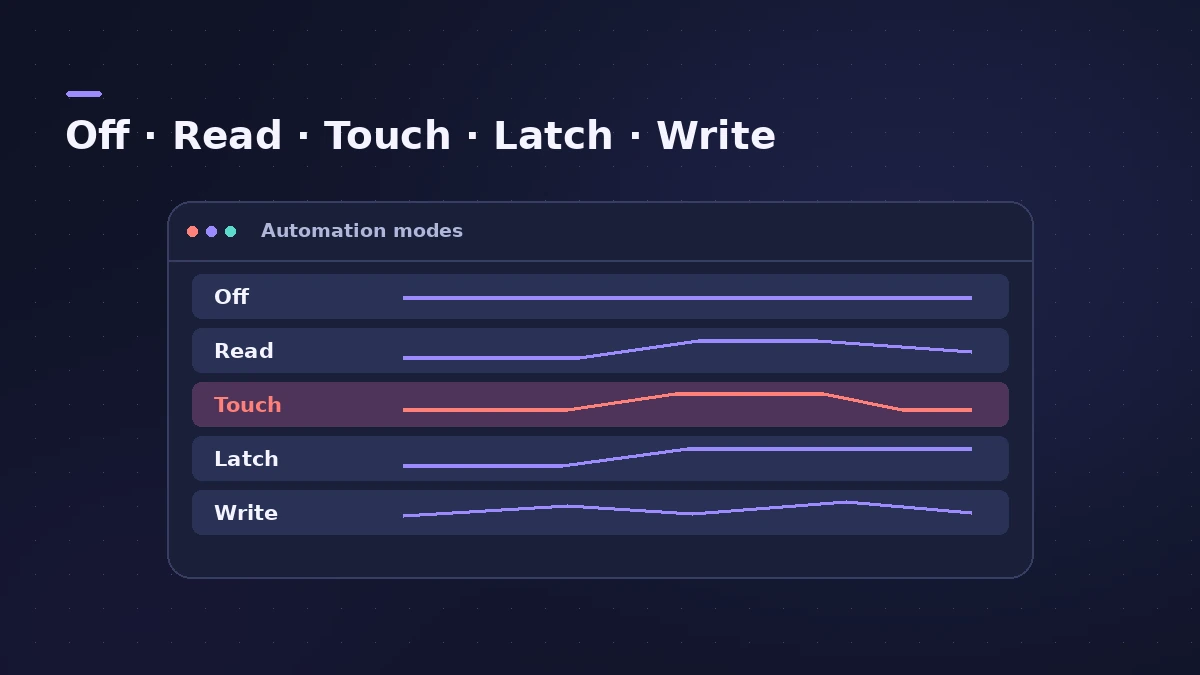
| Mode | Plays back | Records | After you let go |
|---|---|---|---|
| Off | No | No | Data kept but ignored |
| Read | Yes | No | — |
| Touch | Yes | While you hold a control | Returns to existing automation |
| Latch | Yes | From first touch | Keeps the last value |
| Write | — | Everything as playback passes | Overwrites |
The step details follow Apple's Logic Pro X 10.1 help; Apple's current control surface guide lists the same Off, Read, Touch, Latch and Write modes. Automation is the last mixing step before mastering.
Step by step
-
1
Show the automation
Show the track's automation curves in the Tracks area. The Automation Mode menu appears in the track header and on the channel strip.
-
2
Choose Touch
Set the mode to Touch. It plays existing automation like Read, but records while you hold a fader or knob.
-
3
Play and move the control
Start playback and ride the fader where the level should change. Let go and the fader returns to the existing automation.
-
4
Switch to Read to protect it
Set the track back to Read when you're happy. In Read mode, moving controls doesn't change the data.
-
5
Draw changes by hand
Click on the automation line to add points and drag them to draw ramps and fades precisely.
Common mistakes
- Using Write mode without meaning to — it overwrites existing data as playback passes.
- Forgetting a track is in Touch or Latch and recording accidental changes.
- Moving the fader on a track in Read mode and wondering why it snaps back.
Trim and Relative for whole-section changes
Trim offsets existing volume, pan and send automation by the amount you move the control, working with Touch and Latch. The mode display then shows T-Touch or T-Latch. Relative mode records changes as an extra layer (R-Touch, R-Latch, R-Write). Key commands such as Set All Tracks to Automation Touch switch the whole mix at once.
Sources
- Apple — Logic Pro X 10.1 Help: Automation modes (old)
- Apple — Control Surfaces Support Guide: Mackie Control automation buttons
Checked November 2026. Logic ProFiles is independent of Apple; menu names can differ slightly between Logic Pro versions.
Frequently asked questions
What's the difference between Touch and Latch automation?
+
Both play back like Read and record while you move a control. After you let go, Touch returns to the existing automation; Latch keeps writing the value where you left it.
When should I use Write mode?
+
Rarely. Write overwrites existing automation as playback passes. Apple's control surface guide says to use it only if you want to replace all existing data.
Related
- Modulator MIDI plug-in in Logic ProAdd movement with Logic Pro's Modulator MIDI plug-in: a synced LFO and an envelope sent to MIDI CC, pitch bend or any plug-in parameter in the strip.
- VCA faders in Logic ProUse VCA faders in Logic Pro to control many tracks' levels without an audio bus: create a VCA for selected strips, keep post-fader sends in step, automate it.
- Mixer groups in Logic ProCreate Mixer groups in Logic Pro to link volume, pan, mute, solo, sends and editing across tracks, choose what each group links, and switch groups off.
- Region gain and normalize in Logic ProChange audio region gain in Logic Pro with the Gain tool or Region inspector (−30 to +30 dB), and normalize regions to a Peak or Loudness target.
- Mackie Control and HUI controllers in Logic ProSet up a Mackie Control or HUI controller in Logic Pro: Mackie units are detected automatically; add HUI in Control Surfaces > Setup with both MIDI ports.
- Control surfaces in Logic ProUse a control surface with Logic Pro: Mackie Control units are detected automatically, HUI devices are added in Control Surfaces > Setup, EuCon uses EuControl.
- Logic Pro automation not playing backAutomation not playing back in Logic Pro? The track is probably in Off mode. Switch it to Read, check the parameter shown, and avoid Write overwriting moves.
- Delay Designer in Logic ProBuild rhythmic echoes with Delay Designer in Logic Pro: create up to 26 taps by tapping or adding them, set level, pan, pitch and filter per tap, and sync.
- How to mix a song in Logic Pro, step by stepA step-by-step mixing workflow for Logic Pro with stock plug-ins: organise tracks, balance levels, EQ, compress, add space with sends, automate, check loudness.
- How to mix vocals in Logic ProMix vocals in Logic Pro with stock plug-ins: tune with Flex Pitch, clean up with Channel EQ, control level with Compressor, add reverb on a send and automate.
- Aux sends and buses in Logic ProSet up aux sends in Logic Pro: send several tracks to one reverb on a bus, choose pre fader, post fader or post pan, and use Sends on Faders for headphones.
- Mix and master in Logic ProMix and master songs in Logic Pro with stock tools: vocal tuning, EQ, compression, sends, automation, Mastering Assistant, LUFS targets and Dolby Atmos.