Fix Problems
Logic Pro automation not playing back
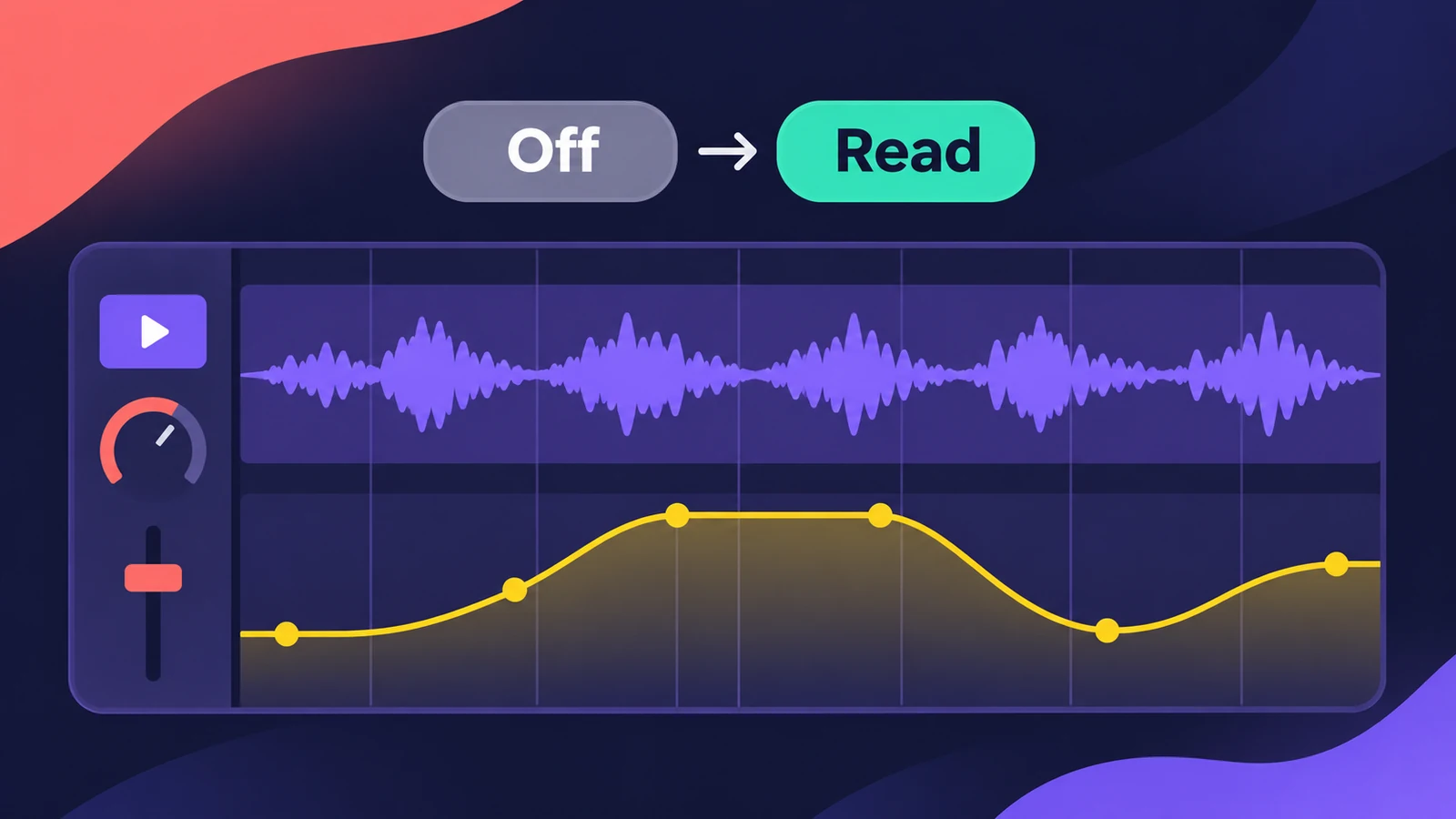
Automation that doesn't play back is almost always an automation mode problem. Off keeps the data but ignores it; Read, Touch and Latch play it back. Check the mode first, then which parameter you're looking at.
 Owen Hartley
Applies to: Logic Pro 13, 12 and 11 for Mac and Logic Pro for iPad.
Most likely causes
- Track automation mode set to Off (most common)
- Looking at a different automation parameter (common)
- Control surface switched tracks to Off (occasional)
- Write mode erased the old moves (occasional)
Automation modes at a glance
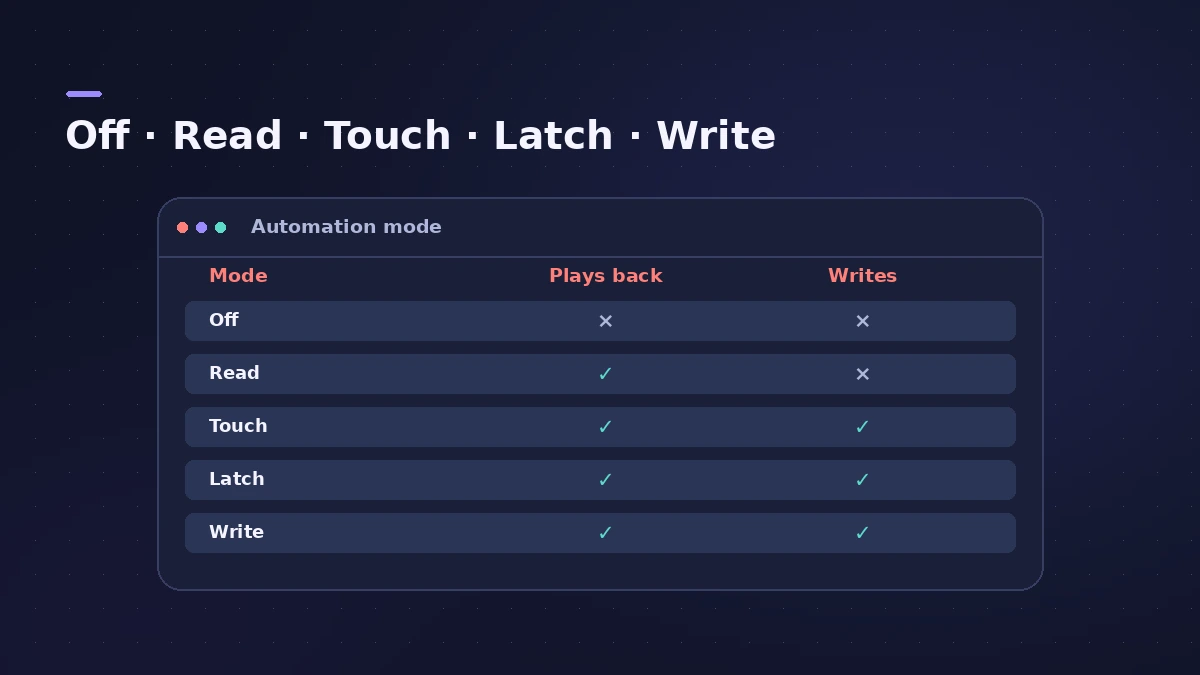
| Mode | Plays automation | Writes automation |
|---|---|---|
| Off | No | No |
| Read | Yes | No |
| Touch | Yes | While you hold a control |
| Latch | Yes | From when you move a control until you stop |
| Write | — | Overwrites as it plays |
For how to draw and record automation, see the automation guide.
Fixes, in order
1. Set the track to Read
Choose Read from the track's Automation Mode menu. Off disables automation without deleting it.
2. Set all tracks at once
Logic Pro has key commands such as Set All Tracks to Automation Read — assign one in the Key Commands window.
3. Check the parameter menu
Make sure the automation lane shows the parameter you automated, such as Volume or a plug-in setting.
4. Check your control surface
On Mackie-style controllers, Option + READ/OFF sets all tracks at once; press it twice to be sure every track is Off — or back in Read.
5. Prefer Touch or Latch for new moves
Touch plays back like Read until you move a control; Write erases existing automation as the playhead passes over it.
Sources
- Apple — Logic Pro 9 User Manual: Setting an automation mode (old)
- Apple — Logic Pro X User Manual: Choose automation modes (old)
- Apple — Logic Pro X 10.1 Help: Automation modes (old)
- Apple — Logic Pro for iPad User Guide: Write automation in real time (modes)
- Apple — Control Surfaces Support Guide: Mackie Control automation buttons
Checked November 2026. Logic ProFiles is independent of Apple; menu names can differ slightly between Logic Pro versions.
Frequently asked questions
Why doesn't my automation play in Logic Pro?
+
The track is probably in Off mode. Switch it to Read (or Touch or Latch).
Does Off delete automation?
+
No. Off disables the automation without deleting it.
Which mode should I use to record new automation?
+
Touch or Latch. They play existing automation and only write when you move a control.
Related
- Mackie Control and HUI controllers in Logic ProSet up a Mackie Control or HUI controller in Logic Pro: Mackie units are detected automatically; add HUI in Control Surfaces > Setup with both MIDI ports.
- Automation in Logic Pro — Read, Touch, Latch and WriteAutomate volume, pan, sends and plug-ins in Logic Pro: what Read, Touch, Latch, Write and Trim do, how to record automation with the fader and how to draw it.
- No sound in Logic Pro — 10 fixes, quickest firstNo sound in Logic Pro? Check the output device, Core Audio, mute and solo, the metronome and plug-ins, then test built-in audio to rule out the interface.
- Remix FX in Logic ProUse Remix FX in Logic Pro for DJ-style filter, gater, repeater, reverse, scratch and tape stop moves, control it with Logic Remote and record it as automation.
- Fix Logic Pro problems — errors, crashes and no soundStep-by-step fixes for Logic Pro on Mac: system overload, disk too slow, no sound, crashes, latency, missing plug-ins, MIDI keyboards and recording problems.