Gear
Mackie Control and HUI controllers in Logic Pro
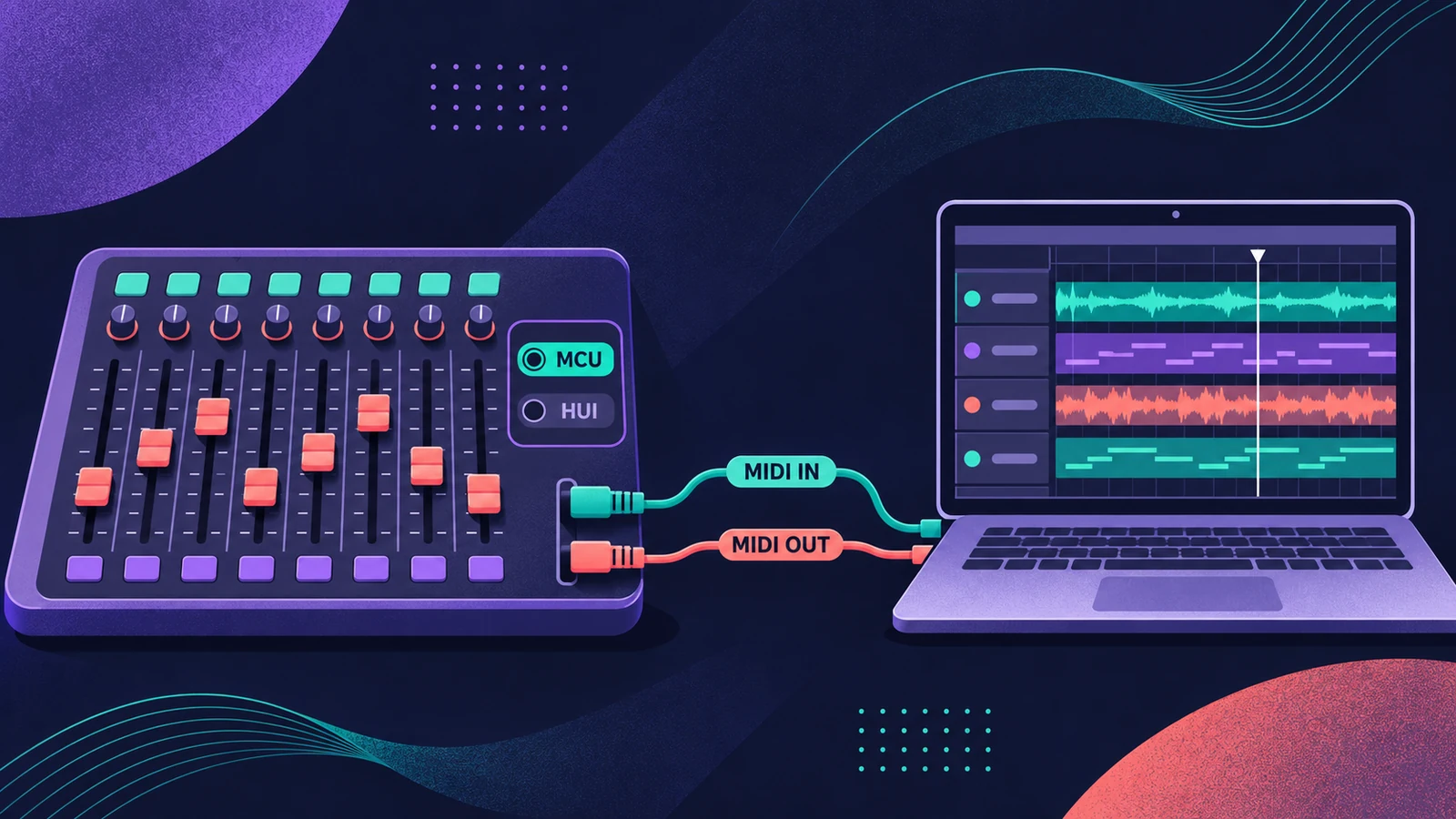
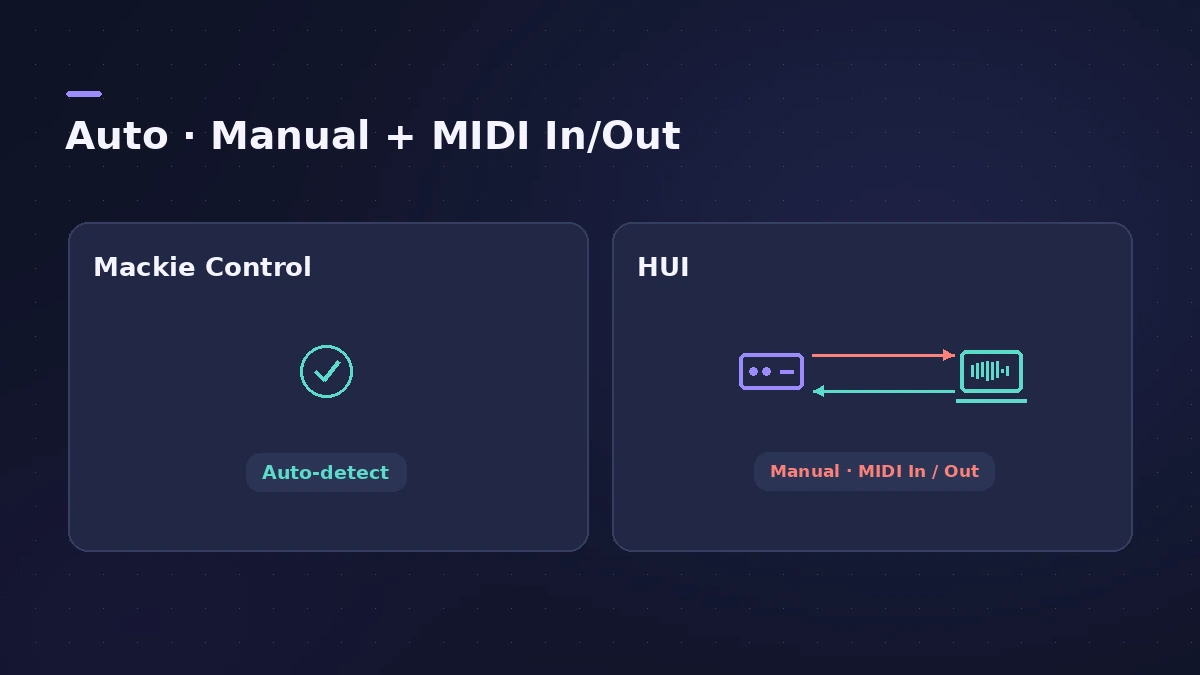
Most motorised fader controllers speak one of two protocols. Mackie Control — which Apple's guide also uses for the Logic Control, the XT extender and devices in Mackie Control emulation mode — is detected automatically. HUI must be added by hand.
 Owen Hartley
Where to find it
Logic Pro > Control Surfaces > Setup
Auto-detect vs manual
The automation buttons on a Mackie Control switch Logic Pro's automation modes — see the automation guide, and if automation stops playing, automation not playing.
Step by step
-
1
Choose the protocol
If your controller offers Mackie Control mode, use it — Logic Pro detects it automatically. Otherwise set it to HUI.
-
2
Mackie Control — open Logic Pro
With the unit powered and connected, open Logic Pro. It's detected and works with default settings.
-
3
HUI — add the device
Choose Logic Pro > Control Surfaces > Setup, then New > Install, select HUI and click Add.
-
4
HUI — set MIDI In and Out
Assign the MIDI In and Out ports. The device must be connected in both directions.
-
5
Bank to the tracks you want
On a Mackie Control, use the fader bank buttons to choose which channel strips the faders control.
Common mistakes
- Thinking Option + READ/OFF set every track to Off: The LEDs dim, but channels could still be in other modes. Press it twice while holding Option to be sure.
- Adding several HUI units for one device: Add extra HUI devices only if your unit emulates more than one HUI.
Mackie Control extenders
You can extend a Mackie Control with expansion units such as the XT and C4 for more channels and controls.
Sources
- Apple — Control Surfaces Support Guide: Overview of the Mackie Control
- Apple — Control Surfaces Support Guide: Mackie Control automation buttons
- Apple — Control Surfaces Support Guide: Set up your Mackie HUI
- Apple — Control Surfaces Support Guide for Logic Pro (PDF)
Checked November 2026. Logic ProFiles is independent of Apple; menu names can differ slightly between Logic Pro versions.
Frequently asked questions
Does Logic Pro support HUI?
+
Yes, but HUI devices aren't scanned automatically — add them in Control Surfaces > Setup.
Mackie Control or HUI mode — which is better in Logic Pro?
+
If your controller offers Mackie Control mode, it's detected automatically and is what Apple's Mackie documentation covers.
Related
- Control surfaces in Logic ProUse a control surface with Logic Pro: Mackie Control units are detected automatically, HUI devices are added in Control Surfaces > Setup, EuCon uses EuControl.
- Logic Pro automation not playing backAutomation not playing back in Logic Pro? The track is probably in Off mode. Switch it to Read, check the parameter shown, and avoid Write overwriting moves.
- Automation in Logic Pro — Read, Touch, Latch and WriteAutomate volume, pan, sends and plug-ins in Logic Pro: what Read, Touch, Latch, Write and Trim do, how to record automation with the fader and how to draw it.
- Gear for Logic ProGear for Logic Pro in 2026: which Mac or MacBook to buy, how much RAM you need, moving the Sound Library to an SSD, control surfaces, Logic Remote and Sidecar.