Mix & Master
Aux sends and buses in Logic Pro
A send splits a channel's signal: the main signal goes on to the output, and a copy travels down a bus to an aux channel strip with an effect on it. That lets several tracks share one reverb, keeps the dry and wet sound separate, and saves CPU. Logic Pro creates the aux for you when you pick an unused bus.
 Owen Hartley

Where to find it
Channel strip > Send slot > Bus
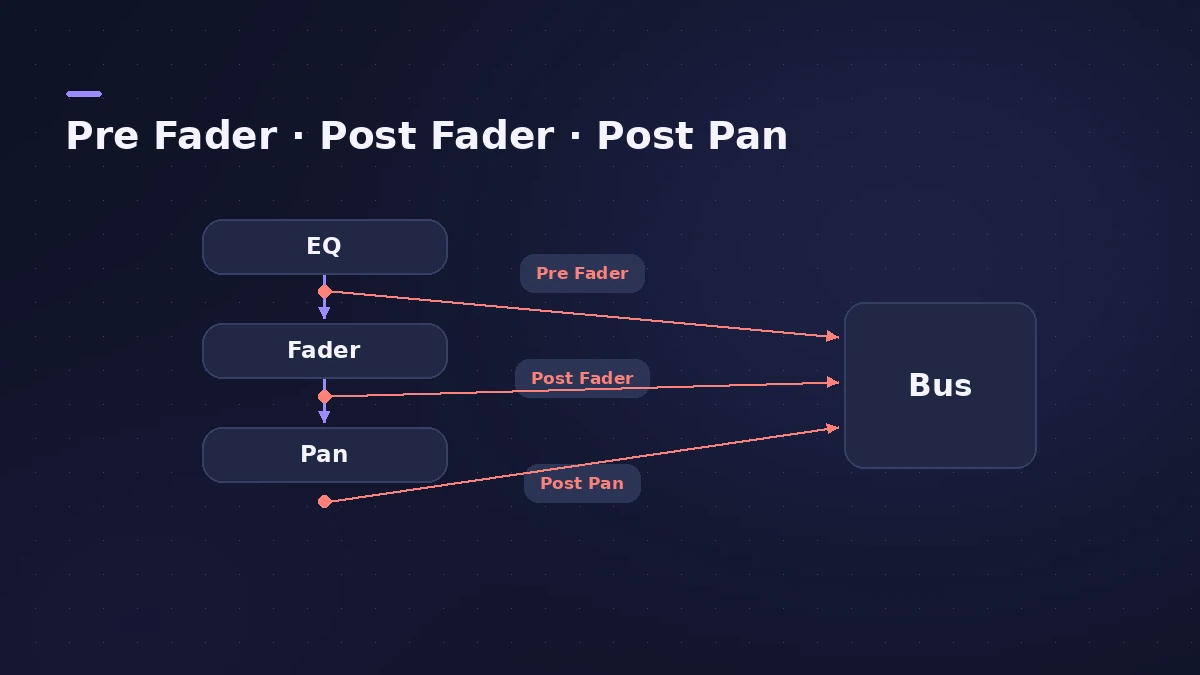
Send positions compared
| Position | Follows fader | Follows pan | Typical use |
|---|---|---|---|
| Post Pan | Yes | Yes | Stereo effects that should follow placement |
| Post Fader | Yes | No | Reverb and delay sends |
| Pre Fader | No | No | Headphone and monitor mixes |
To group tracks on a shared bus without sends, use a Summing Stack.
Step by step
-
1
Open the Mixer
Choose Window > View Mixer or press Command-2.
-
2
Create a send
Click a Send slot on the vocal or instrument channel strip, choose Bus and pick a bus number. If the bus isn't used yet, an aux channel strip appears.
-
3
Put the effect on the aux
Insert the reverb or delay in the aux channel strip's Audio Effect slot. Set it fully wet — the dry sound already comes from the original track.
-
4
Set the send level
Drag the send knob to decide how much of the track goes to the effect. Option-click the knob to reset it to 0 dB.
-
5
Add more tracks
Send other tracks to the same bus. One reverb now serves them all.
Common mistakes
- Leaving the reverb's own dry signal up on the aux, which doubles the dry sound.
- Using pre fader sends for effects and wondering why the reverb stays when you pull the fader down.
Pre fader, post fader or post pan?
Click a used Send slot to choose its position. Post Pan follows both the channel's fader and pan. Post Fader follows the fader but not the pan. Pre Fader ignores both, which suits headphone mixes. Apple's older help calls post fader the most useful setting for effects and the default. You can create up to eight sends per channel strip.
Sources
- Apple — Logic Pro X 10.1 Help: Route audio via send effects (old)
- Apple — MainStage User Guide: Route audio via send effects
- Apple Support — Control sends on faders in Logic Pro for Mac
Checked November 2026. Logic ProFiles is independent of Apple; menu names can differ slightly between Logic Pro versions.
Frequently asked questions
Why use a send instead of an insert for reverb?
+
Apple lists efficiency as the main advantage: one effect serves many channels. You can also bypass the aux to hear every track dry at once.
What is Sends on Faders?
+
A Mixer mode where channel faders control the level sent to a chosen bus, and send pan replaces channel pan — handy for building a headphone mix.
Related
- Channel strip types in Logic ProEvery channel strip type in the Logic Pro Mixer explained: audio, software instrument, aux, output, master, VCA and MIDI, and what each one is for.
- Headphone cue mix in Logic ProGive a singer their own headphone mix in Logic Pro: pre-fader sends to an aux, the aux output to spare outputs, Copy Fader to Send and Sends on Faders.
- VCA faders in Logic ProUse VCA faders in Logic Pro to control many tracks' levels without an audio bus: create a VCA for selected strips, keep post-fader sends in step, automate it.
- Mixer groups in Logic ProCreate Mixer groups in Logic Pro to link volume, pan, mute, solo, sends and editing across tracks, choose what each group links, and switch groups off.
- The Logic Pro Mixer explainedFind your way around the Logic Pro Mixer: open it with X, switch Single, Tracks and All views, filter strip types, and learn what aux, output and VCA do.
- I/O utility in Logic Pro — use hardware effectsUse outboard gear in Logic Pro with the I/O utility: wire the interface to the effect, insert I/O on an aux, choose outputs and inputs, then Ping latency.
- Logic Pro signal flow explainedHow audio flows through a Logic Pro channel strip: insert effects in series, sends over buses to aux channels, pre-fader, post-fader and post-pan sends.
- ChromaVerb in Logic ProSet up ChromaVerb in Logic Pro: choose one of 14 room types, shape decay with the Damping EQ, set size, density and predelay, use Freeze and the output EQ.
- Which Logic Pro reverb should you use?Compare Logic Pro's reverbs — ChromaVerb, Space Designer, Quantec Room Simulator, SilverVerb and EnVerb — and see which one fits vocals, drums, pads or low CPU.
- Parallel compression in Logic Pro — two easy methodsDo parallel compression in Logic Pro two ways: with the Compressor's Mix knob on the track, or by sending drums to an aux with a heavily compressed Compressor.
- Track Stacks in Logic Pro — folder vs summing stacksGroup tracks in Logic Pro with Track Stacks: when to use a Folder Stack or a Summing Stack, how to create, nest and open them, and why summing stacks are buses.
- How to mix vocals in Logic ProMix vocals in Logic Pro with stock plug-ins: tune with Flex Pitch, clean up with Channel EQ, control level with Compressor, add reverb on a send and automate.
- Mix and master in Logic ProMix and master songs in Logic Pro with stock tools: vocal tuning, EQ, compression, sends, automation, Mastering Assistant, LUFS targets and Dolby Atmos.