Mixing
The Logic Pro Mixer explained
The Mixer shows every channel strip in the project: tracks, auxes, outputs, VCAs and the master. Three views and a row of filter buttons let you show only what you need — useful once a project has dozens of tracks.
 Owen Hartley
Where to find it
View > Show Mixer (X)
Channel strip types
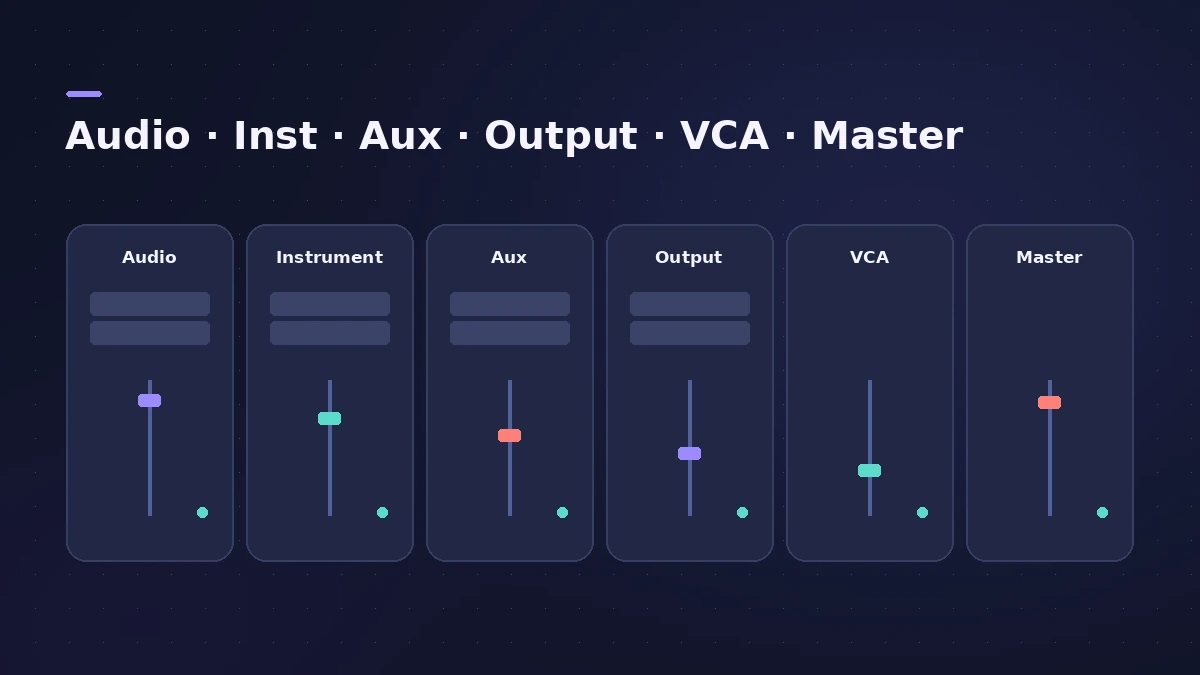
| Strip | What it's for |
|---|---|
| Audio / Instrument | One per track |
| Aux | Send returns, submixes and other routing |
| Output | Overall level and balance of everything routed to an output pair |
| VCA | Controls the volume of tracks assigned to the VCA group |
| Master | Global volume for all outputs, keeping their balance |
Mixer key commands
| Command | Key |
|---|---|
| Cycle Mixer views | Shift-X |
| Select audio strips | Shift-A |
| Select instrument strips | Shift-S |
| Select aux strips | Shift-F |
| Select output strips | Shift-O |
Step by step
-
1
Open the Mixer
Press X, click the Mixer button in the control bar, or choose Window > Open Mixer (Command-2) for a separate window.
-
2
Pick a view
Single shows the selected track's signal path, Tracks shows strips for tracks in the Tracks area, and All shows every strip. Shift-X cycles through them.
-
3
Filter by type
Click the filter buttons to show or hide audio, instrument, aux, output or other strips; Option-click one to show only that type.
-
4
Work on several strips at once
Select several channel strips and change a setting on one — the change applies to all selected strips.
Common mistakes
- Looking for a channel in a 60-track mix instead of filtering by type.
- Squeezing the Mixer under the tracks on a small screen — Command-2 opens it as its own window.
Next steps in the Mixer
Route effects with aux sends and buses, control sections with groups and VCA faders, and see Stereo Out vs master.
Sources
- Apple — Logic Pro X 10.1 Help: Open the Mixer (old)
- Apple — Logic Pro X 10.1 Help: Mixer overview (views and filters) (old)
- Apple — Logic Pro X 10.4.5 Help: Channel strip types in the Mixer (old)
- Apple — Logic Pro X 10.1 Help: Channel strip types (filters, outputs) (old)
- Apple — Logic Pro User Guide: Key commands for Mixer
- 9to5Mac — Logic Pro X: the Mixer and channel strips
- Apple — Logic Pro 8 User Manual: Adjusting multiple channel strips and groups (old)
Checked November 2026. Logic ProFiles is independent of Apple; menu names can differ slightly between Logic Pro versions.
Frequently asked questions
How do I open the Mixer in Logic Pro?
+
Press X, click the Mixer button in the control bar, or choose View > Show Mixer. Command-2 opens it as a separate window.
What are bus and input channel strips?
+
Apple says they're kept for compatibility with older projects; routing is now done with aux strips and inputs with audio strips.
Related
- How to mix a song in Logic Pro, step by stepA step-by-step mixing workflow for Logic Pro with stock plug-ins: organise tracks, balance levels, EQ, compress, add space with sends, automate, check loudness.
- Aux sends and buses in Logic ProSet up aux sends in Logic Pro: send several tracks to one reverb on a bus, choose pre fader, post fader or post pan, and use Sends on Faders for headphones.
- Mixer groups in Logic ProCreate Mixer groups in Logic Pro to link volume, pan, mute, solo, sends and editing across tracks, choose what each group links, and switch groups off.
- Stereo Out vs Master channel strip in Logic ProThe difference between Logic Pro's Stereo Out and Master channel strips: where mastering plug-ins go, which fader affects the bounce, and how Dim works.
- Mix and master in Logic ProMix and master songs in Logic Pro with stock tools: vocal tuning, EQ, compression, sends, automation, Mastering Assistant, LUFS targets and Dolby Atmos.