Plug-ins
DeEsser 2 in Logic Pro
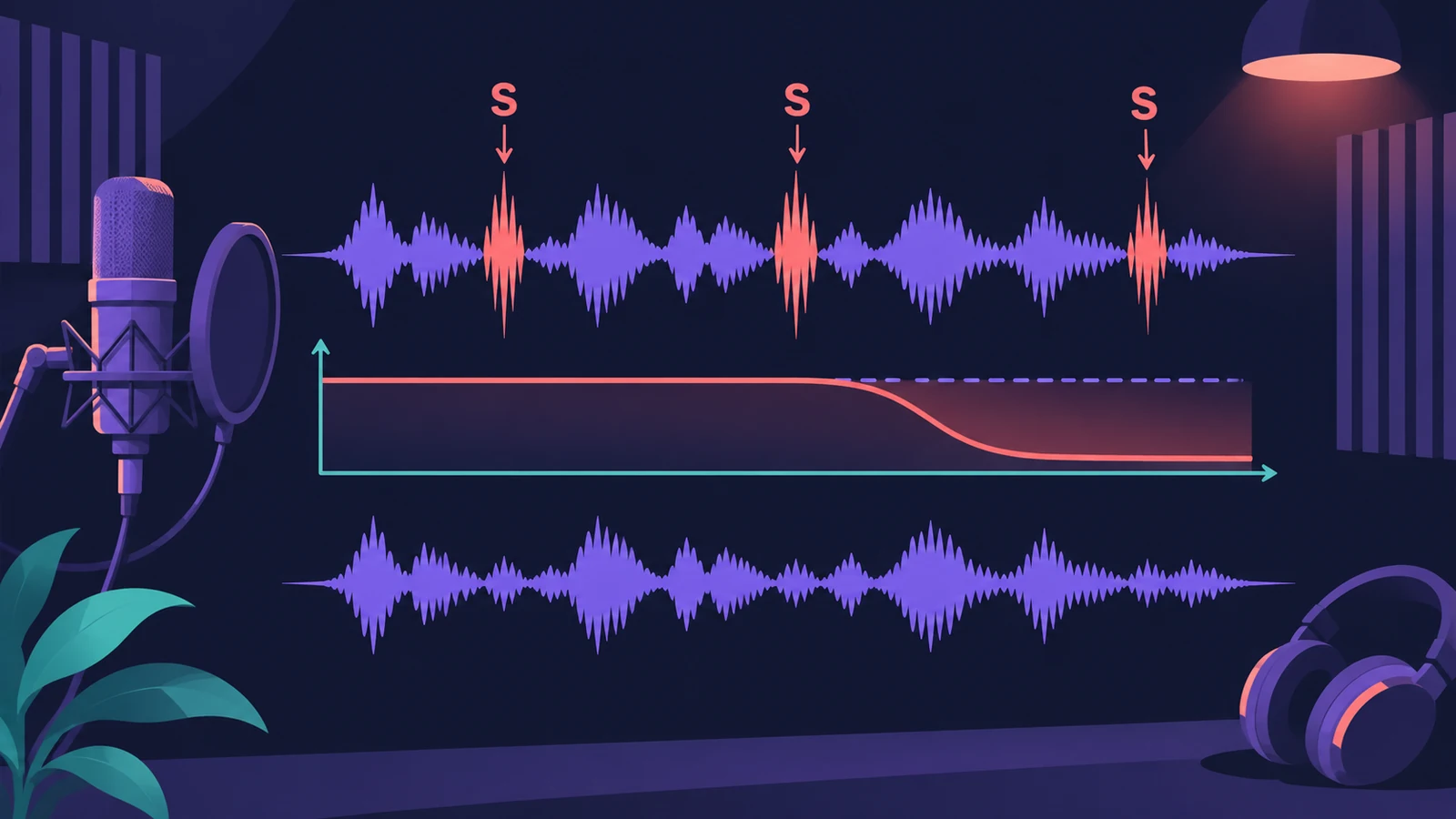
DeEsser 2 is a fast frequency-specific compressor for sibilance. It turns down a chosen band of high frequencies only when it gets too loud, so the vocal doesn't sound darker when there's no "s" to tame.
 Owen Hartley
Where to find it
Audio Effect slot > Dynamics > DeEsser 2
DeEsser 2 controls
| Control | What it does |
|---|---|
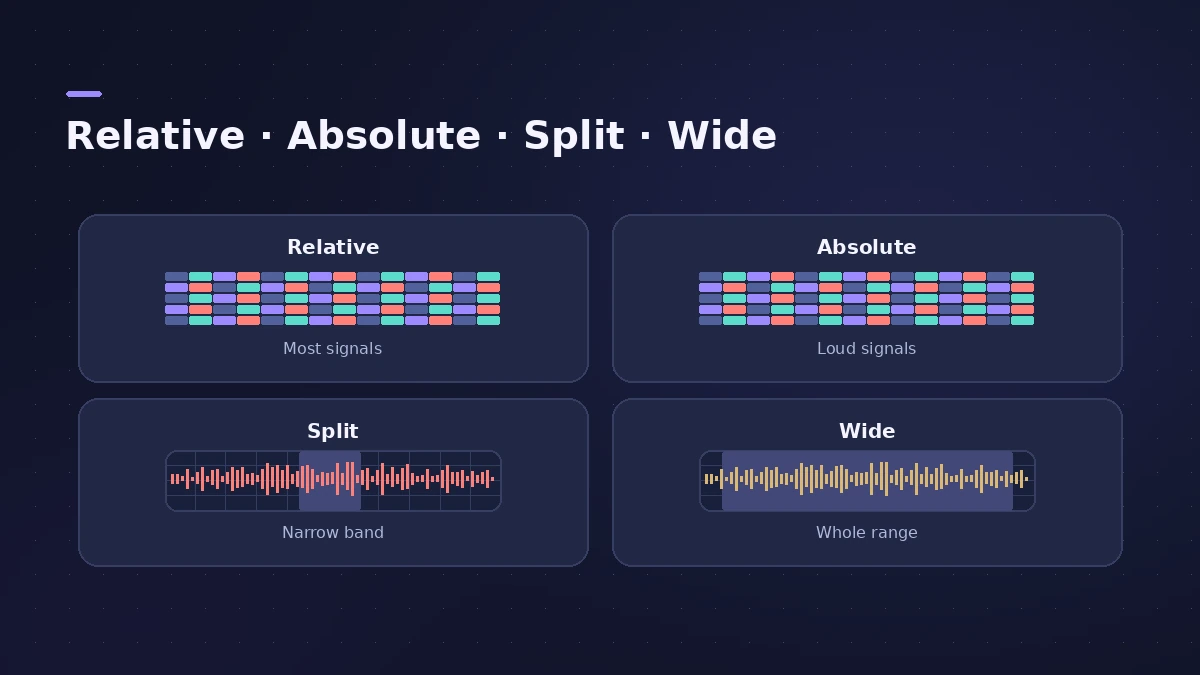
| Mode | Relative (most signals) or Absolute (high-level signals) |
| Frequency | Centre or maximum frequency of the detection filter |
| Range | Split (the set band only) or Wide (whole range) |
| Filter | Shelving for a broad range, peak for a narrow one |
| Filter Solo | Hear the filtered band on its own |
| Threshold | Level where reduction starts |
| Max Reduction | Most reduction allowed |
| Detection / Reduction meters | Input of the band and how much is reduced |
Step by step
-
1
Insert DeEsser 2 after Channel EQ
Add Channel EQ, then DeEsser 2 after it, on the vocal. Watch the Channel EQ Analyzer to spot the sibilant peaks.
-
2
Start from a preset
Choose a factory preset such as Male Vocal - Wide Band as a starting point.
-
3
Choose a mode
Relative works for most signals, high or low level; Absolute is the classic de-esser for high-level signals.
-
4
Set frequency and range
Set Frequency on the sibilance, use Filter Solo to hear it, and choose Split for a narrow band or Wide for a broader one.
-
5
Set Threshold and Max Reduction
Lower Threshold until reduction starts on the "s" sounds, then limit the amount with Max Reduction.
Common mistakes
- Too much Max Reduction, so "s" turns into a lisp.
- Setting Frequency by guesswork instead of using the Analyzer and Filter Solo.
- Using Absolute mode on a quiet vocal without lowering the Threshold a lot.
Process regions only
You can also apply DeEsser 2 to selected audio regions with selection-based processing. For the whole vocal chain, see mixing vocals.
Sources
- Apple Support — Reduce sibilance in Logic Pro for Mac
- Apple — Logic Pro for iPad User Guide: DeEsser 2
- Apple — Logic Pro for iPad User Guide: DeEsser 2 (modes)
- Apple — Logic Pro X 10.4.5 Help: DeEsser 2 (old)
- 9to5Mac — How to use DeEsser 2
Checked November 2026. Logic ProFiles is independent of Apple; menu names can differ slightly between Logic Pro versions.
Frequently asked questions
Relative or Absolute — which DeEsser 2 mode should I use?
+
Relative for most vocals, including quieter ones; Absolute for loud, high-level signals and classic de-essing.
What's the difference between Split and Wide?
+
Split affects only the set frequency band; Wide affects the whole frequency range.
How do I find the sibilant frequency?
+
Insert Channel EQ before DeEsser 2 and watch its Analyzer, or use DeEsser 2's Filter Solo.
Related
- How to mix vocals in Logic ProMix vocals in Logic Pro with stock plug-ins: tune with Flex Pitch, clean up with Channel EQ, control level with Compressor, add reverb on a send and automate.
- How to use Channel EQ in Logic ProLearn Logic Pro's Channel EQ: the eight bands, the high-pass and shelving filters, the Analyzer, Q-Couple and HQ mode, plus a simple workflow for cleaner mixes.
- How to record vocals in Logic ProRecord vocals in Logic Pro: set up the mic and pop filter, arm an audio track, set the level, monitor without delay and record several takes to comp later.
- Logic Pro Compressor and its circuit typesLogic Pro's Compressor has seven circuit types — Platinum Digital, Studio and Classic VCA, Studio FET and Vintage VCA, FET and Opto. Pick one and set it up.