Logic Pro for iPad
Logic Pro for iPad for beginners — your first project
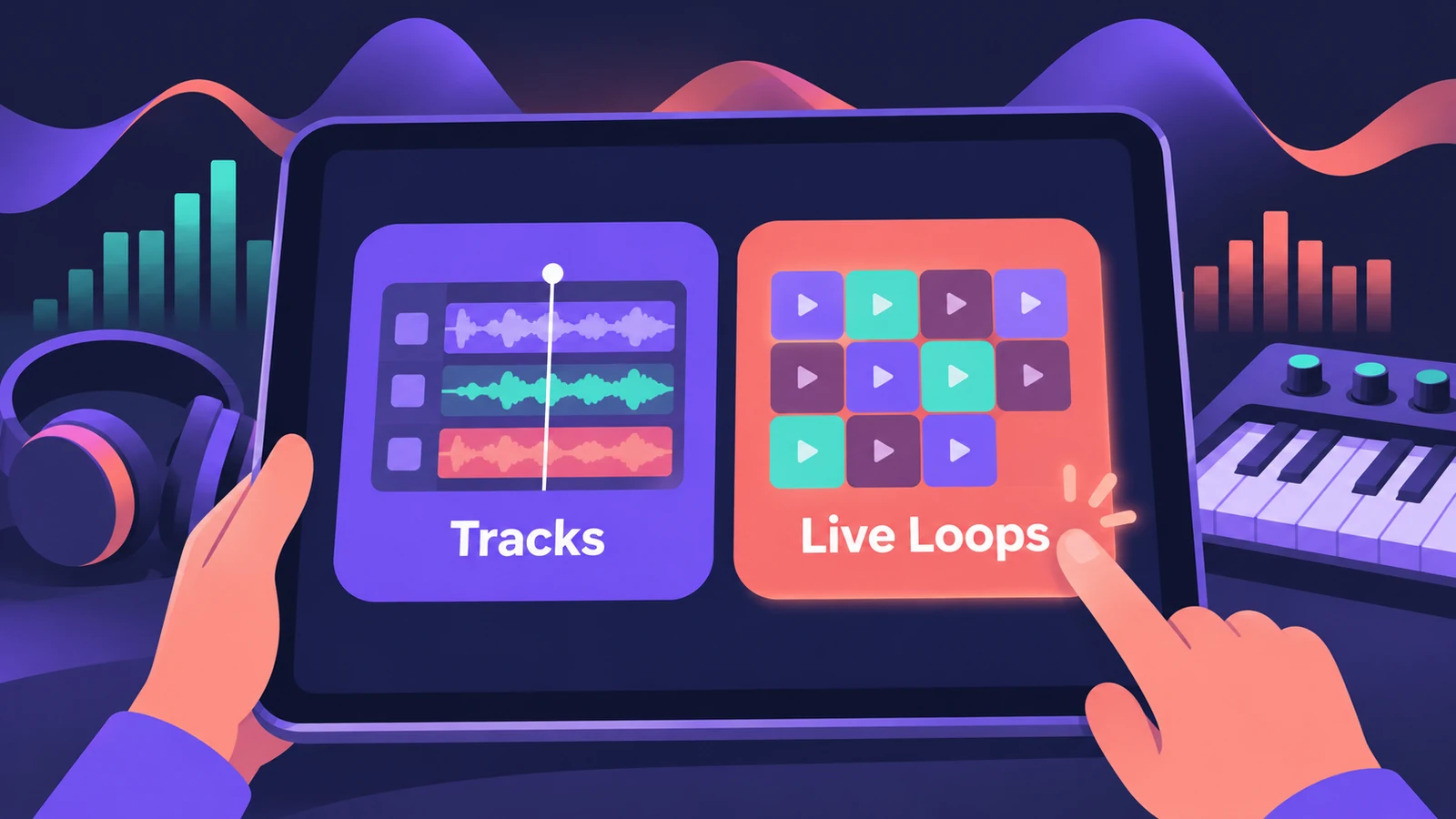
Logic Pro for iPad was designed from the ground up for touch. The quickest way in is to start a project from the New Project Chooser, add a few Apple Loops from the Browser, then play an instrument on the screen. Built-in Lessons walk you through the main features step by step.
 Owen Hartley
Where to find it
New Project Chooser
Your first ten minutes
Step by step
-
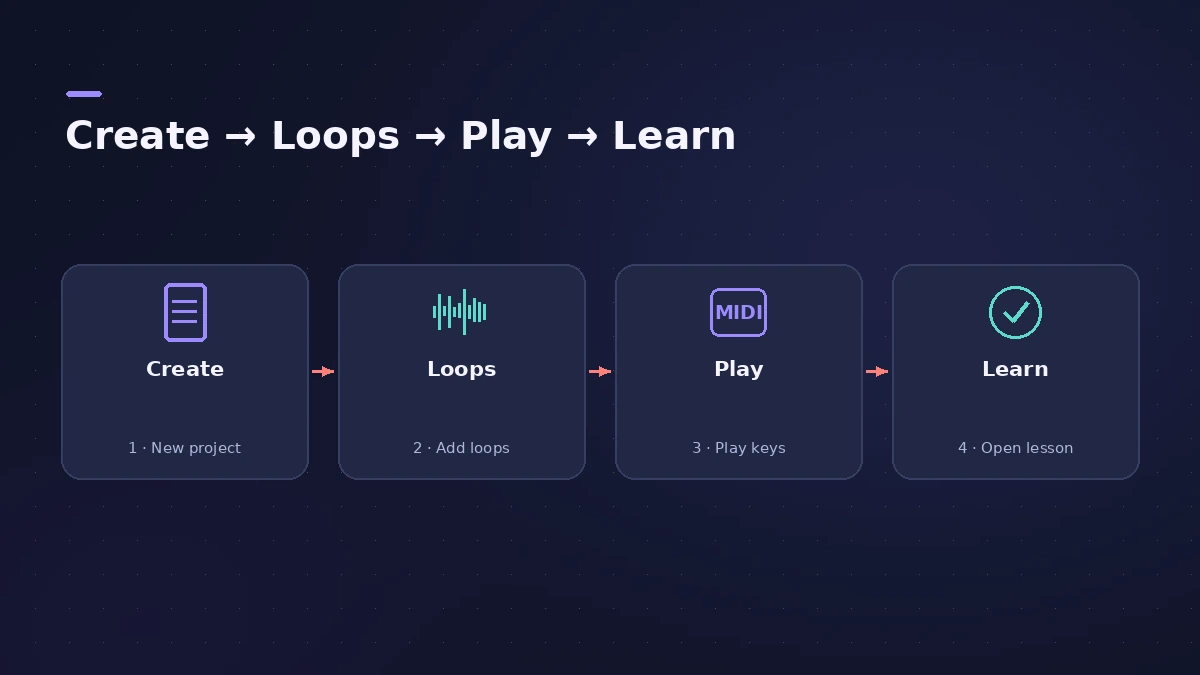
1
Open the app and subscribe
Open Logic Pro for iPad. The first time, you can start a free trial or subscribe.
-
2
Create a project
In the New Project Chooser, tap the project type you want — Tracks or Live Loops.
-
3
Add loops from the Browser
Open the Browser, which holds patches, loops and presets, and drag a few Apple Loops into the project.
-
4
Play an instrument
Add a software instrument track and play it with Multi-Touch, or connect a MIDI keyboard.
-
5
Take a Lesson
Tap the Help button and open a Lesson. Some Lessons ask you to install a sound pack first and offer a Get button.
Common mistakes
- Forgetting GarageBand songs: You can open songs made in GarageBand for iPhone or iPad directly in Logic Pro for iPad.
Next steps
Connect an audio interface or MIDI keyboard, try Session Players, and when the song is done, export or share it.
Sources
- Apple Support — About Logic Pro for iPad
- Apple — Logic Pro User Guide for iPad: What is Logic Pro?
- Apple — Logic Pro User Guide for iPad: How to get help (Lessons)
- Apple Support — If Logic Pro for iPad isn't working
- Apple — Logic Pro User Guide for iPad: Open GarageBand songs
Checked November 2026. Logic ProFiles is independent of Apple; menu names can differ slightly between Logic Pro versions.
Frequently asked questions
Is Logic Pro for iPad hard to learn?
+
It includes guided Lessons for its main features, and you can open GarageBand songs you already have.
Can I use an Apple Pencil?
+
Yes. Apple says you can make precision edits and detailed track automation with Apple Pencil.
Related
- Live Loops in Logic Pro for iPadUse Live Loops in Logic Pro for iPad: open a starter grid, trigger cells and scenes, set Quantize Start, record into cells and capture a performance.
- How to record vocals in Logic Pro for iPadRecord vocals in Logic Pro for iPad with the built-in mic, a USB mic or an interface: pick the input, set Input Gain, use headphones and Low Latency mode.
- Sound Library in Logic Pro for iPadManage sounds in Logic Pro for iPad: open the Sound Library, download or update sound packs, delete packs to free storage, and get packs old songs need.
- Mixing in Logic Pro for iPadMix in Logic Pro for iPad: the Fader for quick track controls, the Plug-ins area with tiles and Details view, Sends and Output views, and the full Mixer.
- Which iPads run Logic Pro?Logic Pro for iPad needs an A12 Bionic or later: iPad Pro, iPad Air 3rd gen+, iPad mini 5th gen+, iPad 8th gen+. Session Players and Stem Splitter need M1.
- Session Players in Logic Pro for iPadAdd Session Players in Logic Pro for iPad — Drummer, Bass Player and Keyboard Player — make them follow your chords and edit them. Needs an M1 iPad.
- Export and share songs from Logic Pro for iPadExport a song from Logic Pro for iPad as WAV, AIFF or M4A, export stems as a zip or MIDI files, and share to Files, AirDrop, other apps or Voice Memos.
- Logic Pro for iPadLogic Pro for iPad guides: subscription, compatible iPads, Mac round-trips, AUv3 plug-ins, audio interfaces, Stem Splitter, exporting and fixes.