Logic Pro for iPad
Sound Library in Logic Pro for iPad
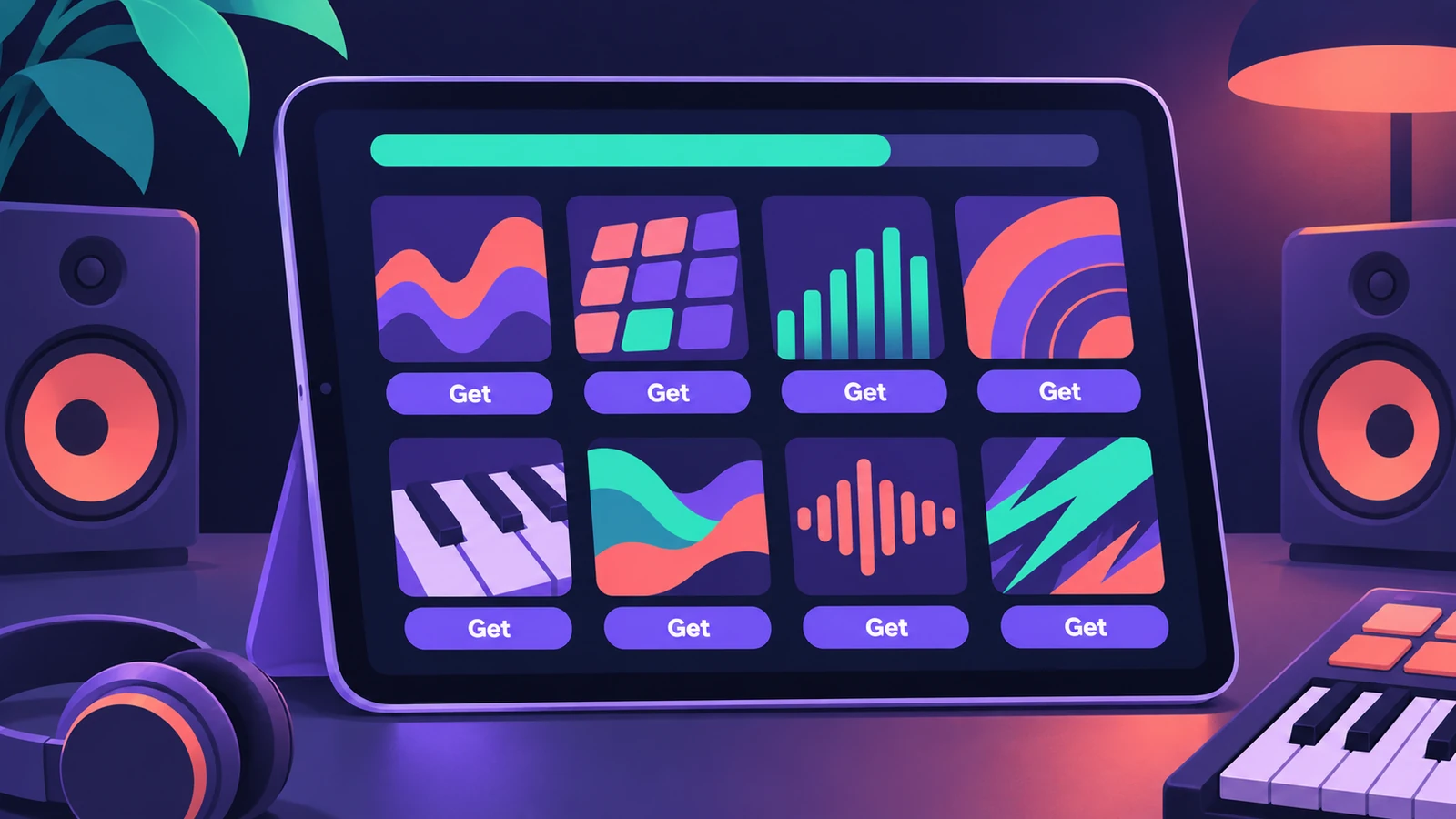
Sound packs hold Apple Loops, patches, drum kits and presets. Logic Pro for iPad asks you to download essential sounds when you install it; the rest you add — or delete to save space — in the Sound Library.
 Owen Hartley
Where to find it
Browser > Get More Sounds
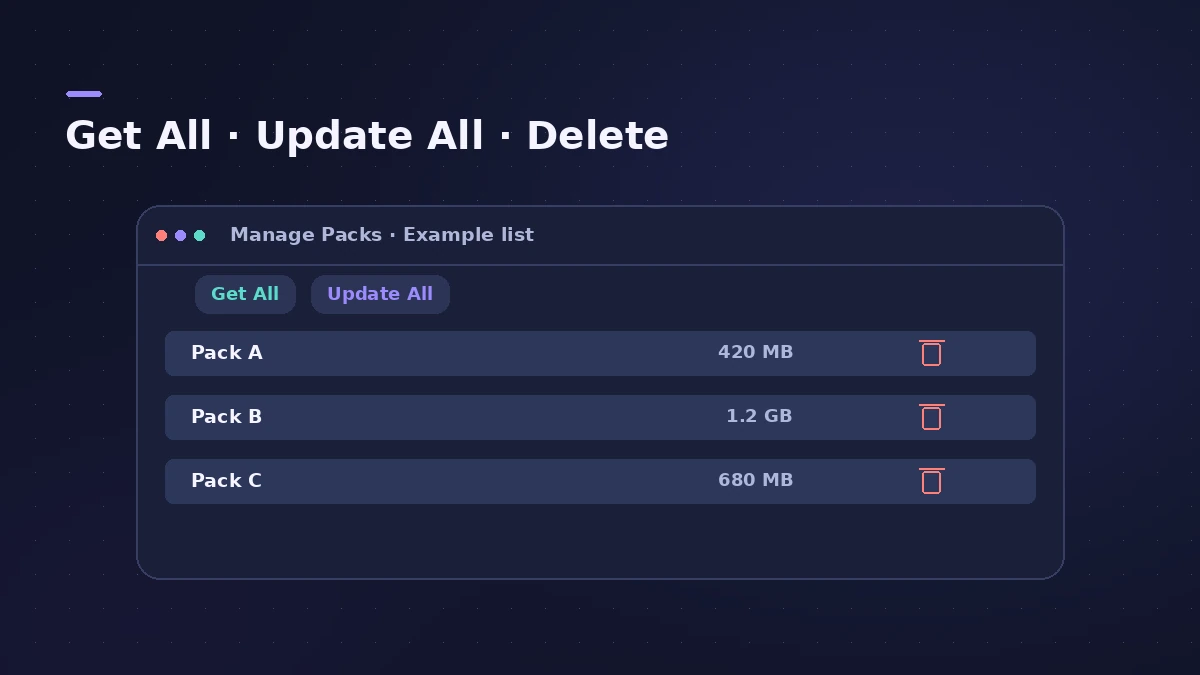
Manage Packs actions
| Action | Where |
|---|---|
| Download one pack | Tap the pack > Get |
| Download all | Manage Packs > Get All |
| Update installed packs | Manage Packs > Update All |
| Delete a pack | Tap the pack > Delete |
Step by step
-
1
Open the Sound Library
Tap the Browser button, then Get More Sounds in the top-level view.
-
2
Preview and download
Tap a pack, tap Preview to hear it, then Get to download it.
-
3
Update or get everything
In Manage Packs, use Get All for every pack or Update All for installed ones.
-
4
Free up space
Manage Packs shows the total size and each pack's size. Delete packs you don't use.
-
5
Watch the badges
A red badge on the Browser button means new or updated packs are available.
Common mistakes
- Deleting a pack a project still uses — you may be asked to download it again.
- Opening GarageBand for iOS songs without the pack Apple lists as essential for them.
On the Mac
The Mac Sound Library works differently — see Sound Library on Mac. If downloads fail, see Sound Library download error.
Sources
- Apple — Logic Pro for iPad Guide: Download additional sound packs
- Apple — Logic Pro for iPad Guide: Manage sound packs
- Apple — Logic Pro for iPad Guide 1.1: Sound packs
- Apple — Logic Pro for iPad Guide: Intro to the Browser
- Apple — Find your favorite GarageBand features in Logic Pro for iPad
Checked November 2026. Logic ProFiles is independent of Apple; menu names can differ slightly between Logic Pro versions.
Frequently asked questions
Why does Logic Pro for iPad ask me to download a sound pack?
+
Some packs are needed to open a Logic Pro for Mac project or a GarageBand song made on another device.
How do I see how much space sound packs use?
+
In Manage Packs; the total is shown at the top and each pack's size in the list.
Related
- Logic Pro Sound Library — download, install and move itManage the Logic Pro Sound Library: install sound packs, download everything, move it to an external SSD with Relocate Sound Library and fix a missing drive.
- Logic Pro for iPad for beginners — your first projectStart with Logic Pro for iPad: begin the trial, create a Tracks or Live Loops project, add loops and instruments, and learn with the built-in Lessons.
- Sound Library won't download in Logic ProLogic Pro says it was not able to complete the download of sounds? Check free space, install packages one by one in the Sound Library Manager, update Logic Pro.
- Logic Pro for iPadLogic Pro for iPad guides: subscription, compatible iPads, Mac round-trips, AUv3 plug-ins, audio interfaces, Stem Splitter, exporting and fixes.