Logic Pro for iPad
Mixing in Logic Pro for iPad
Logic Pro for iPad gives you three places to mix: the Fader for the selected track, the Plug-ins area with touch-friendly plug-in tiles, and the full Mixer with every channel strip.
 Owen Hartley

Where to find it
View control bar > Fader, Plug-ins, Mixer
Where to mix
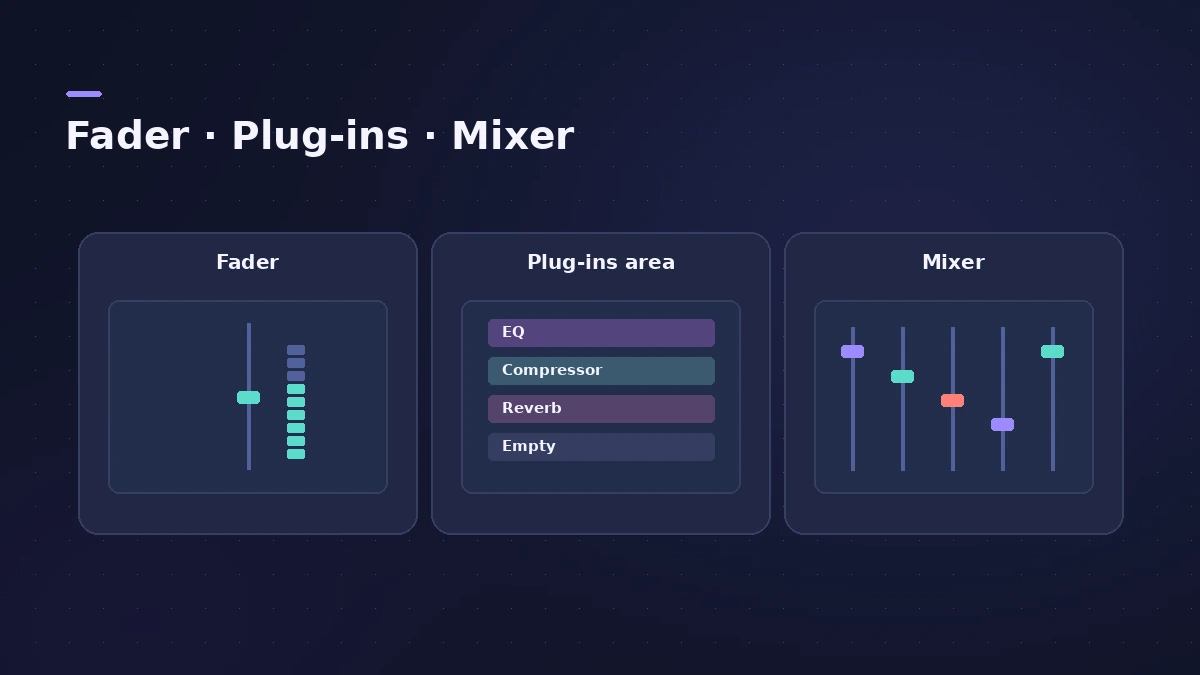
| Area | Best for |
|---|---|
| Fader | Quick level, pan and input changes while recording |
| Plug-ins area | Editing one track's plug-ins and sends |
| Mixer | Balancing all tracks, routing and groups |
Step by step
-
1
Use the Fader for quick changes
The Fader shows key controls for the selected track; you choose which controls appear.
-
2
Open the Plug-ins area
Tap the Plug-ins button. Plug-ins appear as tiles with key parameters you can edit directly.
-
3
Go deeper in Details view
Open a tile in Details view for all parameters; tap the mini tiles at the bottom to switch plug-ins.
-
4
Use Sends and Output views
Sends view adds sends and sets their levels; Output view edits plug-ins on the track's output channel.
-
5
Balance in the Mixer
Open the Mixer (X on a keyboard) to see every channel strip, including aux, output and master channels.
Common mistakes
- Reordering plug-ins of different types — tiles move only before or after plug-ins of the same type.
- Looking for sends in Track view — they live in Sends view.
Mixing techniques
The techniques are the same on iPad and Mac — start with how to mix in Logic Pro, then master with Mastering Assistant on iPad.
Sources
- Apple — Logic Pro for iPad Guide: Working areas
- Apple — Logic Pro for iPad Guide: Intro to the Plug-ins area
- Apple — Logic Pro for iPad Guide: Plug-ins area features
- Apple — Logic Pro for iPad Guide: Reorder plug-ins
- Apple — Logic Pro for iPad Guide: Shortcuts for the main views
Checked November 2026. Logic ProFiles is independent of Apple; menu names can differ slightly between Logic Pro versions.
Frequently asked questions
What are plug-in tiles?
+
Compact views of plug-ins in the Plug-ins area that show a few key parameters; Details view shows them all.
Does Logic Pro for iPad have a full mixer?
+
Yes. The Mixer shows channel strips for each track plus aux, output and master channel strips.
Related
- How to mix a song in Logic Pro, step by stepA step-by-step mixing workflow for Logic Pro with stock plug-ins: organise tracks, balance levels, EQ, compress, add space with sends, automate, check loudness.
- Mastering Assistant in Logic Pro for iPadMaster a song in Logic Pro for iPad: add Mastering Assistant to the stereo output, let it analyse, pick Clean, Valve, Punch or Transparent, set loudness.
- Use AUv3 plug-ins in Logic Pro for iPadLogic Pro for iPad runs third-party instruments and effects as Audio Unit Extensions (AUv3) from the App Store. How to install, find and use them.
- Logic Pro for iPadLogic Pro for iPad guides: subscription, compatible iPads, Mac round-trips, AUv3 plug-ins, audio interfaces, Stem Splitter, exporting and fixes.