Logic Pro for iPad
Use an audio interface or MIDI keyboard with Logic Pro for iPad
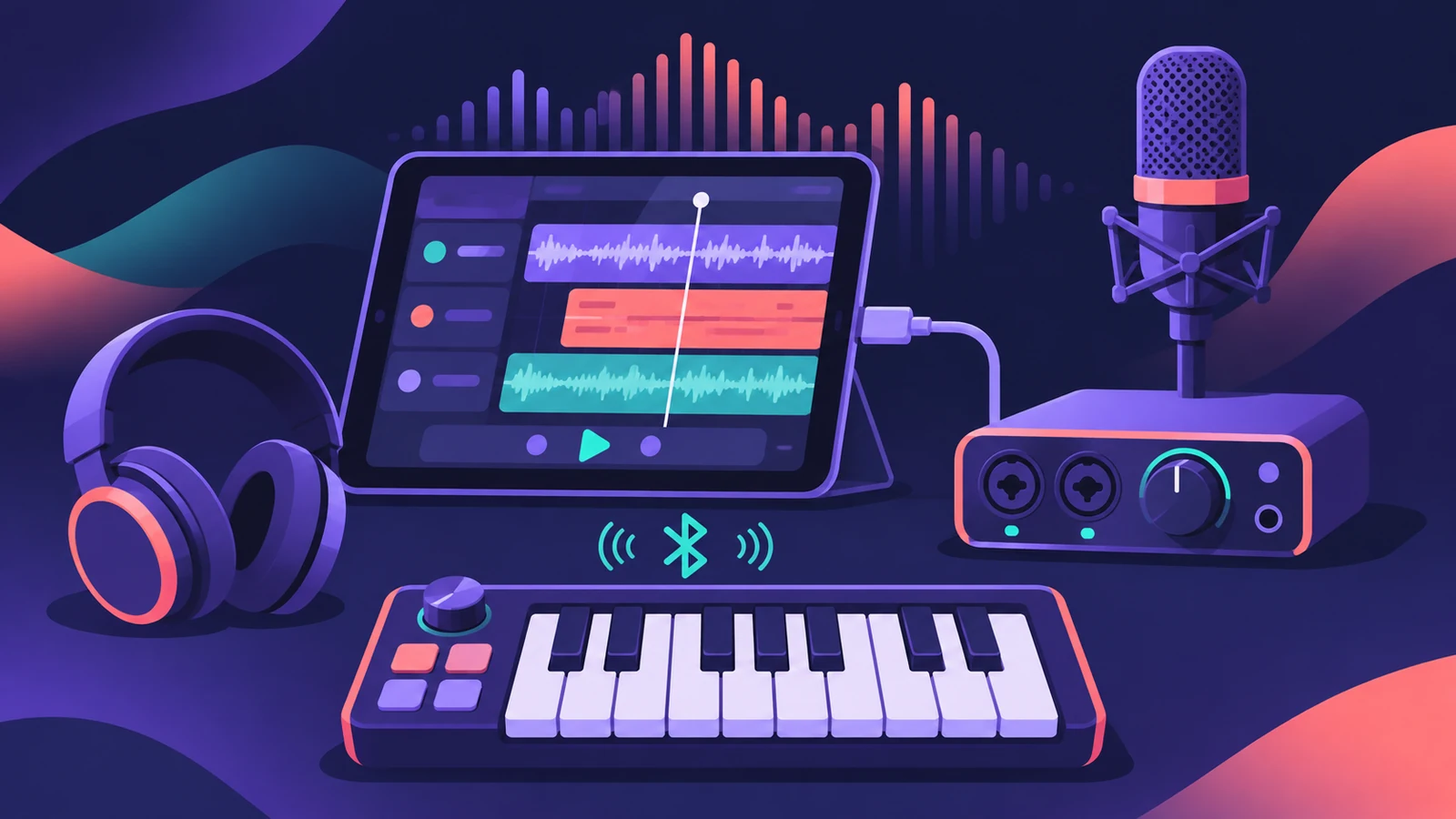
Logic Pro for iPad works with compatible external audio interfaces, microphones and MIDI devices, including Bluetooth MIDI. It connects to an interface plugged into your iPad automatically and offers as many inputs and outputs as the hardware provides.
 Owen Hartley
Where to find it
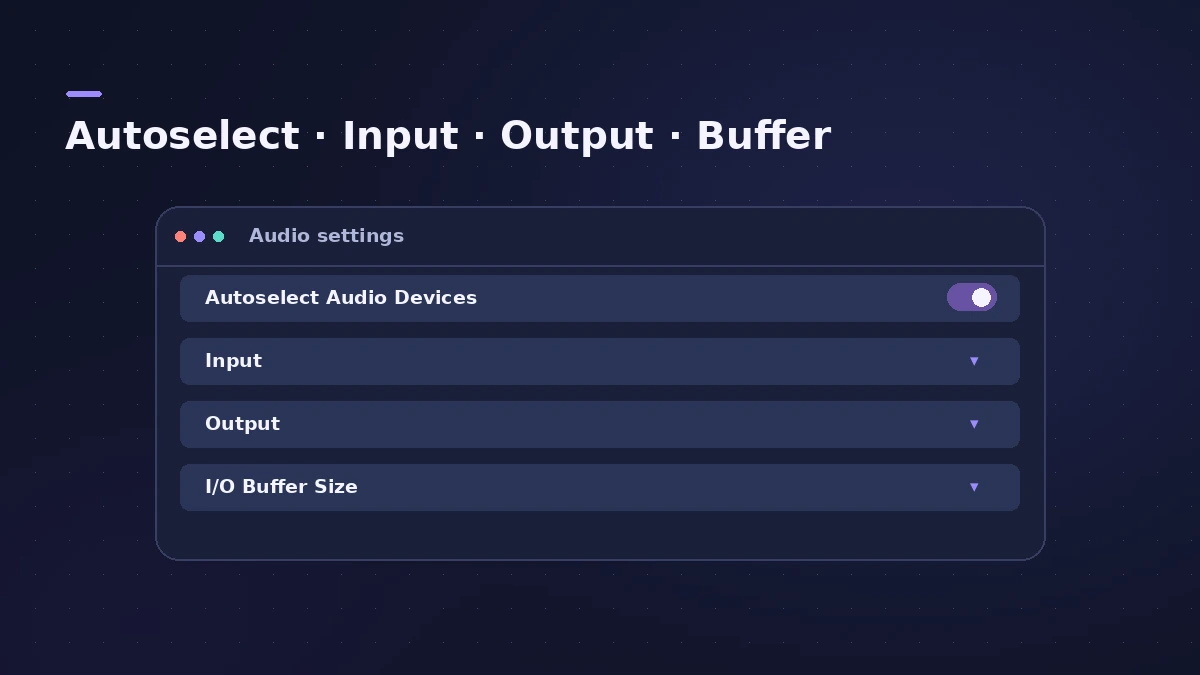
More > Settings > App Settings > Audio
The Audio settings
On a Mac the same ideas apply — see audio interface setup.
Step by step
-
1
Connect the interface
Plug the interface into your iPad's port. With Autoselect Audio Devices on, it becomes the input and output automatically.
-
2
Check Audio settings
Open a project, tap More > Settings > App Settings > Audio. Turn Autoselect off if you want to choose input and output yourself.
-
3
Set the I/O buffer size
Smaller buffers mean less latency while recording; larger ones leave more power for mixing.
-
4
Match the bit depth
In Recording settings, choose the bit depth your audio device uses — 24-bit is the most common.
-
5
Connect a MIDI keyboard
Connect it by cable or Bluetooth; MIDI device settings are under App Settings > MIDI.
Common mistakes
- Hearing a delay through plug-ins: Turn on Low Latency Monitoring mode while recording. Bluetooth MIDI controllers and the interface itself also add latency.
- Looking for AirPods with Autoselect off: A Bluetooth headset isn't listed as an output while Autoselect Audio Devices is off.
If audio stops working
Apple suggests switching to the iPad Microphone and Speaker in App Settings > Audio. If the problem goes away, the external device may need an update or service — see Logic Pro for iPad not working.
Sources
- Apple Support — About Logic Pro for iPad (hardware, plug-ins)
- Apple Support — About Logic Pro for iPad
- Apple — Logic Pro User Guide for iPad: Audio Devices settings
- Apple — Logic Pro User Guide for iPad 2.0: Audio Devices settings (autoselect, inputs)
- Apple — Logic Pro User Guide for iPad: AirPlay output
- Apple — Logic Pro User Guide for iPad: Record with Low Latency Monitoring mode
- Apple — Logic Pro User Guide for iPad: Recording settings (bit depth)
Checked November 2026. Logic ProFiles is independent of Apple; menu names can differ slightly between Logic Pro versions.
Frequently asked questions
Can I use a USB audio interface with Logic Pro for iPad?
+
Yes, compatible external audio interfaces are supported, with as many inputs and outputs as the hardware provides.
Does Logic Pro for iPad support Bluetooth MIDI?
+
Yes, including Bluetooth MIDI devices.
Can I play back over AirPlay?
+
Yes. Choose AirPlay Single or Multi-Destination as the output and pick the device.
Related
- How to record vocals in Logic Pro for iPadRecord vocals in Logic Pro for iPad with the built-in mic, a USB mic or an interface: pick the input, set Input Gain, use headphones and Low Latency mode.
- How to set up an audio interface in Logic ProConnect a USB or Thunderbolt audio interface to Logic Pro: choose input and output devices, set the I/O buffer, allow mic access and pick track inputs.
- Logic Pro for iPad not workingLogic Pro for iPad won't open or play? Restart, update iPadOS and the app, test a new project, disconnect devices and switch to the iPad's own audio.
- Gear for Logic ProGear for Logic Pro in 2026: which Mac or MacBook to buy, how much RAM you need, moving the Sound Library to an SSD, control surfaces, Logic Remote and Sidecar.
- Logic Pro for iPadLogic Pro for iPad guides: subscription, compatible iPads, Mac round-trips, AUv3 plug-ins, audio interfaces, Stem Splitter, exporting and fixes.