Fix Problems
MIDI keyboard not working in Logic Pro — 9 fixes
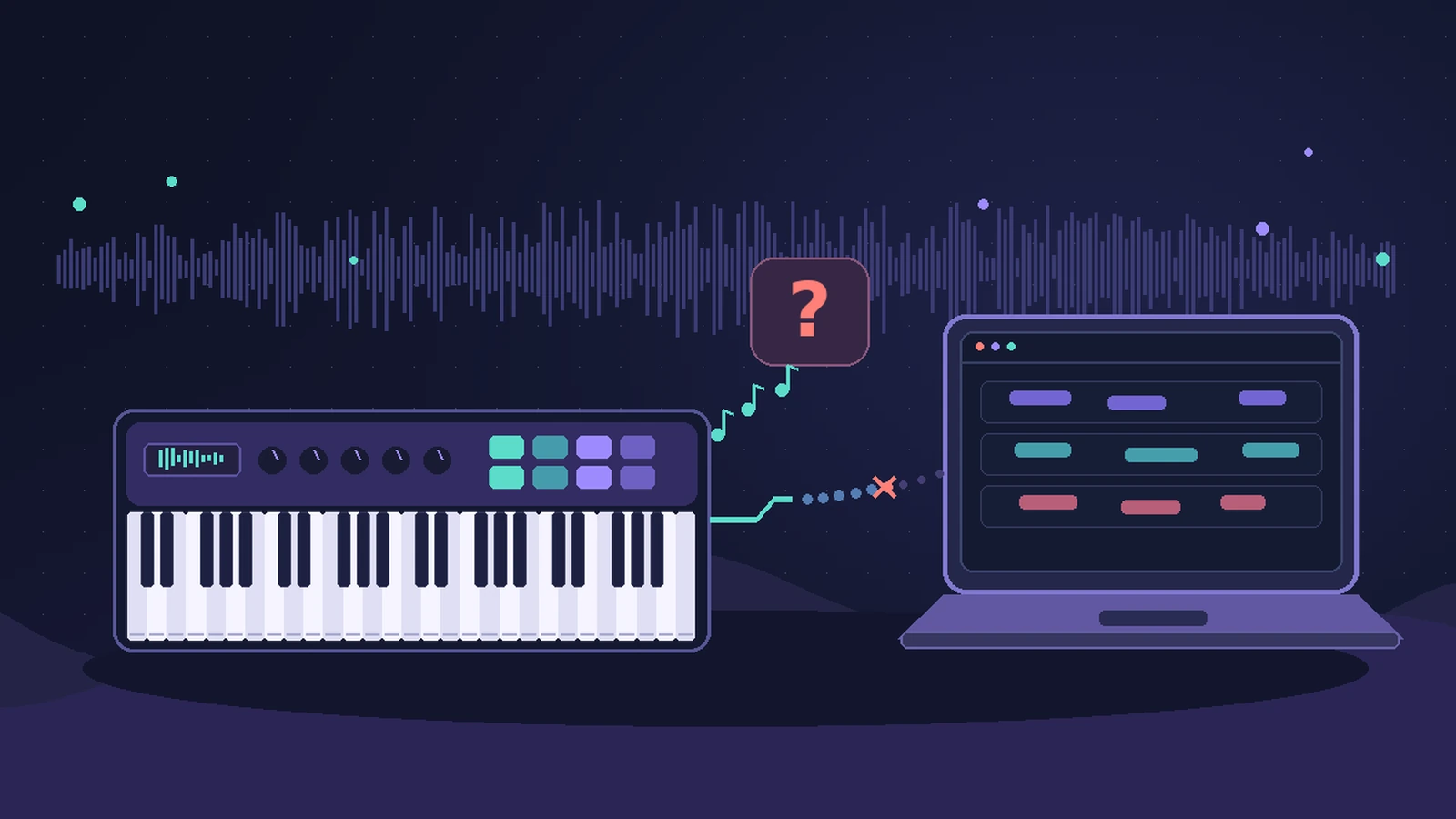
If you press keys and Logic Pro stays silent, find where the signal stops: the Mac may not see the keyboard, Logic Pro may not be receiving its MIDI, or the track may not be a software instrument ready to play. Audio MIDI Setup answers the first question in seconds.
 Owen Hartley
Applies to: Logic Pro 13, 12 and 11 for Mac; USB, 5-pin MIDI and Bluetooth MIDI keyboards.
Most likely causes
- Keyboard needs a driver or a firmware update (common)
- Mac doesn't detect the keyboard (common)
- Selected track isn't a software instrument track (common)
- MIDI drivers stuck after connecting or disconnecting (occasional)
- Environment input cable disconnected in an old project (occasional)
Where does the signal stop?
| Test | Result | Next step |
|---|---|---|
| Keyboard visible in MIDI Studio? | No | Driver, cable, Rescan MIDI |
| Test MIDI Setup passes? | No | Keyboard or cable problem — contact the maker |
| Logic Pro track responds? | No | Software instrument track, Reset All MIDI Drivers, Environment |
| Notes play but no sound | — | It's an audio problem: see no sound in Logic Pro |
Supported USB controllers are assigned to Smart Controls automatically, Apple says. If you play along to other gear and timing drifts, see the audio and MIDI sync error guide.
Fixes, in order
1. Install the maker's driver
Apple's guide says to install any driver the keyboard needs and check the maker's website for the latest version.
2. Check the Mac can see it
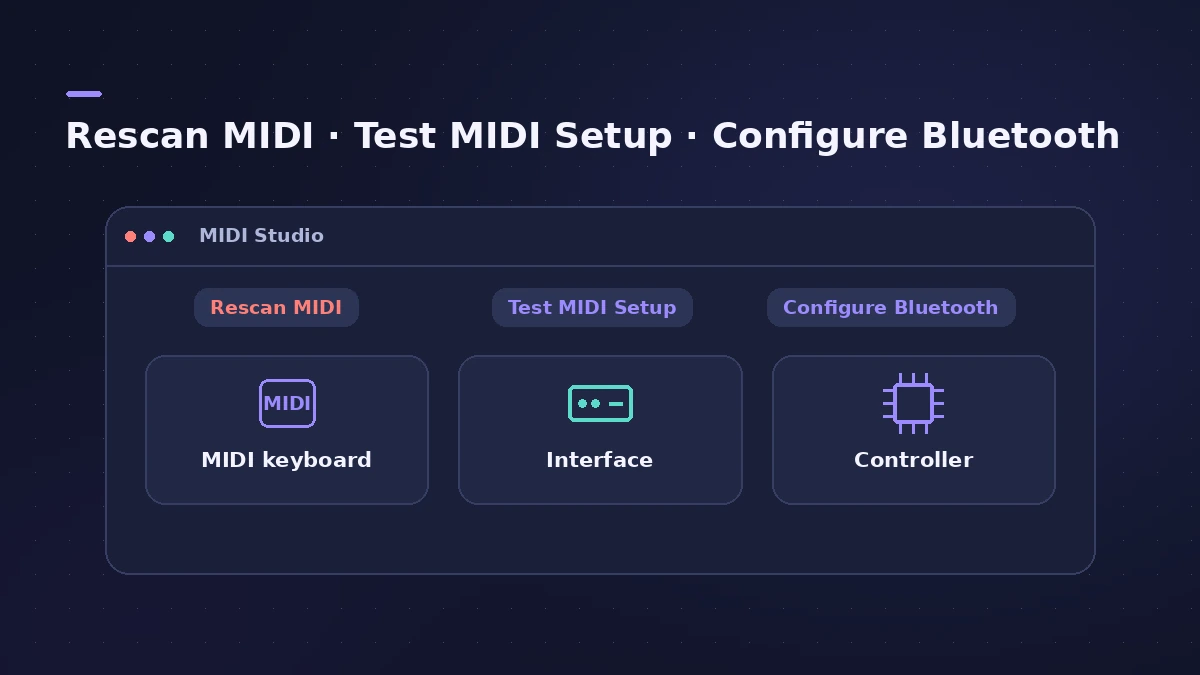
Open Audio MIDI Setup and choose Window > Show MIDI Studio. If the keyboard is missing, click Rescan MIDI.
3. Test the MIDI setup
In MIDI Studio, click Test MIDI Setup to check the keyboard's MIDI In and Out ports.
4. Reset all MIDI drivers
In Logic Pro > Settings > MIDI > General, click Reset All MIDI Drivers. Apple says it can help with MIDI communication problems.
5. Select a software instrument track
Incoming MIDI goes to the selected track. Choose a software instrument track — its Record Enable button turns solid red while it receives MIDI.
6. Check 5-pin MIDI cables
Connect the keyboard's MIDI Out to the interface's MIDI In. Also connect MIDI Out to MIDI In the other way if the keyboard has its own sounds.
7. Pair Bluetooth keyboards in Audio MIDI Setup
Install the maker's software, click Configure Bluetooth in MIDI Studio, put the keyboard in pairing mode, select it and click Connect.
8. Check the Environment input
Apple says Logic Pro can't record incoming MIDI unless the Environment's Physical Input connects to Sequencer Input.
9. Review controller assignments
In Logic Pro 12 and later (or with Enable Complete Features on in 11 and earlier), Settings > MIDI > Controllers shows an Auto checkbox per supported controller, and Reset All Warnings brings back the auto-assign question.
Sources
- Apple — Logic Pro User Guide: General MIDI settings in Logic Pro for Mac
- Apple — Logic Pro User Guide: Connect a USB music keyboard to use with Logic Pro for Mac
- Apple — Logic Pro User Guide: Connect MIDI devices to use with Logic Pro for Mac
- Apple — Audio MIDI Setup User Guide: MIDI Studio window in Audio MIDI Setup on Mac
- Apple — Audio MIDI Setup User Guide: Set up Bluetooth MIDI devices in Audio MIDI Setup on Mac
- Apple — Logic Pro User Guide: MIDI signal path overview in the Logic Pro Environment
- Apple — Logic Pro User Guide: Enable tracks for recording in Logic Pro
- Apple — Logic Pro User Guide: MIDI Controllers settings in Logic Pro
- Apple — Third-party Audio Units and external device compatibility in Logic Pro and Final Cut Pro on Apple silicon (Aug 2023)
- Apple — Logic Pro User Guide: What's new in Logic Pro for Mac 12
Checked November 2026. Logic ProFiles is independent of Apple; menu names can differ slightly between Logic Pro versions.
Frequently asked questions
Why is my MIDI keyboard not working in Logic Pro?
+
Check whether the Mac sees it in Audio MIDI Setup's MIDI Studio first. If it does, select a software instrument track and try Reset All MIDI Drivers in Settings > MIDI > General.
Does my MIDI keyboard work on Apple silicon Macs?
+
Apple says MIDI devices that need no separate driver work on Apple silicon. For others, get an updated driver from the maker.
Does Logic Pro support MIDI 2.0?
+
Settings > MIDI > General includes a MIDI 2.0 checkbox, according to Apple's user guide.
Related
- Audio MIDI Setup on Mac for Logic Pro usersUse the Mac's Audio MIDI Setup app with Logic Pro: set an interface's sample rate and bit depth, configure speakers, add MIDI devices and test MIDI connections.
- Connect a Bluetooth MIDI keyboard to Logic ProConnect a Bluetooth LE MIDI keyboard or controller to your Mac for Logic Pro using Audio MIDI Setup's MIDI Studio, or link a Mac and iPad over Bluetooth MIDI.
- Stuck MIDI notes in Logic ProA note keeps sounding after you let go? Stop hanging notes in Logic Pro with a double Stop, the Panic key command, a pedal check and a settings reset.
- MIDI region not playing in Logic ProRecorded MIDI plays nothing in Logic Pro? Check the region isn't muted, the track is on, nothing is soloed, and start playback before the note, not mid-note.
- Logic Pro key commands not workingSpace bar or shortcuts stopped working in Logic Pro? Reload a default key command preset, check key focus, and look for control surface or macOS conflicts.
- "Error while trying to synchronize Audio and MIDI" in Logic ProLogic Pro shows Error while trying to synchronize Audio and MIDI? Match sample rates, use one clock source, raise the buffer and check sync settings. 9 fixes.
- No sound in Logic Pro — 10 fixes, quickest firstNo sound in Logic Pro? Check the output device, Core Audio, mute and solo, the metronome and plug-ins, then test built-in audio to rule out the interface.
- Logic Pro not recording audio — 9 fixes to tryLogic Pro won't record audio from your mic or interface? Check microphone access, the input device, record-enable state, unique inputs and the recording format.
- Fix Logic Pro problems — errors, crashes and no soundStep-by-step fixes for Logic Pro on Mac: system overload, disk too slow, no sound, crashes, latency, missing plug-ins, MIDI keyboards and recording problems.