Fix Problems
Logic Pro not recording audio — 9 fixes to try
When you press Record and Logic Pro captures silence — or nothing at all — check the path in order: macOS has to let Logic Pro use the input, Logic Pro has to listen to the right device, and the track has to be armed on its own input. Most problems sit in the first two steps.
 Owen Hartley
Applies to: Logic Pro 13, 12 and 11 for Mac, macOS Ventura and later (older paths noted).
Most likely causes
- Logic Pro not allowed to use the microphone (most common)
- Wrong Input Device selected (most common)
- Track not record-enabled (common)
- Two tracks armed on the same input (common)
- Interface needs an updated driver (occasional)
Check the path in order
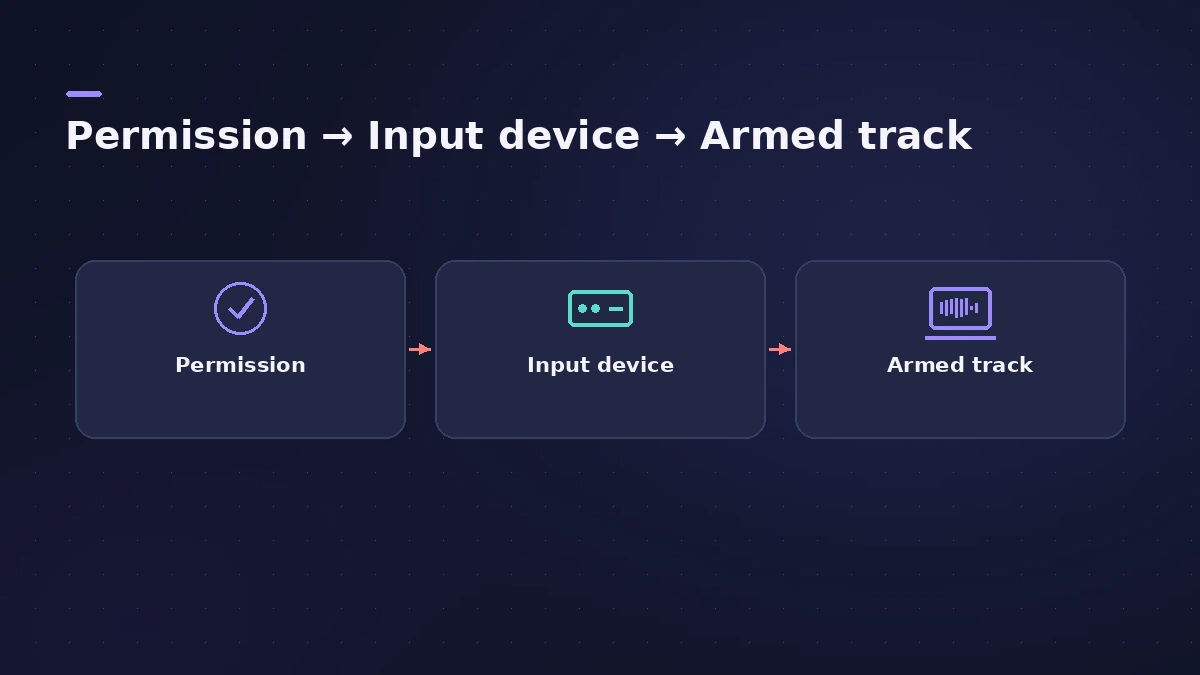
- macOS permission — Logic Pro must be switched on under Privacy & Security > Microphone.
- Logic Pro device — Settings > Audio > Devices must show your interface as the Input Device.
- Track — the track is armed and its Input slot matches the input you're plugged into.
If the meter moves but you can't hear the input while you play, the recording path is fine — the problem is input monitoring. Recording software instruments instead? See MIDI keyboard not working.
Fixes, in order
1. Allow microphone access
Quit Logic Pro, open System Settings > Privacy & Security > Microphone and turn on the switch for Logic Pro. Then reopen it. See our microphone access guide.
2. Choose the right Input Device
Logic Pro > Settings > Audio > Devices > Input Device. Pick your interface or the built-in microphone.
3. Look for Allow Access in Devices
If Logic Pro's microphone switch is off, the Devices pane shows an Allow Access button that opens the right privacy setting.
4. Arm the track
Click the track's Record Enable button or press Control-R. It should blink red before you start recording.
5. Give each armed track its own input
Apple says several audio tracks can be record-enabled only if each uses a unique input. Check each track's Input slot.
6. Set Mic Mode to Standard
Click the microphone icon in the menu bar and choose Standard. Apple lists this before recording and in its general troubleshooting steps.
7. Check the recording format
In Settings > Recording, choose a File Type (AIFF, WAVE (BWF) or CAF) and a Bit Depth (16-bit, 24-bit or 32-bit float).
8. Update the interface driver
Apple says interfaces that need no separate driver work on Apple silicon. Others need an updated driver from the maker.
9. Test with the built-in microphone
Unplug the interface and choose Built-in Microphone as the Input Device. If that records, the interface or its driver is the cause.
Sources
- Apple — If you can't record audio from an external source on Mac (May 2026)
- Apple — Logic Pro User Guide: Devices settings in Logic Pro for Mac
- Apple — Logic Pro User Guide: Enable tracks for recording in Logic Pro
- Apple — Logic Pro User Guide: Before recording audio in Logic Pro for Mac
- Apple — Logic Pro User Guide: Recording settings
- Apple — Third-party Audio Units and external device compatibility in Logic Pro and Final Cut Pro on Apple silicon (Aug 2023)
- Apple — If Logic Pro for Mac isn't working (Feb 2026)
Checked November 2026. Logic ProFiles is independent of Apple; menu names can differ slightly between Logic Pro versions.
Frequently asked questions
Why is Logic Pro recording silence?
+
Usually the track's input doesn't match where your mic is plugged in, or macOS hasn't allowed Logic Pro to use the microphone. Check the track's Input slot and Privacy & Security > Microphone.
Why can't I arm two tracks at once?
+
Apple says multiple audio tracks can be record-enabled only if each uses a unique input. Give the second track a different input.
Related
- Logic Pro recording only on one sideMic or guitar only in the left ear in Logic Pro? Set the track to mono with the right input, or play one side of an old stereo take with Left format.
- Logic Pro recording too quietVocals or guitar recording too quietly in Logic Pro? Raise interface gain, check the input device and track input, phantom power and Mic Mode.
- Recordings sound processed? Check Mic ModeIf recordings in Logic Pro sound thin, processed or noise-gated, macOS Mic Mode may be changing the input. Set Mic Mode to Standard in the menu bar.
- Audio interface not showing in Logic ProAudio interface missing from Logic Pro's device menu? Check System Information and Audio MIDI Setup, install the driver, test built-in audio.
- How to allow Logic Pro microphone access on MacLogic Pro can't hear your mic? Turn on its switch in System Settings > Privacy & Security > Microphone, or use Allow Access in Logic Pro's settings.
- Input monitoring not working in Logic Pro — 8 fixesCan't hear yourself in Logic Pro? Check Software Monitoring, the track's Input Monitoring button, the focused-track setting and direct monitoring.
- "Error while trying to synchronize Audio and MIDI" in Logic ProLogic Pro shows Error while trying to synchronize Audio and MIDI? Match sample rates, use one clock source, raise the buffer and check sync settings. 9 fixes.
- Fix Logic Pro problems — errors, crashes and no soundStep-by-step fixes for Logic Pro on Mac: system overload, disk too slow, no sound, crashes, latency, missing plug-ins, MIDI keyboards and recording problems.