Fix Problems
Input monitoring not working in Logic Pro — 8 fixes
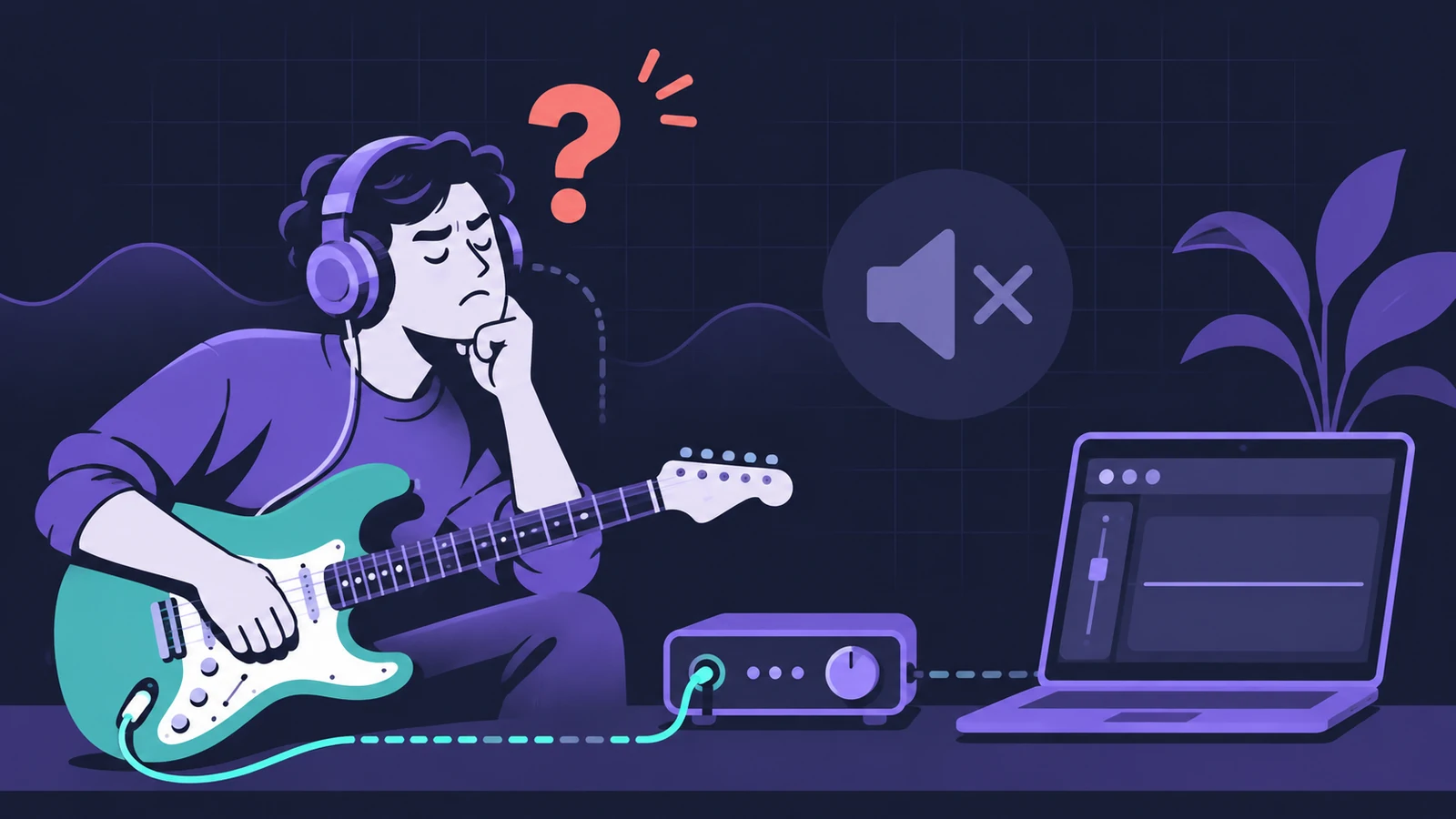
If you can't hear your voice or guitar through Logic Pro, a monitoring setting is usually switched off — Software Monitoring for the whole app, or the Input Monitoring button on the track. One less obvious setting limits monitoring to the focused track only, the way GarageBand works.
 Owen Hartley
Applies to: Logic Pro 13, 12 and 11 for Mac (the Input Monitoring button is described from Apple's older help pages).
Most likely causes
- Software Monitoring turned off (most common)
- Track not record-enabled and Input Monitoring off (most common)
- Monitoring limited to the focused track (common)
- Wrong input selected on the track (common)
- Logic Pro has no microphone access (occasional)
Software vs direct monitoring
| Software monitoring | Direct monitoring | |
|---|---|---|
| Signal path | Through Logic Pro and the track's plug-ins | Straight from the interface to your headphones |
| Delay | Adds latency, depends on the buffer | No Logic Pro delay |
| Hear effects | Yes | No |
| When to use | Amp sims, vocal effects while recording | Clean vocals and instruments |
If you hear yourself late rather than not at all, go to Logic Pro latency. If nothing reaches the track — the meter doesn't move — work through can't record audio.
Fixes, in order
1. Turn on Software Monitoring
Logic Pro > Settings > Audio > General, or the Software Monitoring button in the control bar. Apple's overload article suggests switching it off for audio-only recording — if you did that, you'll hear nothing through Logic Pro.
2. Turn on the track's Input Monitoring button
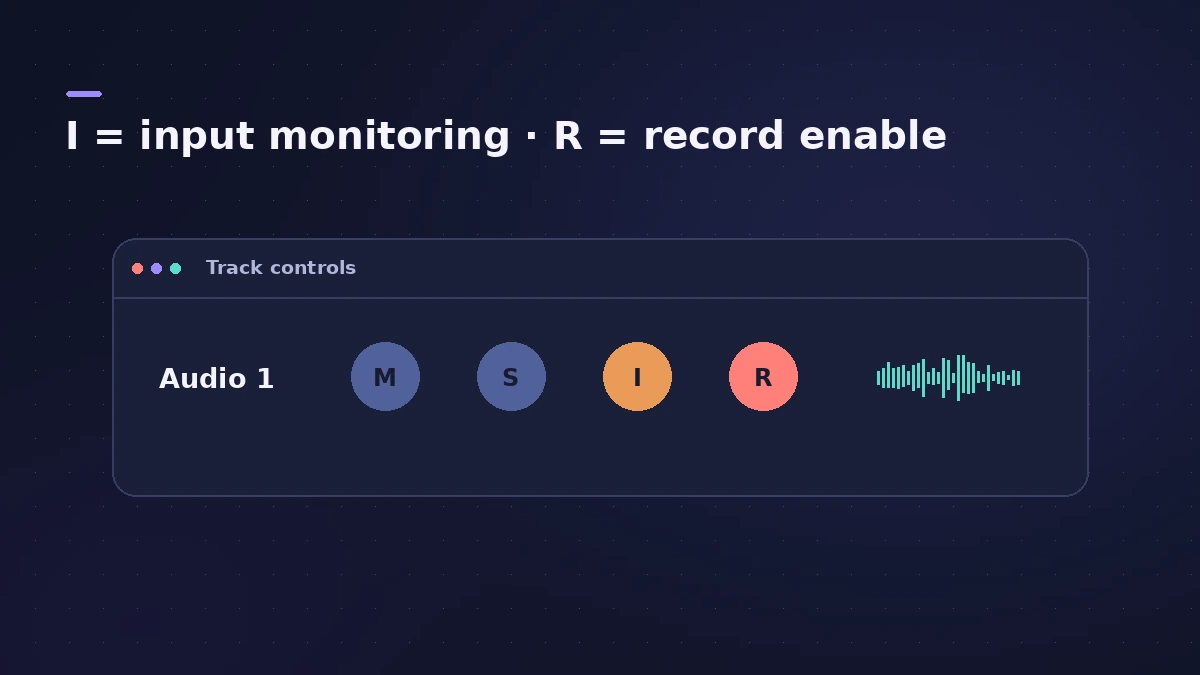
Click the I button in the track header to hear an audio track that isn't record-enabled. It can stay on before, during and after recording.
3. Record-enable the track
Click the Record Enable button or press Control-R. On audio tracks it blinks red when armed and turns solid red while recording.
4. Check the focused-track setting
In Audio > General, "Input monitoring only for the focused track, and only when input monitoring is enabled" means you hear only the selected track, and only with its I button on. Deselect it to monitor several tracks.
5. Select the right input
Check the track's Input slot matches the input your mic or guitar is plugged into.
6. Check the monitoring level setting
With "Independent monitoring level for record-enabled channel strips" selected, the fader changes only the monitoring level — make sure it isn't pulled down.
7. Use direct monitoring on your interface
Many interfaces send the input straight to your headphones. Apple's guide suggests software monitoring only when you want to hear effects on the record-enabled track.
8. Allow microphone access
If no signal reaches Logic Pro at all, turn on its switch in System Settings > Privacy & Security > Microphone.
Sources
- Apple — Logic Pro User Guide: General Audio settings in Logic Pro for Mac
- Apple — Logic Pro X 10.1 Help: Turn on input monitoring for audio tracks (old)
- Apple — Logic Pro User Guide: Enable tracks for recording in Logic Pro
- Apple — Logic Pro User Guide: Before recording audio in Logic Pro for Mac
- Apple — Avoid system overloads in Logic Pro for Mac (May 2026)
- Apple — If you can't record audio from an external source on Mac (May 2026)
Checked November 2026. Logic ProFiles is independent of Apple; menu names can differ slightly between Logic Pro versions.
Frequently asked questions
How do I hear myself while recording in Logic Pro?
+
Turn on Software Monitoring in Settings > Audio > General and record-enable the track, or use your interface's direct monitoring.
Why do I hear myself with a delay?
+
Input monitoring always adds some latency. Lower the I/O buffer or use direct monitoring — see our latency guide.
What is Auto Input Monitoring?
+
A setting Apple's older help recommends for punch-in recording, used instead of the track Input Monitoring buttons.
Related
- Feedback when recording in Logic ProScreeching or howling when you record in Logic Pro? Use headphones, turn monitoring off on speakers, avoid built-in mic and speakers, check loopback.
- Logic Pro latency — how to fix delay when recordingHearing a delay when you record in Logic Pro? Lower the I/O buffer, turn on Low Latency Monitoring Mode, use direct monitoring and avoid Bluetooth headphones.
- Logic Pro not recording audio — 9 fixes to tryLogic Pro won't record audio from your mic or interface? Check microphone access, the input device, record-enable state, unique inputs and the recording format.
- How to allow Logic Pro microphone access on MacLogic Pro can't hear your mic? Turn on its switch in System Settings > Privacy & Security > Microphone, or use Allow Access in Logic Pro's settings.
- No sound in Logic Pro — 10 fixes, quickest firstNo sound in Logic Pro? Check the output device, Core Audio, mute and solo, the metronome and plug-ins, then test built-in audio to rule out the interface.