Fix Problems
Feedback when recording in Logic Pro
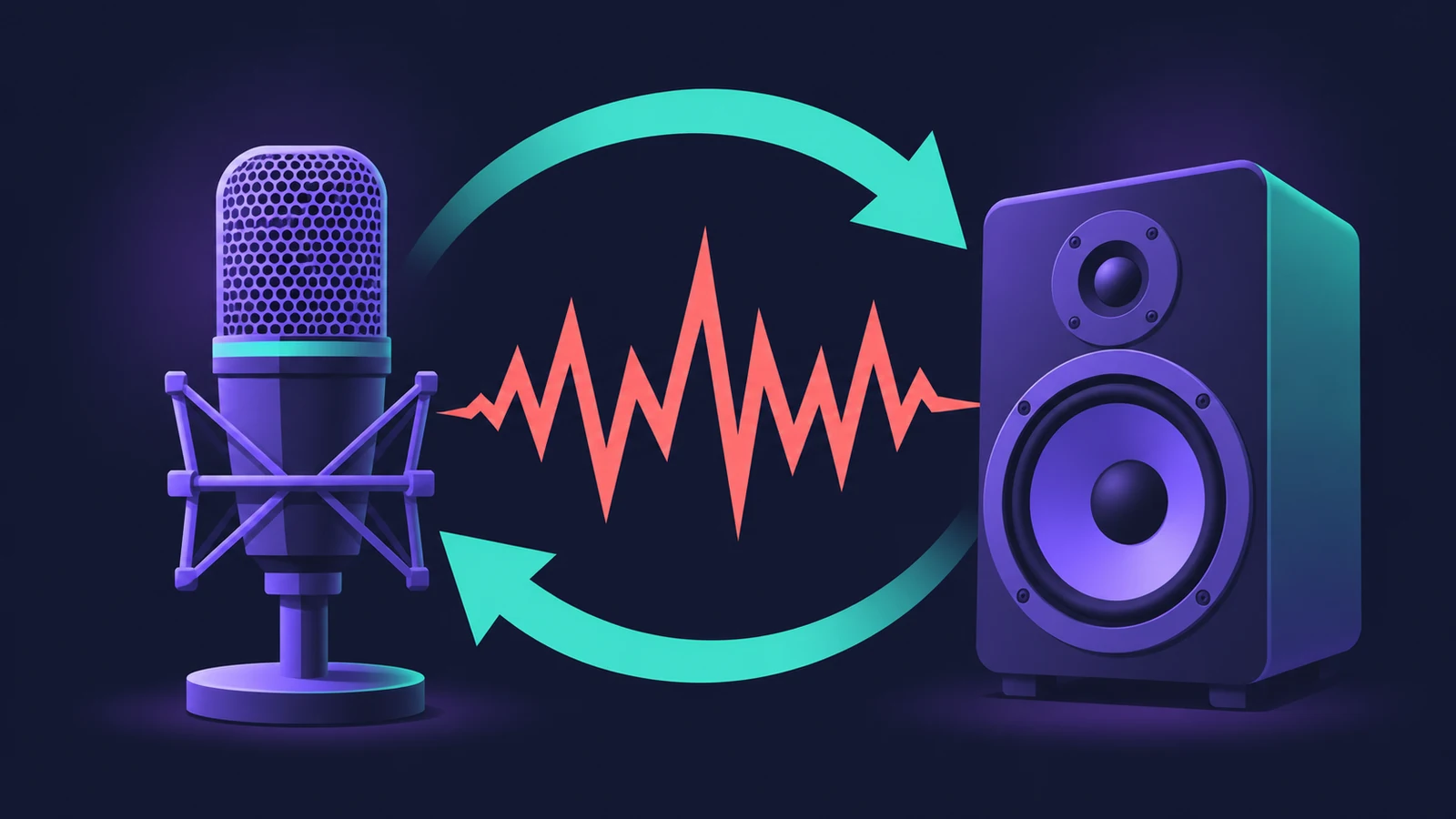
A loud howl or screech starts the moment you arm a track. That's a feedback loop: the mic picks up its own sound from the speakers, or an interface sends Logic Pro's output straight back into the input.
 Owen Hartley
Applies to: Logic Pro 13, 12 and 11 for Mac.
Most likely causes
- Monitoring a mic through speakers in the same room (most common)
- Built-in mic with built-in speakers (common)
- Interface loopback feeding the output back into the input (occasional)
Break the loop
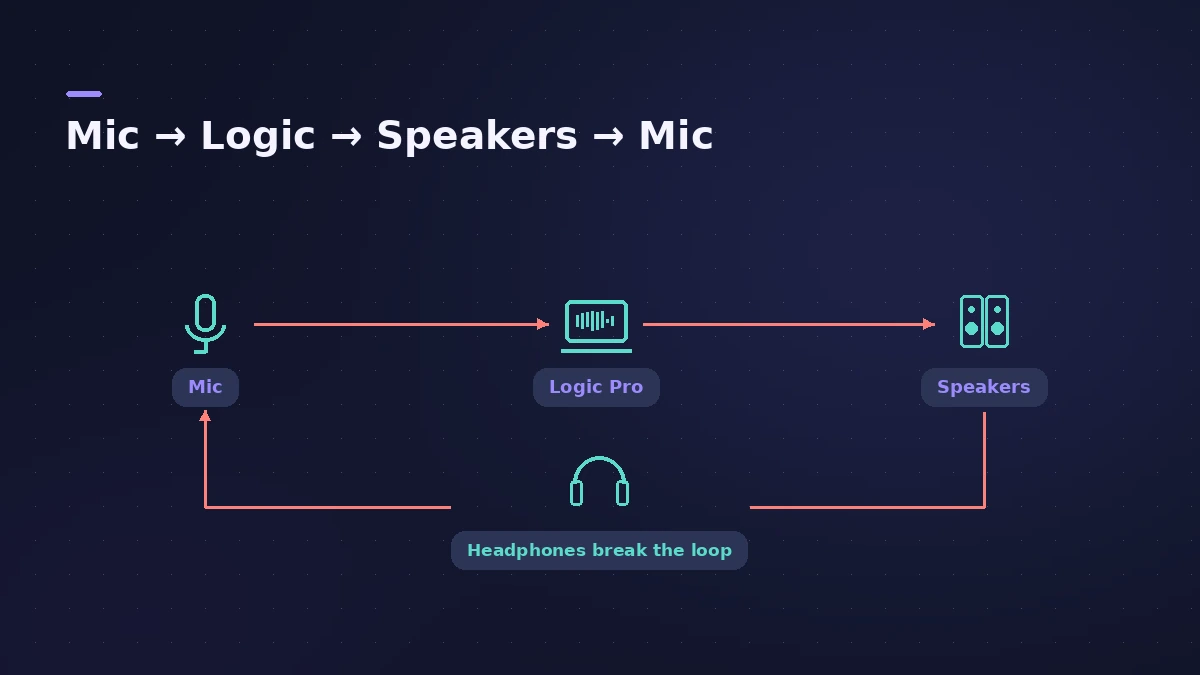
Headphones fix almost every case. If you hear yourself late rather than howling, that's latency — see latency. If you can't hear yourself at all, see input monitoring not working.
Fixes, in order
1. Use headphones
Monitor through headphones while recording a mic so the speakers can't feed the mic.
2. Turn down the speakers
If you must use speakers, turn them down until the loop stops.
3. Turn off input monitoring on speakers
Turn off the track's input monitoring (I) button when you don't need to hear yourself.
4. Don't pair the built-in mic and speakers
Logic Pro for iPad turns software monitoring off automatically with the built-in mic and speakers to avoid feedback; on a Mac, use headphones.
5. Check loopback routing
When recording through an interface's loopback, users found muting the recording track stopped the feedback.
Sources
- Apple Community — Screeching noise with built-in mic
- Apple — Logic Pro for iPad Guide: Recording settings (Software Monitoring)
- RME Forum — Loopback feedback in Logic Pro
- Apple — Manage input monitoring latency in Logic Pro for Mac (May 2026)
Checked November 2026. Logic ProFiles is independent of Apple; menu names can differ slightly between Logic Pro versions.
Frequently asked questions
Why does Logic Pro screech when I arm a track?
+
The mic is hearing the speakers. Use headphones or turn monitoring off.
Can I record vocals with studio monitors on?
+
Only with input monitoring off or the monitors turned down — headphones are the reliable way.
Related
- Live vocals in MainStageRun live vocals through MainStage: choose the mic input on an audio channel strip, add compression and DeEsser 2, and turn on feedback protection to mute howls.
- Headphone cue mix in Logic ProGive a singer their own headphone mix in Logic Pro: pre-fader sends to an aux, the aux output to spare outputs, Copy Fader to Send and Sends on Faders.
- Input monitoring not working in Logic Pro — 8 fixesCan't hear yourself in Logic Pro? Check Software Monitoring, the track's Input Monitoring button, the focused-track setting and direct monitoring.
- Logic Pro latency — how to fix delay when recordingHearing a delay when you record in Logic Pro? Lower the I/O buffer, turn on Low Latency Monitoring Mode, use direct monitoring and avoid Bluetooth headphones.
- How to record vocals in Logic ProRecord vocals in Logic Pro: set up the mic and pop filter, arm an audio track, set the level, monitor without delay and record several takes to comp later.
- How to allow Logic Pro microphone access on MacLogic Pro can't hear your mic? Turn on its switch in System Settings > Privacy & Security > Microphone, or use Allow Access in Logic Pro's settings.
- Fix Logic Pro problems — errors, crashes and no soundStep-by-step fixes for Logic Pro on Mac: system overload, disk too slow, no sound, crashes, latency, missing plug-ins, MIDI keyboards and recording problems.