Fix Problems
"Error while trying to synchronize Audio and MIDI" in Logic Pro
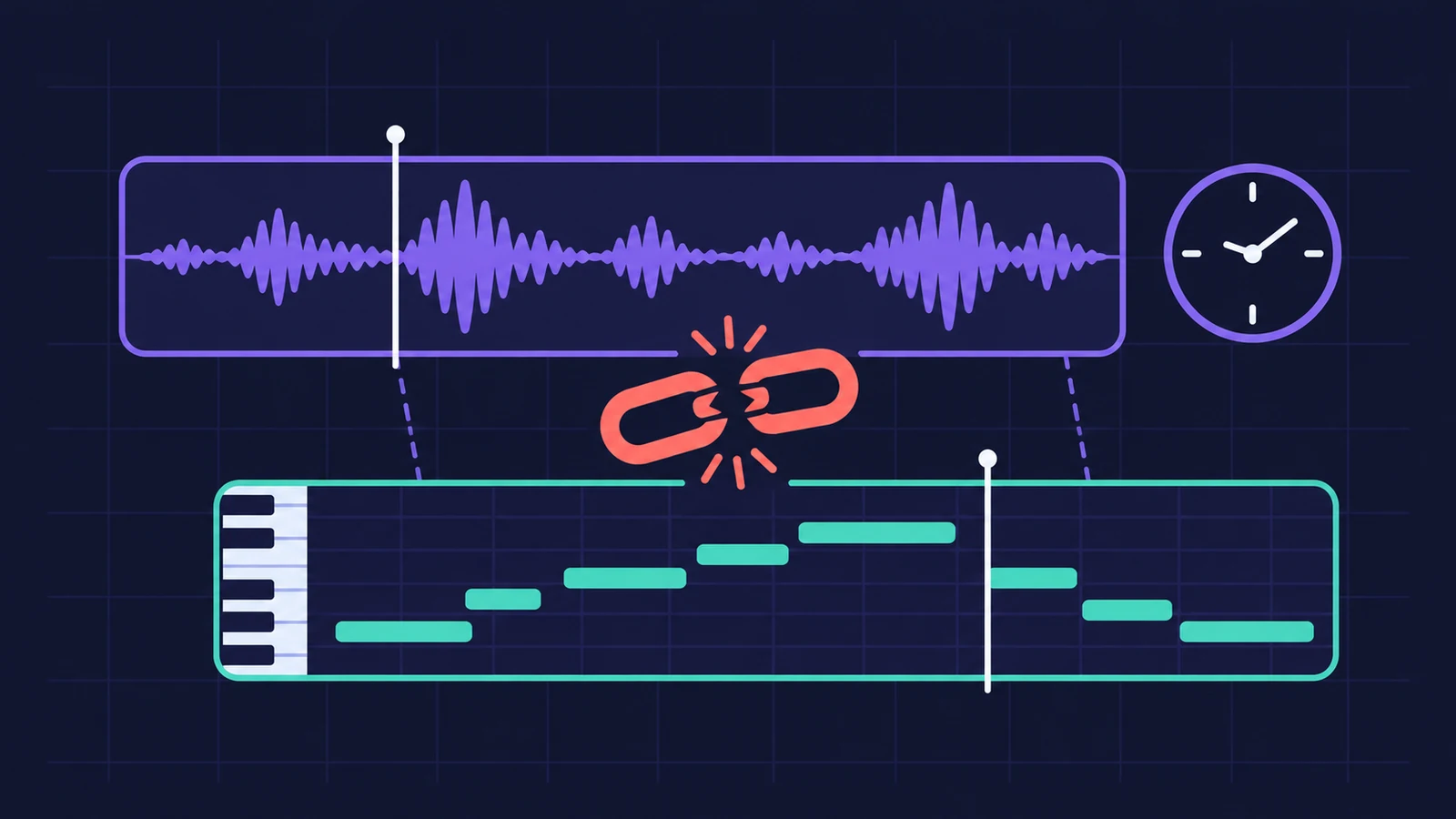
Apple says this alert appears when the sample rate of incoming audio doesn't match the project, or keeps changing. That usually traces back to an external interface, a sync device or a plug-in. Start by matching sample rates, then make sure only one device is the clock master.
 Owen Hartley
Applies to: Logic Pro for Mac (Apple's article uses the older Preferences menu names; UK pages spell it "synchronise").
Most likely causes
- Interface sample rate doesn't match the project (most common)
- More than one device acting as clock master (common)
- Aggregate device without a shared clock (common)
- External sync or MIDI timecode settings (occasional)
- A plug-in with a tempo-synced LFO (occasional)
Where to set the sample rate
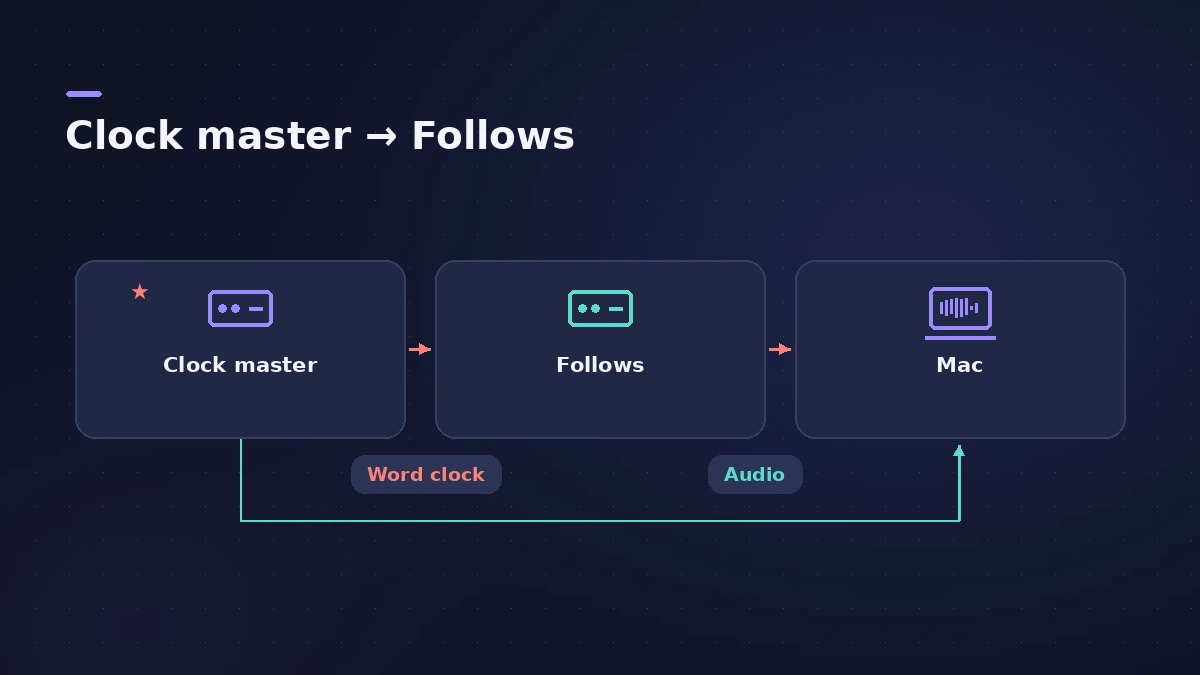
There are two places, and they must agree: your interface's own control software and File > Project Settings > Audio in Logic Pro. If several interfaces are combined, each needs the same rate and one shared clock.
If the alert appears together with overload messages, raise the buffer as described in our system overload guide.
Fixes, in order
1. Match the sample rates
Set the same rate in your interface's software and in File > Project Settings > Audio > Sample Rate. If they already match, switch to a different rate and back.
2. Use one main clock source
Only one device should provide the clock. Set the others to follow it.
3. Link aggregate devices
If you combine interfaces as an aggregate device, connect them with word clock, S/PDIF, Lightpipe or AES/EBU and set one as the main clock.
4. Raise the I/O buffer
Logic Pro > Settings > Audio > Devices > I/O Buffer Size. A larger buffer gives the engine more room.
5. Freeze plug-in tracks
Freeze tracks with heavy plug-ins to reduce load during playback.
6. Turn off auto external sync
In File > Project Settings > Synchronization, deselect "Auto-enable external sync and Tap Tempo".
7. Check MIDI timecode setup
If you sync to MTC, make sure the source isn't also sending MIDI clock, and set the Audio tab's Core Audio menu to External or Free.
8. Bypass tempo-synced Reaktor ensembles
Apple names Reaktor ensembles whose LFO is synced to tempo as a cause. Bypass them and test.
9. Test with built-in audio
Switch to the Mac's built-in output and input. If the alert stops and returns with your interface, contact the interface maker.
Sources
- Apple — If you see an audio and MIDI sync alert in Logic Pro for Mac (Jul 2024)
- Apple — Logic Pro User Guide: Devices settings in Logic Pro for Mac
Checked November 2026. Logic ProFiles is independent of Apple; menu names can differ slightly between Logic Pro versions.
Frequently asked questions
What causes "Error while trying to synchronize Audio and MIDI"?
+
Apple says the incoming audio's sample rate doesn't match the project or fluctuates, most often because of an external interface, sync device or plug-in.
Can I ignore the audio and MIDI sync alert?
+
Apple's article lists fixes rather than a way to hide it. Start by matching sample rates and making one device the clock source.
Related
- Audio plays too fast or too slow in Logic ProAudio plays too fast, too slow or at the wrong pitch in Logic Pro? The file's sample rate doesn't match the project. Match the rate or convert the audio files.
- Logic Pro system overload — how to find the cause and fix itLogic Pro says System Overload? Use the Performance Meter to see if CPU or disk is the cause, then fix it with the buffer, freezing and Sampler settings.
- MIDI keyboard not working in Logic Pro — 9 fixesLogic Pro not responding to your MIDI keyboard? Check USB and drivers, rescan in Audio MIDI Setup, reset all MIDI drivers and arm a software instrument track.
- Logic Pro latency — how to fix delay when recordingHearing a delay when you record in Logic Pro? Lower the I/O buffer, turn on Low Latency Monitoring Mode, use direct monitoring and avoid Bluetooth headphones.
- Fix Logic Pro problems — errors, crashes and no soundStep-by-step fixes for Logic Pro on Mac: system overload, disk too slow, no sound, crashes, latency, missing plug-ins, MIDI keyboards and recording problems.