Fix Problems
Logic Pro key commands not working
When the space bar won't play or a shortcut does nothing, the cause is usually a changed key command set, a window without key focus, or something else grabbing the keys — a control surface assignment or a macOS shortcut.
 Owen Hartley
Applies to: Logic Pro 13, 12 and 11 for Mac.
Most likely causes
- Key command set changed or imported (most common)
- Wrong window has key focus (common)
- Control surface assignment grabbing the key (occasional)
- Non-U.S. keyboard layout (occasional)
Reload the defaults
For the shortcuts worth learning, see the Logic Pro shortcuts list.
Fixes, in order
1. Reload a default preset
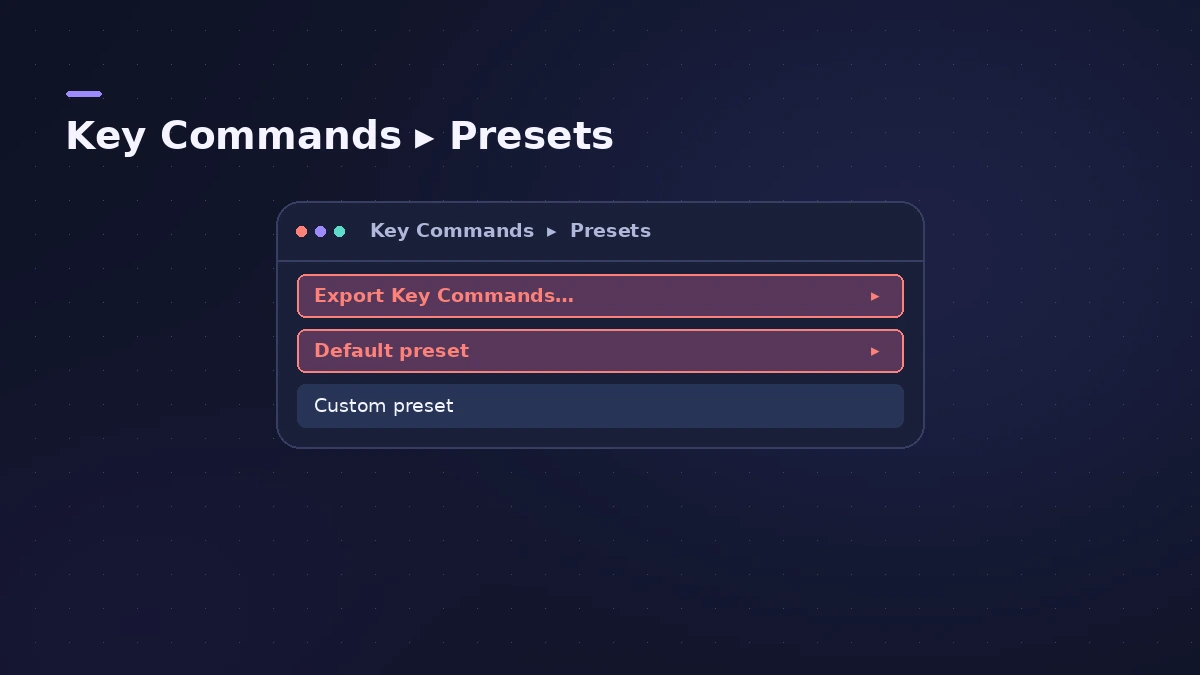
Choose Logic Pro > Key Commands > Presets and pick the default preset. Export your own set first if you've customised it.
2. Search the command
Open Logic Pro > Key Commands > Edit, type the command's name and check what it's assigned to.
3. Click the window first
Key commands act on the window with key focus — click the Tracks area or editor before pressing the key.
4. Check control surfaces
Users report a Control Surface assignment taking over keys; check Logic Pro > Control Surfaces.
5. Reset settings as a last resort
Resetting Logic Pro's settings also resets custom key commands, so export them first.
Sources
- Apple Community — Space bar no longer starts or stops (key command presets, control surfaces)
- Apple Community — Key commands mystery (keyboard layout, reset)
- Apple Community — Reset key commands (global, key focus)
- Apple — Logic Pro User Guide: default key commands (U.S. preset)
Checked November 2026. Logic ProFiles is independent of Apple; menu names can differ slightly between Logic Pro versions.
Frequently asked questions
Why did my space bar stop playing in Logic Pro?
+
Check Play/Stop in the Key Commands window and reload a default preset; users also report control surface assignments taking the key.
Are key commands saved per project?
+
No. Key commands are global, not saved with a project.
Will resetting settings delete my custom shortcuts?
+
It resets them to the defaults, so export your key commands first.
Related
- Create custom key commands in Logic ProMake your own Logic Pro key commands: find the command, click Learn by Key Label, press the keys. Find unused shortcuts and export your set as a backup.
- Logic Pro shortcuts — the default key commands worth learningThe Logic Pro key commands worth learning first: transport, recording, windows, editing, tracks and export from Apple's U.S. preset, and how to change them.
- How to reset Logic Pro settingsReset Logic Pro settings to fix odd behaviour: use Reset All Settings Except Key Commands, then reset the plist file or the control surfaces file if needed.
- MIDI keyboard not working in Logic Pro — 9 fixesLogic Pro not responding to your MIDI keyboard? Check USB and drivers, rescan in Audio MIDI Setup, reset all MIDI drivers and arm a software instrument track.
- Fix Logic Pro problems — errors, crashes and no soundStep-by-step fixes for Logic Pro on Mac: system overload, disk too slow, no sound, crashes, latency, missing plug-ins, MIDI keyboards and recording problems.