Instruments
Arpeggiator in Logic Pro
The Arpeggiator is a MIDI plug-in that turns the notes you hold into arpeggios. It sits in front of any software instrument, so the same chord can become a rising synth line, a random sequence or a programmed 16-step pattern.
 Owen Hartley

Where to find it
MIDI FX slot > Arpeggiator
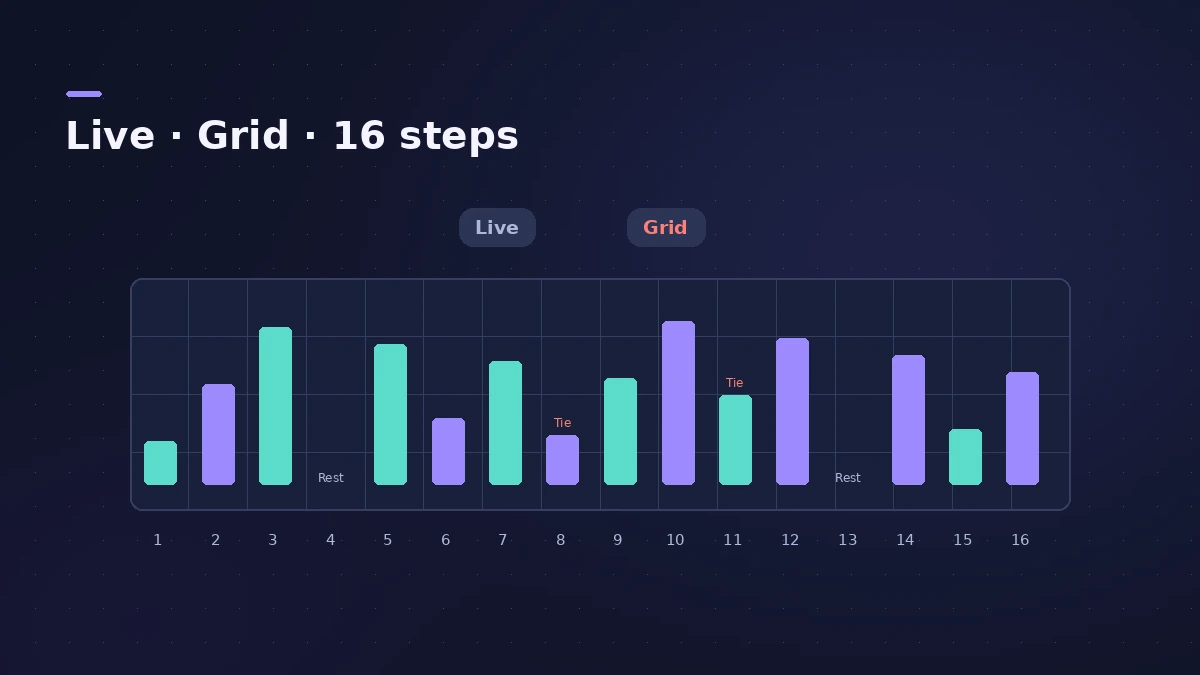
Live mode vs Grid mode
| Mode | Who controls the pattern |
|---|---|
| Live | Your playing — velocity comes from how you play, and you can add rests, ties and chords in real time |
| Grid | The 16-step grid sets velocity, length, rests, ties and chords; live velocity is ignored |
Note order options
| Order | Result |
|---|---|
| Up, down, up and down | Fixed directions through the held notes |
| Random | Notes in a random order |
| As played | Notes in the order you pressed them |
Each order has four variations, and inversions change which note the pattern starts from.
Step by step
-
1
Insert the Arpeggiator
Click the MIDI FX slot between the instrument and the EQ display on a software instrument channel strip and choose Arpeggiator.
-
2
Set the note order
Choose up, down, up and down, random or as played, then try the variations and inversions for each.
-
3
Set rate and octave range
Pick the arpeggio speed and how many octaves the pattern climbs.
-
4
Turn on Latch
Latch keeps the arpeggio going after you let go of the keys.
-
5
Program a grid
Switch to Grid mode for 16 steps with velocity, length, rests, ties and chords, or capture what you just played as a grid pattern.
Common mistakes
- Playing a single note and expecting note order to matter — it needs two or more notes.
- Forgetting that Live and Grid modes can't run at the same time.
- Recording the chord and wondering where the arpeggio went — record the MIDI output if you want the notes.
Arpeggiator in Logic Pro 13
The Play Surface in Logic Pro 13 has an Arpeggiator button, and Record MIDI to Track can record the arpeggio output. For other MIDI plug-ins, see MIDI FX.
Sources
- Apple — Logic Pro for iPad User Guide: Arpeggiator MIDI plug-in
- Apple — Logic Pro for iPad User Guide: Arpeggiator Grid mode
- Sound On Sound — Arp Nouveau: Logic Pro X's Arpeggiator (Dec 2013)
- Apple — Logic Pro for iPad User Guide: MIDI plug-ins
- Apple Support — Logic Pro for Mac release notes
Checked November 2026. Logic ProFiles is independent of Apple; menu names can differ slightly between Logic Pro versions.
Frequently asked questions
What is Latch in the Arpeggiator?
+
It keeps the arpeggio playing after you release the keys.
How many steps does the Arpeggiator grid have?
+
Sixteen. Each step sets velocity, length, rest, tie and chord status.
Can I record the arpeggiated notes?
+
Yes. Record the MIDI output; in Logic Pro 13 Record MIDI to Track also captures the arpeggio from the Play Surface.
Related
- How to make synthwave in Logic ProMake synthwave in Logic Pro: 80–118 BPM, Retro Synth pads, an Arpeggiator line and a gated reverb snare built from a reverb aux followed by Noise Gate.
- Chord Trigger in Logic ProPlay chords from single keys with Logic Pro's Chord Trigger: choose Single or Multi mode, set the trigger range, use Learn to assign chords and transpose them.
- Note Repeater in Logic ProCreate MIDI echoes, rolls and stutters with Logic Pro's Note Repeater: sync Delay to tempo, set Repeats, ramp velocity and transpose each repeat.
- MIDI FX in Logic ProWhat each MIDI plug-in in Logic Pro does — Arpeggiator, Chord Trigger, Modifier, Modulator, Note Repeater, Randomizer, Scripter, Transposer, Velocity Processor.
- Play Surface in Logic Pro 13Play notes, chords and drums on your Mac with the Play Surface in Logic Pro 13: Command-K, Chord Strips that follow the Chord track, pads, musical typing.
- Retro Synth in Logic ProRetro Synth in Logic Pro explained: a 16-voice synth with Analog, Sync, wavetable and FM engines, which engine to pick for leads, pads, basses and bells.
- Step Sequencer in Logic ProProgram beats with Logic Pro's Step Sequencer: create a Pattern Region, set step rate and velocity, add note repeats and automation, follow the chords.