Bounce & Export
How to export WAV from Logic Pro — 24-bit or 16-bit
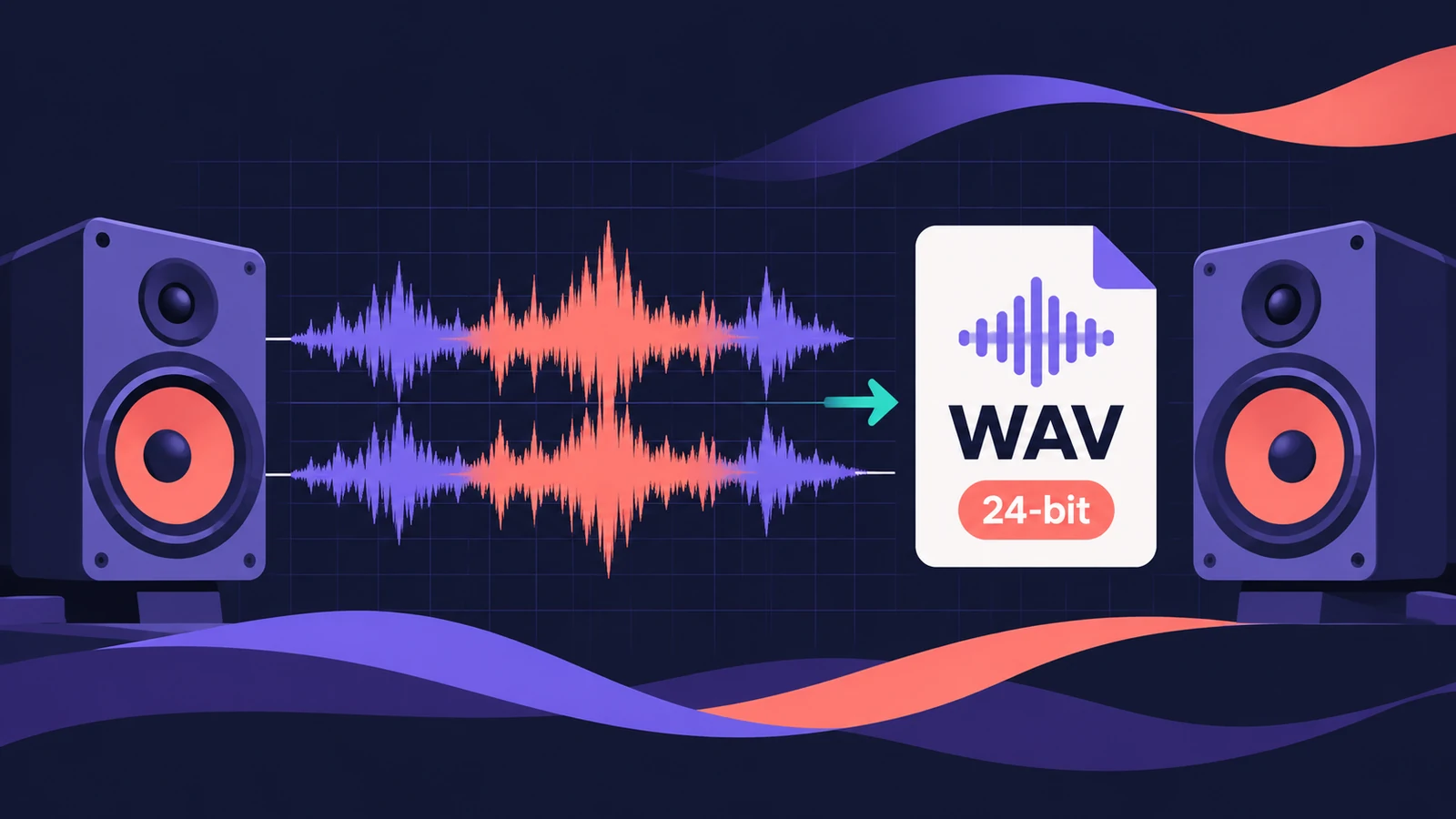
A WAV bounce is your full-quality master: uncompressed, the same file a mastering engineer, distributor or CD plant asks for. In the Bounce dialog it sits under Uncompressed (called PCM in older Logic Pro versions). The only real decisions are bit depth, sample rate and dithering.
 Owen Hartley
Where to find it
File > Bounce > Project or Section > Uncompressed
Shortcut
Command-B
WAV settings by destination
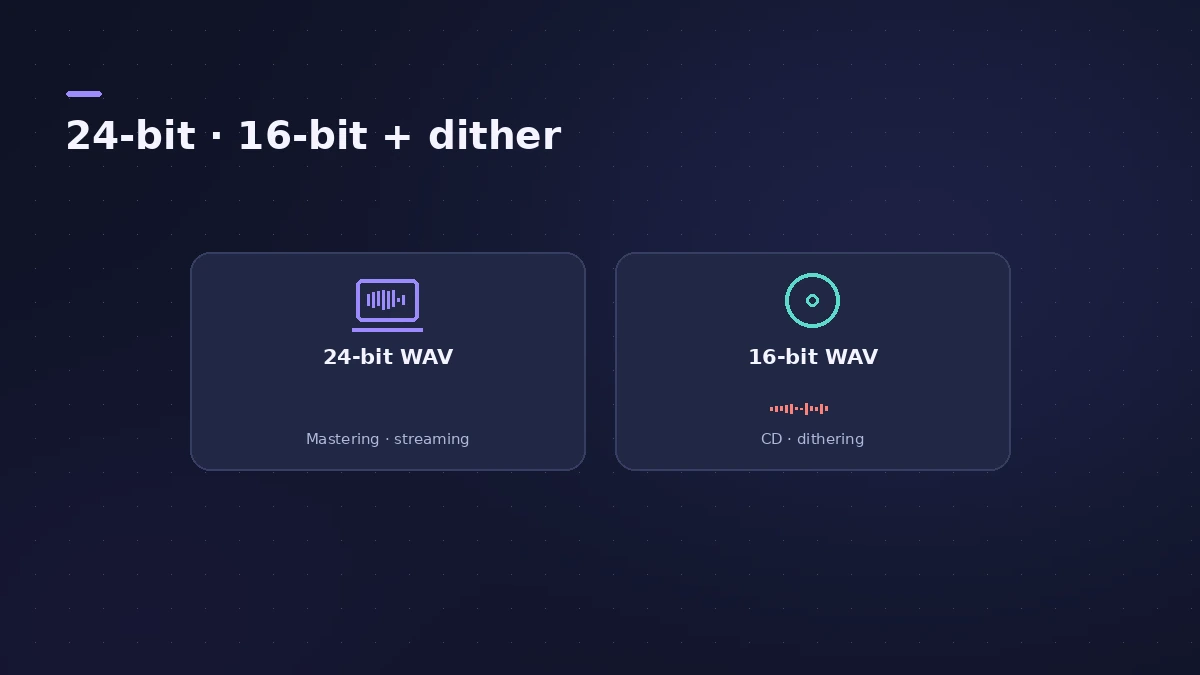
| Sending to | Bit depth | Sample rate | Dither |
|---|---|---|---|
| Mastering engineer | 24-bit | Project rate | No |
| Distributor / streaming | 24-bit (check their spec) | Their spec | No |
| CD plant | 16-bit | 44.1 kHz | Yes |
| Your own archive | 24-bit | Project rate | No |
Sources: Sound On Sound's export guide for bit depth, rate and dither. 44.1 kHz is the CD-DA rate in Apple's bounce options. Need a smaller copy for sharing? Tick MP3 in the same bounce — see export MP3.
Step by step
-
1
Open the Bounce dialog
Choose File > Bounce > Project or Section, or press Command-B.
-
2
Select Uncompressed
Tick Uncompressed (PCM in older versions) and choose WAVE from the File Format menu. AIFF is the Apple equivalent if someone asks for it.
-
3
Choose the bit depth
Sound On Sound recommends 24-bit for files going to mastering or streaming, and 16-bit for CD manufacture.
-
4
Choose the sample rate
For mastering, Sound On Sound suggests exporting at the rate you recorded at. Convert only if the recipient asks for a different rate.
-
5
Keep it interleaved
Set File Type to Interleaved for one stereo file. Split writes separate left and right files.
-
6
Add dithering only for 16-bit
Dithering is for reducing 24-bit audio to 16-bit. Sound On Sound suggests UV22HR for most CD listeners.
-
7
Bounce
Set Normalize, name the file and click Bounce.
Common mistakes
- Normalizing a master that's already at its intended loudness.
- Sending a 16-bit file to a mastering engineer who asked for 24-bit.
- Choosing Split file type for a stereo master by mistake.
Loudness for streaming
Sound On Sound's 2021 guide suggests exporting streaming masters at 24-bit and at the loudness the platform asks for, and checking it with the Loudness Meter on the Stereo Out. Leave headroom on files you send to a mastering engineer.
Sources
- Apple — Logic Pro User Guide: Bounce a project to an audio file in Logic Pro for Mac
- Apple — Logic Pro X 10.1 Help: PCM (uncompressed) bounce options (old)
- Sound On Sound — Logic Pro Bouncing And Export Options (Oct 2021)
- Apple — Listen to a binaural Logic Pro spatial audio mix on iPhone and other devices (Dec 2024)
Checked November 2026. Logic ProFiles is independent of Apple; menu names can differ slightly between Logic Pro versions.
Frequently asked questions
Should I export 24-bit or 16-bit WAV from Logic Pro?
+
24-bit for mastering, distributors and streaming; 16-bit with dithering only for CD, according to Sound On Sound's export guide.
What's the difference between WAV and AIFF in Logic Pro?
+
Both store uncompressed audio at the bit depth and sample rate you choose. Pick whichever format the recipient asks for.
Why is the PCM option missing in my Bounce dialog?
+
Newer Logic Pro versions call it Uncompressed. Apple's current user guide uses that name; older guides and articles say PCM.
Related
- Dither in Logic ProWhat dithering does in Logic Pro bounces: when to dither (reducing 24-bit to 16-bit), the differences between POW-r #1, #2 and #3, and when to leave it off.
- Sample rate and bit depth in Logic ProChoose the right sample rate and bit depth in Logic Pro: 44.1 kHz for music, 48 kHz for video, 24-bit recording, 32-bit float and mismatched rates.
- File formats Logic Pro supportsWhich file formats Logic Pro plays, records and bounces: AIFF, WAV (BWF), CAF, Apple Lossless, MP3, AAC, plus MIDI, AAF, Final Cut Pro XML and MusicXML.
- Export and share songs from Logic Pro for iPadExport a song from Logic Pro for iPad as WAV, AIFF or M4A, export stems as a zip or MIDI files, and share to Files, AirDrop, other apps or Voice Memos.
- How to bounce in Logic Pro — every bounce setting explainedBounce your Logic Pro project to WAV, MP3 or AAC: set the range, choose offline or realtime, include the reverb tail and pick the right normalize setting.
- How to export MP3 from Logic ProBounce an MP3 straight from Logic Pro: tick MP3 in the Bounce dialog, choose the bit rate, VBR, quality and stereo mode, and add ID3 tags. Settings explained.
- How to export stems from Logic ProExport every Logic Pro track as its own audio file for a mixer: All Tracks as Audio Files, the right options for effects, tails and naming, and Track Stacks.
- Bounce and export in Logic Pro — songs, stems, MIDI and AtmosHow to get audio out of Logic Pro on Mac: bounce a song to WAV or MP3, export stems and MIDI, deliver Dolby Atmos, send a project to Pro Tools or a video.