MainStage & Live
MainStage gig checklist
Apple's own advice for performing with MainStage boils down to this: test everything with the exact hardware you'll use, ideally at the venue, close what you don't need and take the Mac offline. Perform mode then disables Auto Save, Spotlight and Time Machine for you.
 Owen Hartley

Where to find it
View > Perform in Full Screen
Six checks
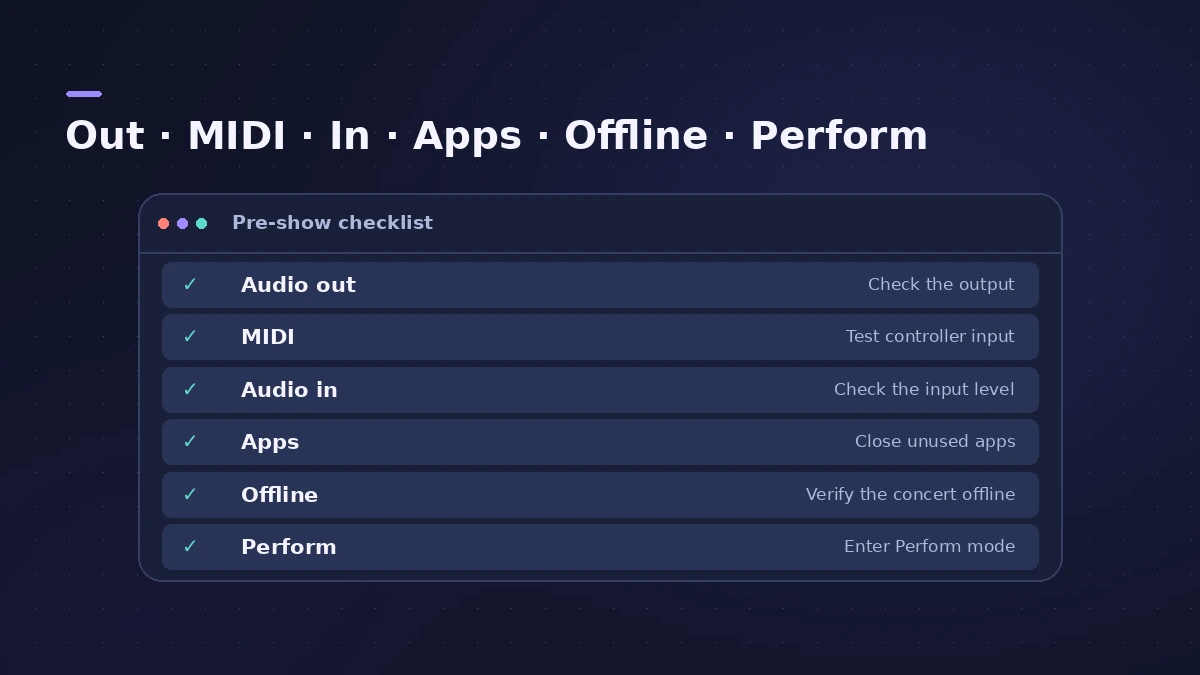
Step by step
-
1
Test audio output
Play through the interface and speakers or monitors you'll use on stage.
-
2
Test MIDI input
Select a software instrument patch, play the controller and watch the Activity Monitor for incoming MIDI.
-
3
Test audio input
Select a patch with an audio channel strip and play or sing.
-
4
Close other apps
Especially ones that use a lot of processor or memory.
-
5
Go offline
Disconnect the Mac from networks — unless you use Logic Remote, in which case keep the Mac and iPad on the same wireless network.
-
6
Switch to Perform mode
Choose View > Perform in Full Screen (Command-4), or Perform in Window if you need other apps.
Common mistakes
- Changing hardware at the gig: If you use different controllers or interfaces from the ones you built the concert with, relearn your hardware assignments.
Using a different rig on stage
Build a performance layout with the stage hardware's assignments and import it into your concert before the show — your mappings are kept.
Sources
- Apple — MainStage User Guide: Before performing live
- Apple — MainStage User Guide: Before performing live (Logic Remote)
- Apple — MainStage User Guide: Tips for complex hardware setups
- Apple — MainStage User Guide 3.5: Test with the performance setup
- Apple — MainStage User Guide: Use Perform mode
- Apple — MainStage User Guide: The basics of Perform mode
Checked November 2026. Logic ProFiles is independent of Apple; menu names can differ slightly between Logic Pro versions.
Frequently asked questions
What does Perform mode turn off?
+
OS-level Auto Save, Spotlight and Time Machine.
Should I test at the venue?
+
Apple highly recommends testing the concert with the same setup you'll perform with, at the venue if possible.
Related
- MainStage CPU and memory tipsKeep MainStage stable live: watch CPU and memory meters, set the I/O buffer, use the voice limiter, Perform mode and Sampler memory settings.
- MainStage not working: fixes in orderFix MainStage in Apple's order: update, check device compatibility, test built-in audio, bypass Audio Units, try a new concert, then reset preferences.
- Using the MainStage TunerTune guitar, bass or any instrument in MainStage: open the Tuner with Command-T, use the first audio channel strip, mute other amps and add the Tuner plug-in.
- How to set up a MainStage concertSet up a MainStage concert: connect your gear, choose a template, add patches and sets, assign your controller, then switch to Perform mode before the gig.
- Assign a MIDI controller in MainStageAssign your MIDI controller's knobs, faders and buttons in MainStage with Learn: select a control, click Assign & Map, move it — press buttons three times.
- Logic Remote — control Logic Pro from an iPad or iPhoneLogic Remote is Apple's free app that turns an iPad or iPhone into a Logic Pro mixer, transport and Touch Instrument. Connect over Wi-Fi or USB in a few taps.
- MainStage and live performancePlay Logic Pro's instruments on stage with MainStage 4: concerts and patches, backing tracks, MIDI controllers, Ableton Link and pre-gig checks.