MainStage & Live
MainStage not working: fixes in order
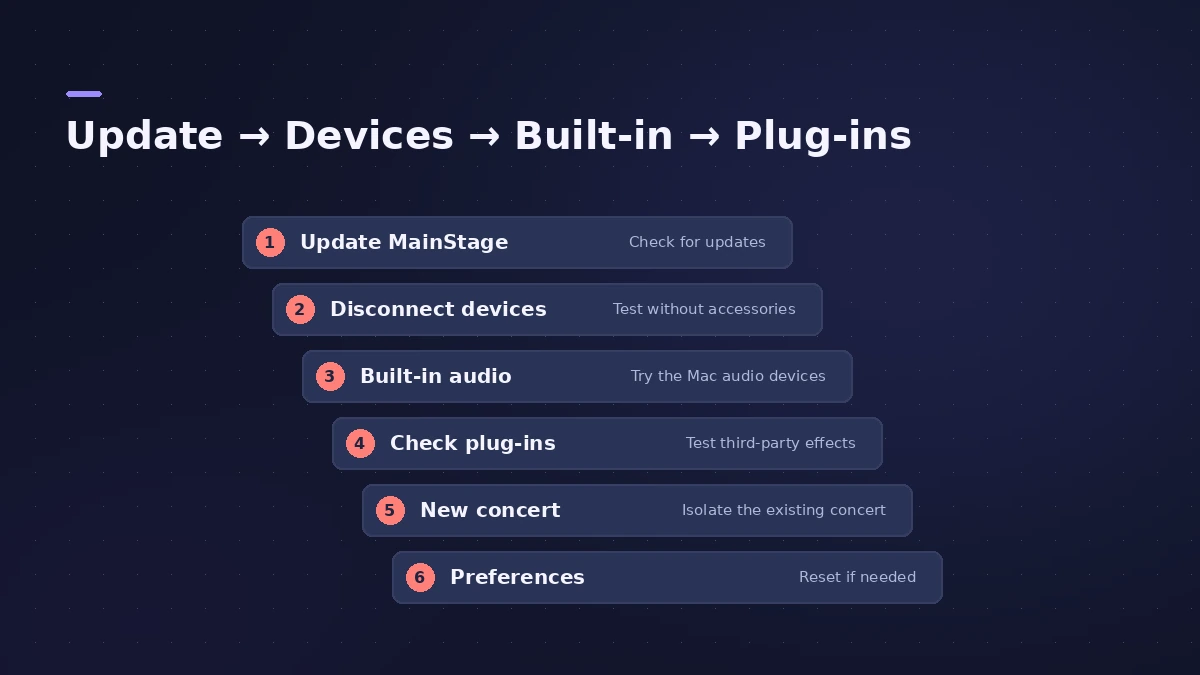
If MainStage has no sound, glitches or quits, work through Apple's steps in order and test after each one. Back up your concerts first.
 Owen Hartley

Where to find it
MainStage > Settings > Audio
Apple's order of fixes
| Step | What it rules out |
|---|---|
| Update | Known bugs |
| Built-in audio | Interface or driver |
| Bypass Audio Units | Third-party plug-ins |
| New concert | Damaged concert file |
| New user | Account settings |
| Reset preferences | Damaged settings |
Step by step
-
1
Update MainStage
Install any MainStage update from the App Store.
-
2
Check compatibility
Make sure your interface, MIDI devices and plug-ins support your macOS version.
-
3
Test built-in audio
Unplug the interface and choose the Mac’s speakers and microphone; if that works, the interface may need an update.
-
4
Bypass Audio Units
Bypass or remove third-party Audio Units plug-ins.
-
5
Try a new concert
Create a concert from a template; if it works, rebuild the old one by exporting and importing its layout, sets and patches.
Common mistakes
- Changing several things at once so you can’t tell what fixed it.
- Forgetting to check that a volume or expression pedal isn’t sitting at zero.
Last resorts
Apple’s final steps are testing in a new macOS user account and resetting MainStage preferences — this doesn’t affect concerts, presets or patches. For stability, see CPU and memory tips.
Sources
- Apple — If MainStage isn't working
- KeyboardTEK — I don't hear sound in MainStage
- Apple — MainStage User Guide: Audio settings
Checked November 2026. Logic ProFiles is independent of Apple; menu names can differ slightly between Logic Pro versions.
Frequently asked questions
Why do I see MIDI but hear nothing in MainStage?
+
Check the audio output device, muted channel strips, the master volume and any volume or expression pedal sending zero.
Will resetting MainStage preferences delete my concerts?
+
No. Apple says resetting doesn’t affect concert files, presets or patches.
Related
- MainStage CPU and memory tipsKeep MainStage stable live: watch CPU and memory meters, set the I/O buffer, use the voice limiter, Perform mode and Sampler memory settings.
- MainStage gig checklistApple's checks before playing live with MainStage: test audio and MIDI, close other apps, go offline, use the same hardware, then switch to Perform mode.
- How to reset Logic Pro settingsReset Logic Pro settings to fix odd behaviour: use Reset All Settings Except Key Commands, then reset the plist file or the control surfaces file if needed.
- MainStage and live performancePlay Logic Pro's instruments on stage with MainStage 4: concerts and patches, backing tracks, MIDI controllers, Ableton Link and pre-gig checks.