MainStage & Live
Assign a MIDI controller in MainStage
MainStage recognises many popular MIDI controllers and assigns their controls automatically. For anything else, you teach it: select a screen control, start the Learn process and move the hardware control. You only need to do this once per concert, as long as you use the same hardware.
 Owen Hartley

Where to find it
Layout mode or Edit mode > Assign & Map
The Learn process
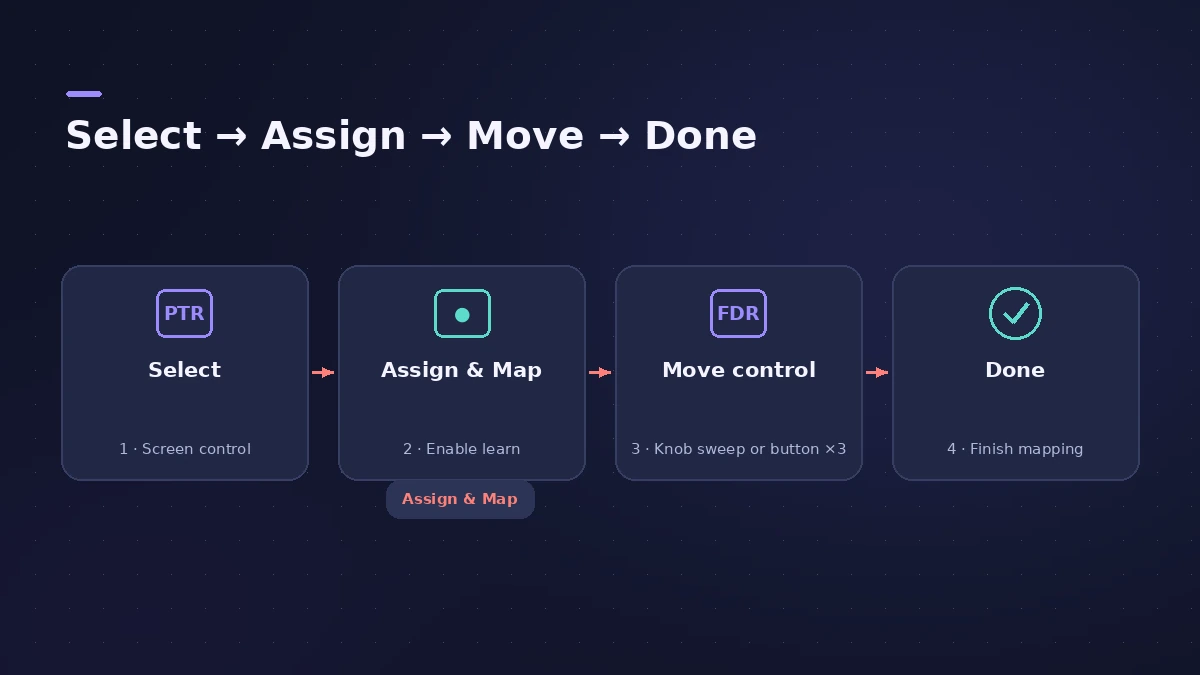
Step by step
-
1
Select a screen control
In the workspace, select the knob, fader or button you want to assign.
-
2
Click Assign & Map
The button glows red while the assignment process is active.
-
3
Move the hardware control
Move faders and knobs through their full range. Press buttons exactly three times, not too quickly.
-
4
Assign more controls
While the button is red, select another screen control and move the next hardware control.
-
5
Finish
Click Assign & Map again to stop. Then map each screen control to the parameter or action you want.
Common mistakes
- Changing the preset on your controller: After assigning, don't change the preset on the MIDI device, or the assignments might be lost.
- Expecting non-standard messages to work: Hardware controls must send standard MIDI messages to be assigned.
No setup needed for the basics
MainStage responds to notes, volume, pan, expression, modulation and pitch bend wheels and sustain pedal messages without any screen controls set up.
Sources
- Apple — MainStage User Guide: Learn a controller assignment
- Apple — MainStage User Guide: Overview of controller assignments
- Apple — MainStage User Guide 3.5: Assign once per concert
- Apple — MainStage User Guide: MIDI devices and controller presets
- Apple — MainStage User Guide: Don't change the controller preset
- Apple — MainStage User Guide: Button assignments
- Apple — MainStage User Guide 3.5: Assignments & Mappings table
- Apple — MainStage 2 User Manual: Learning a controller assignment (old)
- Apple — MainStage User Guide: Workflow basics
Checked November 2026. Logic ProFiles is independent of Apple; menu names can differ slightly between Logic Pro versions.
Frequently asked questions
Why press buttons three times when learning?
+
It helps MainStage work out whether the button sends a single value, alternating values or is momentary.
Where can I see all assignments?
+
In the Assignments & Mappings tab (Shift-Command-M), listed by device and MIDI channel.
Related
- Expression and sustain pedals in MainStageSet up sustain and expression pedals in MainStage: what works by default, Learn an assignment, map a pedal to volume or effects, fix a reversed sustain.
- Changing patches live in MainStageSwitch patches in MainStage while you play: arrow keys, Next Patch and Prev Patch actions on a foot switch, program changes and Silence Previous Patch.
- How to set up a MainStage concertSet up a MainStage concert: connect your gear, choose a template, add patches and sets, assign your controller, then switch to Perform mode before the gig.
- MainStage gig checklistApple's checks before playing live with MainStage: test audio and MIDI, close other apps, go offline, use the same hardware, then switch to Perform mode.
- Control surfaces in Logic ProUse a control surface with Logic Pro: Mackie Control units are detected automatically, HUI devices are added in Control Surfaces > Setup, EuCon uses EuControl.
- MainStage and live performancePlay Logic Pro's instruments on stage with MainStage 4: concerts and patches, backing tracks, MIDI controllers, Ableton Link and pre-gig checks.