MainStage & Live
Changing patches live in MainStage
Moving between sounds smoothly is the heart of a MainStage gig. You can step through patches from the computer keyboard, a foot switch mapped to an action, or program change messages from your controller.
 Owen Hartley

Where to find it
Screen Control Inspector > Actions
Patch change options
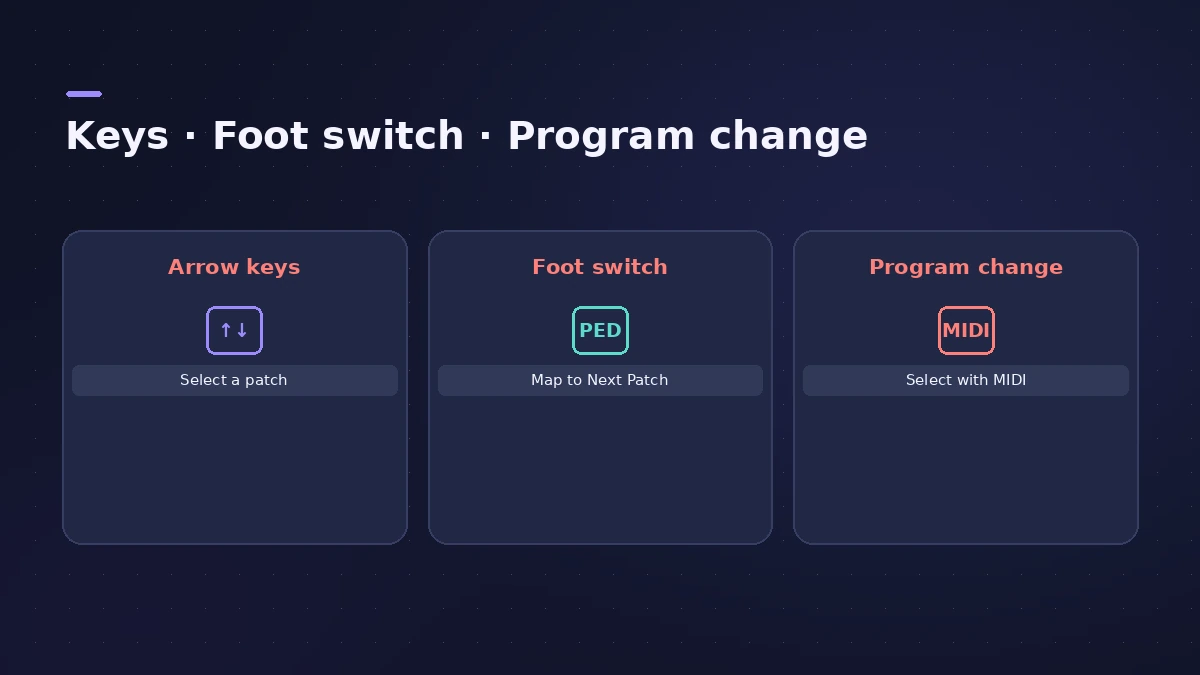
| Method | Set-up |
|---|---|
| Arrow keys | None |
| Foot switch | Assign button, map to Next Patch |
| Program change | Patch program and bank numbers |
| Touch Bar | Previous/Next Patch buttons |
Step by step
-
1
Use the arrow keys
Up and Down select the previous and next patch; Left and Right jump to the first patch of the previous or next set.
-
2
Map a foot switch
Assign a button screen control to your switch, then map it to the Next Patch action.
-
3
Add more actions
Prev Patch, +10 Patches, Next Set and other actions work the same way.
-
4
Use program changes
Set program change and bank numbers in the patch settings to recall patches from a controller.
-
5
Control the tail
Silence Previous Patch sets how long tails from the last audio patch keep sounding.
Common mistakes
- Mapping patch actions to a knob — it jumps to the hardware value.
- Forgetting that skipped patches are also skipped by Next Patch and +10 actions.
Organise first
Arrange patches into sets in the order you play — see concert setup. Pedal set-up is in expression and sustain pedals.
Sources
- Apple — MainStage User Guide: Map screen controls to actions
- Apple — MainStage 3.5 Guide: Table of actions
- Apple — MainStage User Guide: Selecting patches while performing
- Apple — MainStage User Guide: Select patches using keyboard shortcuts
- Apple — MainStage 3.5 Guide: Select patches using actions
- Apple — MainStage 3.6.2 Guide: Audio settings (voice limiter, feedback)
- Brian Li — Assigning controllers to functions in MainStage
Checked November 2026. Logic ProFiles is independent of Apple; menu names can differ slightly between Logic Pro versions.
Frequently asked questions
Do notes from the previous patch cut off?
+
No. Sustained notes continue until you release them or the pedal, and effect tails follow Silence Previous Patch.
Can a foot switch advance one patch at a time?
+
Yes. Map a button screen control assigned to the switch to the Next Patch action.
Related
- How to set up a MainStage concertSet up a MainStage concert: connect your gear, choose a template, add patches and sets, assign your controller, then switch to Perform mode before the gig.
- Expression and sustain pedals in MainStageSet up sustain and expression pedals in MainStage: what works by default, Learn an assignment, map a pedal to volume or effects, fix a reversed sustain.
- Assign a MIDI controller in MainStageAssign your MIDI controller's knobs, faders and buttons in MainStage with Learn: select a control, click Assign & Map, move it — press buttons three times.
- MainStage and live performancePlay Logic Pro's instruments on stage with MainStage 4: concerts and patches, backing tracks, MIDI controllers, Ableton Link and pre-gig checks.