Learn Logic Pro
Smart Controls in Logic Pro — use and map them
Smart Controls put the most useful settings of the selected track on a few labelled knobs and switches, so you can shape a sound without opening the Mixer or plug-in windows. One knob can move several parameters at once. In Logic Pro 13 press Y to show them; you can remap any knob and link it to a hardware controller.
 Owen Hartley
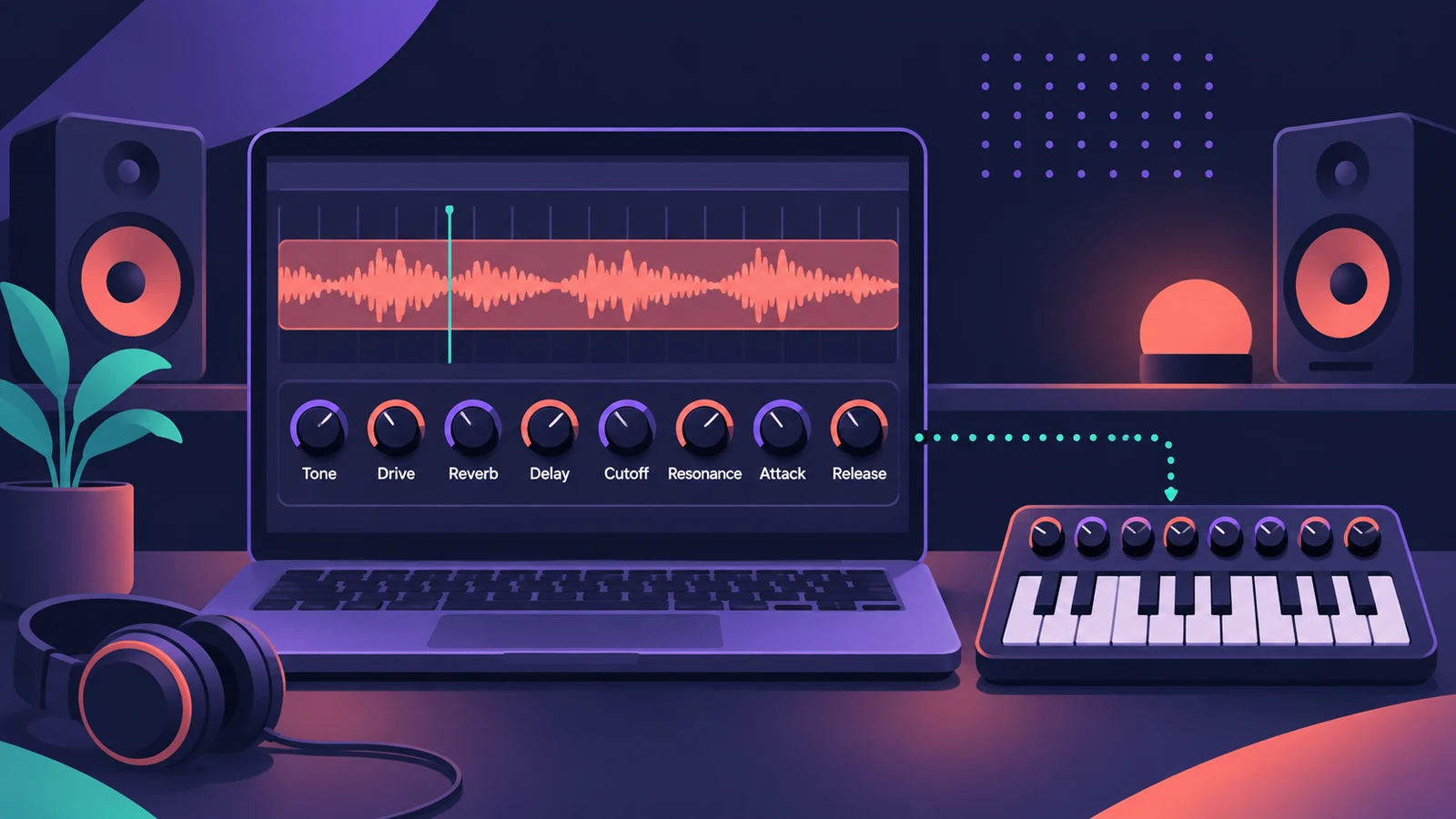
Where to find it
Smart Controls button in the control bar (Y in Logic Pro 13)
What the Smart Controls pane shows
| Part | What it does |
|---|---|
| Screen controls | Knobs, sliders and switches tuned to the track's instrument or effects |
| Smart Control inspector | Layout, parameter mappings and hardware assignments |
| External Assignment | Links a screen control to a knob, fader, button, pad or pedal |
Smart Controls work on software instrument and audio tracks alike — on an audio track they control the effects. New to the window layout? See the interface overview.
Step by step
-
1
Select a track and open Smart Controls
Select the track, then press Y in Logic Pro 13 or click the Smart Controls button in the control bar.
-
2
Adjust the screen controls
Turn the knobs and click the switches. Each is labelled with the part of the sound it changes, such as tone, reverb or filter.
-
3
Open the Smart Control inspector
Click the Inspector button in the Smart Controls menu bar to change the layout, see existing mappings or map a screen control to another parameter.
-
4
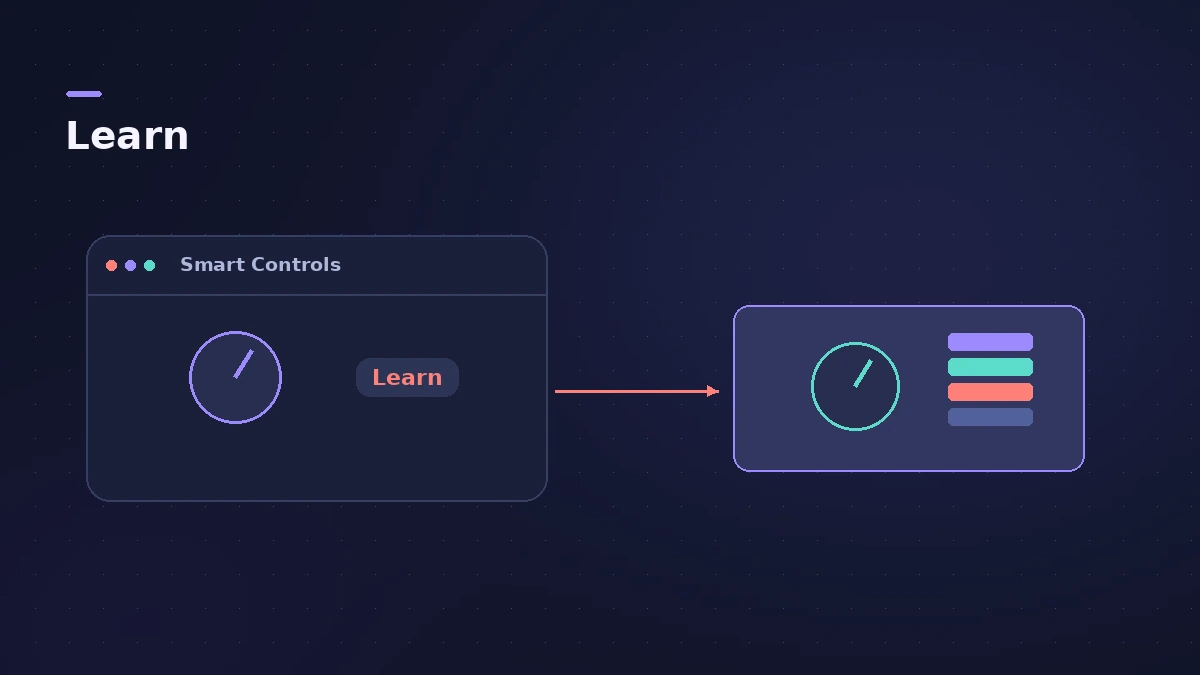
Assign a hardware knob with Learn
Select a screen control, click External Assignment, click Learn, then move the knob, fader or pad on your MIDI controller. Assign more controls while Learn is on, then click Learn again to finish.
Common mistakes
- Looking for Smart Controls under B in Logic Pro 13 — B now opens the Browser.
- Remapping controls and not saving the patch you want to reuse.
- Leaving Learn on and accidentally reassigning controls.
Smart Controls and patches
Smart Control layouts and mappings are part of a patch, so save the patch to reuse your setup. Setting up a MIDI keyboard? See MIDI keyboard not working.
Sources
- Apple — Logic Pro User Guide: Smart Controls interface
- Apple — Logic Pro X 10.1 Help: Smart Controls overview (old)
- Apple — Logic Pro User Guide: Assign hardware controls to screen controls
- Apple Support — Logic Pro for Mac release notes
- Apple — Logic Pro User Guide: What's new in Logic Pro for Mac 12
Checked November 2026. Logic ProFiles is independent of Apple; menu names can differ slightly between Logic Pro versions.
Frequently asked questions
What's the shortcut for Smart Controls in Logic Pro 13?
+
Y. Apple's 13.0 release notes say Y now toggles Smart Controls and B opens the Browser.
Can one Smart Control change several settings?
+
Yes. A single screen control can be mapped to several channel strip or plug-in parameters at once.
Do I need complete features to edit Smart Controls?
+
Not from Logic Pro 12. In Logic Pro X the inspector needed Show Advanced Tools.
Related
- Control surfaces in Logic ProUse a control surface with Logic Pro: Mackie Control units are detected automatically, HUI devices are added in Control Surfaces > Setup, EuCon uses EuControl.
- Logic Remote — control Logic Pro from an iPad or iPhoneLogic Remote is Apple's free app that turns an iPad or iPhone into a Logic Pro mixer, transport and Touch Instrument. Connect over Wi-Fi or USB in a few taps.
- ES2 in Logic ProHow ES2 works in Logic Pro: three oscillators with 100 Digiwaves, FM, sync and ring mod, the Oscillator Mix pad, 10 Mod Matrix slots and the Vector Envelope.
- Logic Pro patches — load, edit and save your ownWhat a Logic Pro patch is, how to load and swap patches in the Browser or Library, save your own, merge only parts of a patch and restore legacy patches.
- MIDI keyboard not working in Logic Pro — 9 fixesLogic Pro not responding to your MIDI keyboard? Check USB and drivers, rescan in Audio MIDI Setup, reset all MIDI drivers and arm a software instrument track.
- The Logic Pro interface explainedA tour of the Logic Pro window: control bar and LCD, Tracks area, inspector, Library, Browser, Mixer, editors and Smart Controls, with keys to toggle them.
- Learn Logic Pro — tutorials for beginnersLearn Logic Pro on Mac: a beginner tutorial, the interface, the Logic Pro 13 Browser, audio interface setup, key commands, loops, patches and saving projects.