Reference
Logic Pro settings vs project settings
Logic Pro keeps two kinds of settings. Logic Pro > Settings applies to every project and is saved automatically when you quit. File > Project Settings is saved with each project, so different projects can behave differently. Both windows can be open at once, and some panes link to each other.
 Owen Hartley
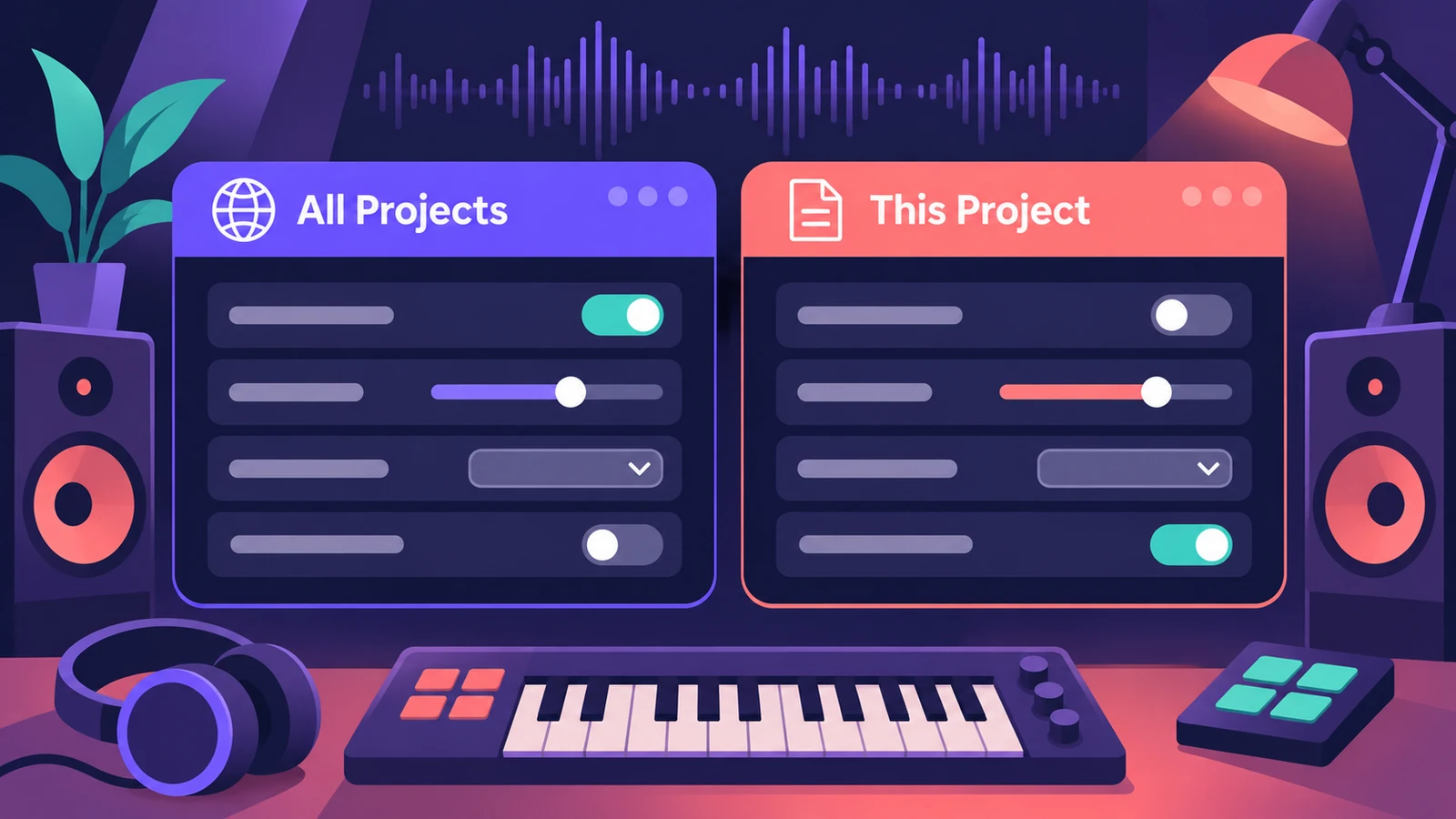
Two windows
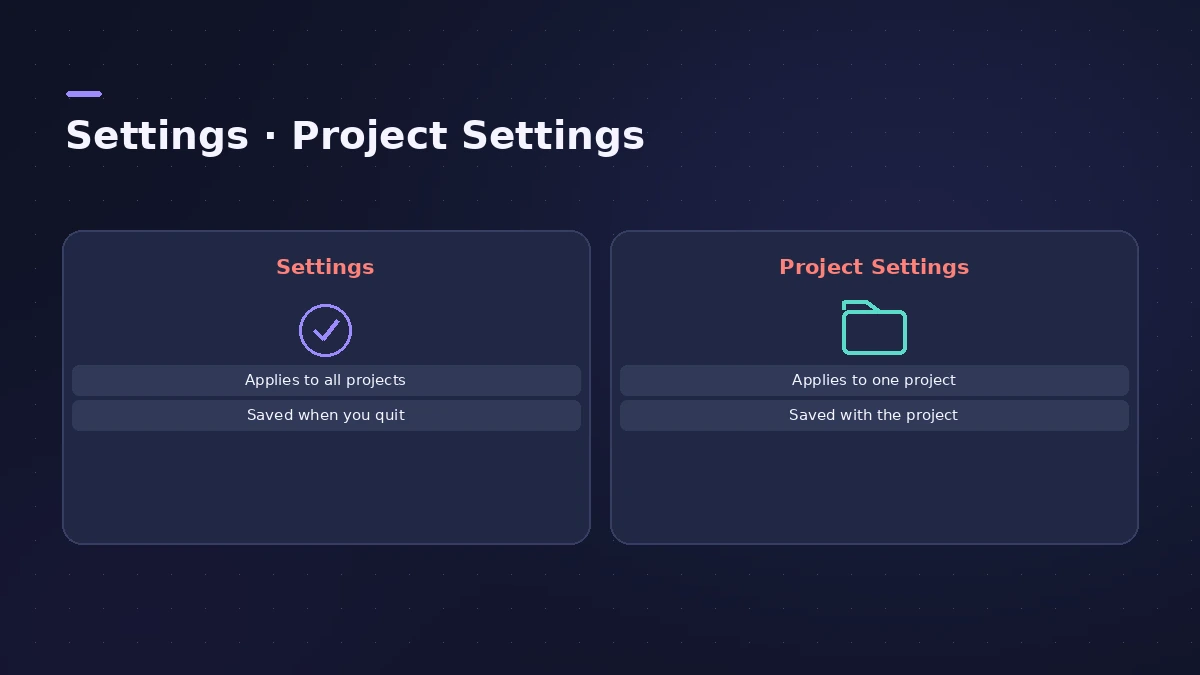
| Logic Pro > Settings | File > Project Settings | |
|---|---|---|
| Applies to | Every project | The current project |
| Saved | Automatically when you quit | With the project |
| Stored in | ~/Library/Preferences/com.apple.logic10.plist | Inside the project |
Project Settings panes
General, Synchronization, Metronome, Smart Tempo, Recording, Tuning, Audio, MIDI, Score, Movie and Assets.
Logic Pro Settings panes
Beat Kitchen lists General, Audio, Recording, MIDI, Display, Score, Movie, Automation, Control Surfaces, My Info and Advanced. Some options only appear when complete features are turned on in Advanced — see advanced settings.
Resetting
If you delete the settings file, Logic Pro creates a new one with default values next time it opens. Step-by-step instructions are in reset Logic Pro settings.
Sources
- Apple — Logic Pro User Guide: Overview of Logic Pro settings
- Apple — Logic Pro User Guide: Project settings overview
- Beat Kitchen — Customizing Logic Pro settings (panes)
- Apple — Logic Pro X 10.1 Help: General Audio preferences (recording file type)
Checked November 2026. Logic ProFiles is independent of Apple; menu names can differ slightly between Logic Pro versions.
Frequently asked questions
Where is Preferences in Logic Pro?
+
It's now called Settings: choose Logic Pro > Settings. Project-specific options are under File > Project Settings.
How do I reset Logic Pro's settings?
+
Delete the settings file and Logic Pro makes a new one with default values; with complete features on you can also reset from the Settings window. See our reset guide.
Are project settings saved in templates?
+
Yes — save your preferred project settings in a template to use them for new projects.
Related
- Tuning settings in Logic ProChange Logic Pro's tuning: detune software instruments from A440 in cents, use User scales, or Hermode Tuning modes for purer thirds and fifths.
- Time display in Logic Pro: bars, beats and SMPTERead Logic Pro's LCD: bars, beats, divisions and ticks, SMPTE timecode with frames, display modes, giant time display, frame rate and SMPTE offset settings.
- Logic Pro advanced settings — where "Enable Complete Features" wentCan't find Enable Complete Features or the Advanced pane in Logic Pro 12 or 13? Every feature is now always on. What changed and how older versions work.
- How to reset Logic Pro settingsReset Logic Pro settings to fix odd behaviour: use Reset All Settings Except Key Commands, then reset the plist file or the control surfaces file if needed.
- Where does Logic Pro save files?Where Logic Pro keeps files on a Mac: projects in Music > Logic, the Sound Library bundle, templates, key commands, settings files and third-party plug-ins.
- Logic Pro referenceLogic Pro reference: a plain-English glossary, supported audio and MIDI file formats, where plug-ins are installed, and how to make custom key commands.