Learn Logic Pro
Logic Pro advanced settings — where "Enable Complete Features" went
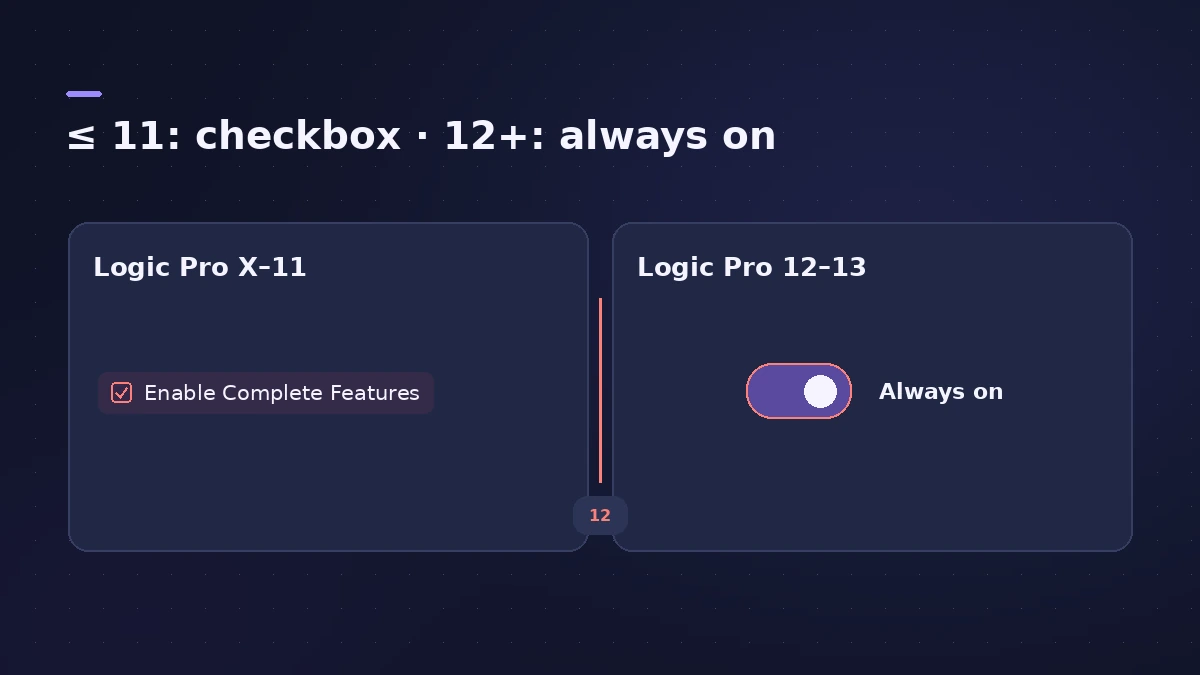
Many tutorials tell you to open Logic Pro > Settings > Advanced and tick Enable Complete Features. In Logic Pro 12 and 13 that pane doesn't exist: Apple made the complete set of features always available and removed the Advanced pane. If you use Logic Pro 11 or earlier, the checkbox is still there.
 Owen Hartley

By version
| Version | How advanced features work |
|---|---|
| Logic Pro 12 and 13 | Always available; no Advanced pane in Settings |
| Logic Pro 11 and later 10.x versions | Logic Pro > Settings (or Preferences) > Advanced > Enable Complete Features |
| Early Logic Pro X (Apple's 10.1 help) | Advanced preferences > Show Advanced Tools, plus Additional Options such as Audio and Surround |
What the "complete features" include
Berklee Online's 2024 note lists some of the tools that stayed hidden until you ticked the box: extra recording commands such as Quick Punch-In and Autopunch, automatic take colouring, Quick Swipe Comping and step input recording. Apple's older help adds features such as the Audio File Editor for destructive editing and surround mixing. Apple's own pages from before Logic Pro 12 also mention the checkbox for adding tempo, key and time signature changes and for Track Stacks.
Following an older tutorial?
If a guide says to enable complete features first, skip that step in Logic Pro 12 or 13 — the tools it needs are already there. Everything else in the tutorial still applies. For the rest of Logic Pro's settings, choose Logic Pro > Settings or press Command-Comma.
Sources
- Apple — Logic Pro User Guide: What's new in Logic Pro for Mac 12
- Apple — Logic Pro User Guide: Overview of Logic Pro settings
- Apple — Logic Pro X 10.1 Help: Advanced tools and additional options (old)
- Berklee Online — How to Turn on Complete Features in Logic Pro (Jan 2024)
- Apple — Logic Pro User Guide: Get started with project properties
Checked November 2026. Logic ProFiles is independent of Apple; menu names can differ slightly between Logic Pro versions.
Frequently asked questions
How do I enable complete features in Logic Pro 12 or 13?
+
You don't need to. Apple says the complete set of features is always available in Logic Pro 12, and the Advanced pane is no longer in Settings.
How do I turn it on in Logic Pro 11 or earlier?
+
Choose Logic Pro > Settings (or Preferences), click Advanced and select Enable Complete Features.
Where are Logic Pro's settings saved?
+
In a file named com.apple.logic10.plist in ~/Library/Preferences, with a separate com.apple.logic.pro.cs file for control surfaces.
Related
- Logic Pro settings vs project settingsLogic Pro has two settings windows: Logic Pro > Settings for every project, and File > Project Settings saved with each one. What lives where, how to reset.
- The Logic Pro MIDI Environment explainedThe MIDI Environment is Logic Pro's virtual MIDI studio: input, instrument, fader and processor objects joined by cables, in layers. How to open it.
- Plug-in Manager in Logic ProUse Logic Pro's Plug-in Manager to check Audio Units compatibility, rescan a plug-in, run a full Audio Unit reset, disable plug-ins, add categories.
- The Logic Pro interface explainedA tour of the Logic Pro window: control bar and LCD, Tracks area, inspector, Library, Browser, Mixer, editors and Smart Controls, with keys to toggle them.
- Logic Pro shortcuts — the default key commands worth learningThe Logic Pro key commands worth learning first: transport, recording, windows, editing, tracks and export from Apple's U.S. preset, and how to change them.
- What's new in Logic Pro 12Logic Pro 12 (28 Jan 2026) to 12.4: Synth Player, Chord ID, the Sound Library, legacy packs, Dolby Atmos mp4 export, granular Alchemy and Beat Breaker modes.
- Learn Logic Pro — tutorials for beginnersLearn Logic Pro on Mac: a beginner tutorial, the interface, the Logic Pro 13 Browser, audio interface setup, key commands, loops, patches and saving projects.