Reference
Time display in Logic Pro: bars, beats and SMPTE
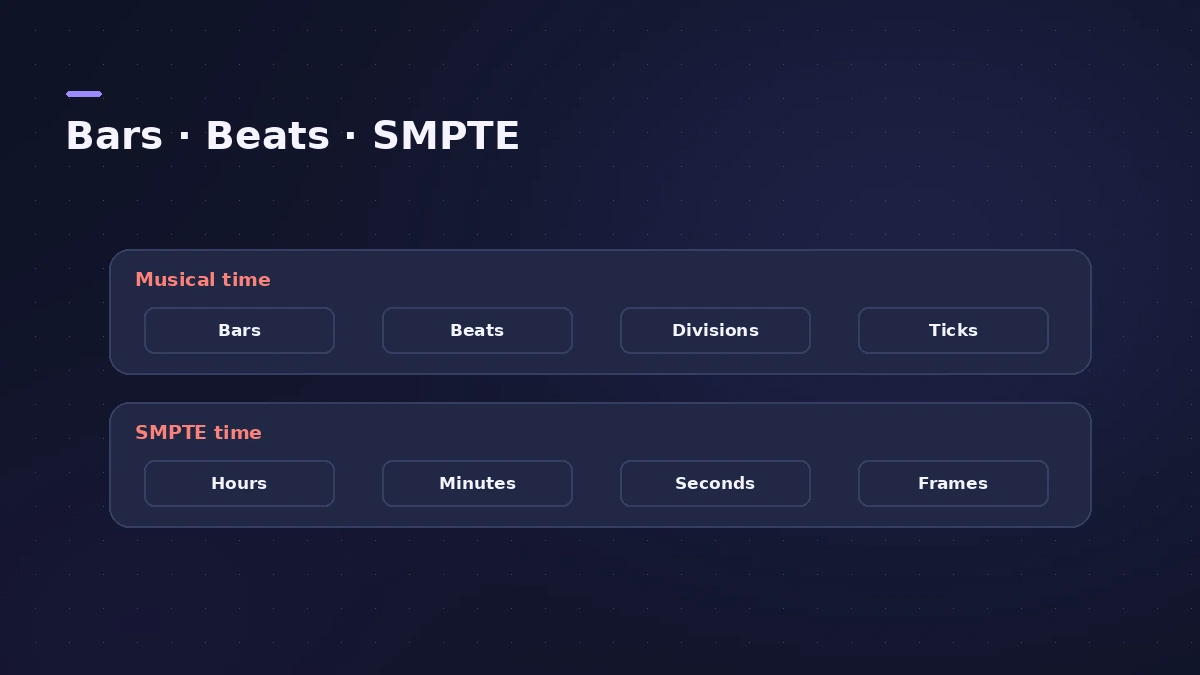
Logic Pro shows position in two ways: musical time (bars, beats, divisions and ticks) and absolute time (hours, minutes, seconds and frames, called SMPTE). Which one you need depends on whether you work to a grid or to picture.
 Owen Hartley
Two kinds of time
| Format | Units | Use for |
|---|---|---|
| Musical | Bars, beats, divisions, ticks | Writing and editing to the grid |
| SMPTE | Hours, minutes, seconds, frames | Video and film work |
The Division value sets the display and editing resolution — /16 divides a 4/4 bar into 16 parts. In Display settings you can show SMPTE subframes as bits or milliseconds; Apple notes a frame lasts 40 ms at 25 fps and about 33 ms at 30 fps.
Synchronisation settings
Frame rate and "Bar Position plays at SMPTE" (the SMPTE offset) are in File > Project Settings > Synchronization. For scoring, see audio to movie.
Sources
- Apple — Logic Pro X 10.4.5 Help: LCD display modes (old)
- Apple — Logic Pro X 10.1 Help: Time, tempo and clock format (old)
- Apple — Logic Pro 9 Help: Transport bar positions and division (old)
- Apple — Logic Pro X 10.1 Help: Synchronization settings (old)
Checked November 2026. Logic ProFiles is independent of Apple; menu names can differ slightly between Logic Pro versions.
Frequently asked questions
What do the four numbers in Logic Pro’s position mean?
+
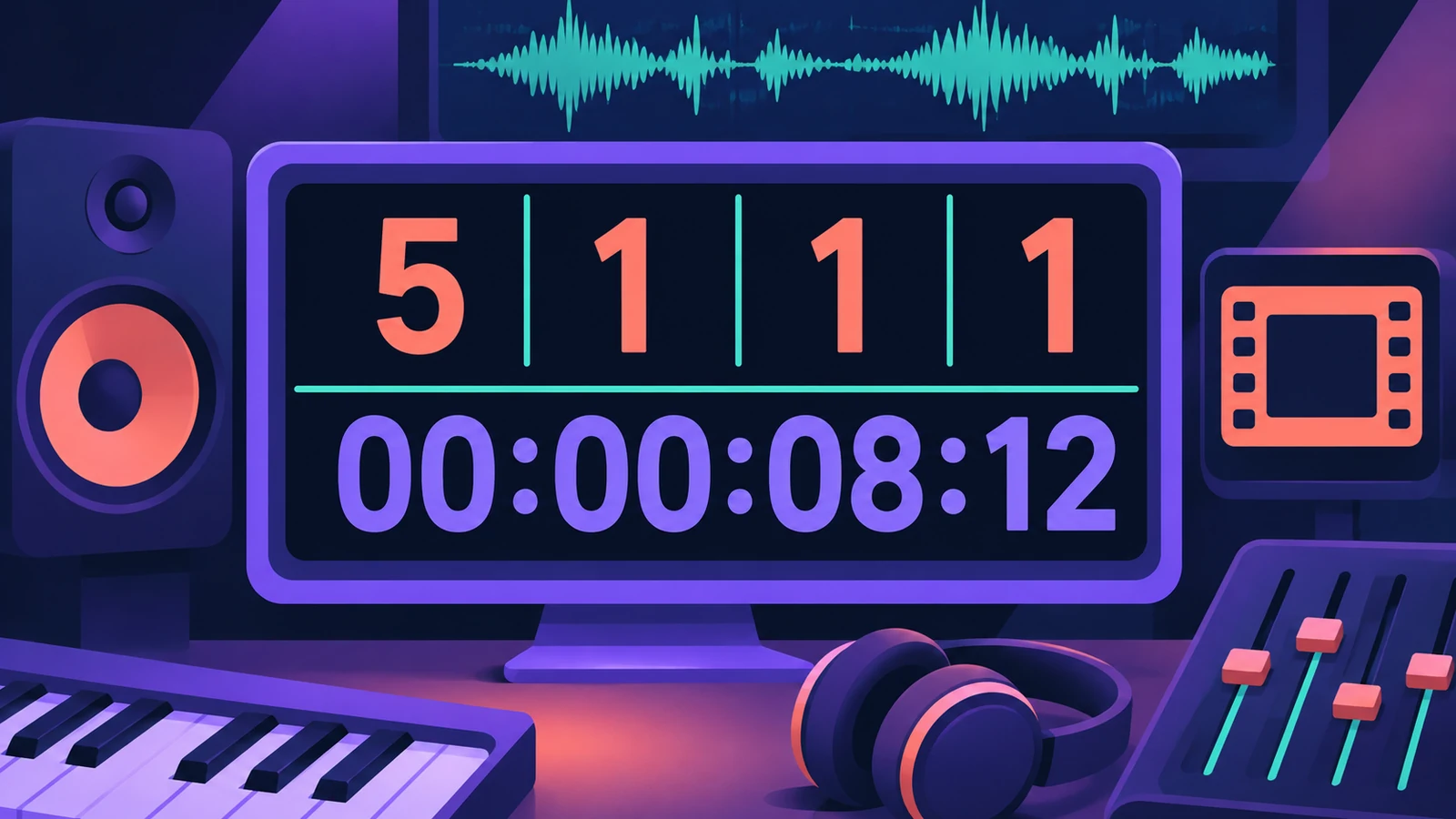
Bar, beat, division and tick — for example 1 1 1 1 is the very start.
How do I make a big time display?
+
Open the LCD menu and choose Open Giant Beats Display or Open Giant Time Display.
Related
- Sync external gear to Logic Pro's MIDI clockSend MIDI clock from Logic Pro to drum machines, grooveboxes and synths: pick destinations, set delay and PDC per device, and choose Pattern or Song clock mode.
- SMPTE timecode calculatorConvert SMPTE timecode to frames and seconds at 24, 25 or 30 fps, seconds back to timecode, and see frames per beat at any tempo for scoring to picture.
- Samples to milliseconds calculatorConvert samples to milliseconds and milliseconds to samples at any sample rate — useful for recording offsets, latency figures and sample delay settings.
- How to export audio to a video in Logic ProPut your Logic Pro mix onto a video with File > Movie > Export Audio to Movie, and avoid the common mistake that adds the old soundtrack back into the file.
- Logic Pro settings vs project settingsLogic Pro has two settings windows: Logic Pro > Settings for every project, and File > Project Settings saved with each one. What lives where, how to reset.
- Logic Pro referenceLogic Pro reference: a plain-English glossary, supported audio and MIDI file formats, where plug-ins are installed, and how to make custom key commands.