Learn Logic Pro
Logic Pro metronome and count-in
Press K to turn the metronome on or off and Shift-K for the count-in. Control-click the Metronome button to choose whether it clicks only when you switch it on, only while recording, or only during the count-in. The click itself comes from a software instrument called Klopfgeist, which you can retune and reroute in Project Settings.
 Owen Hartley
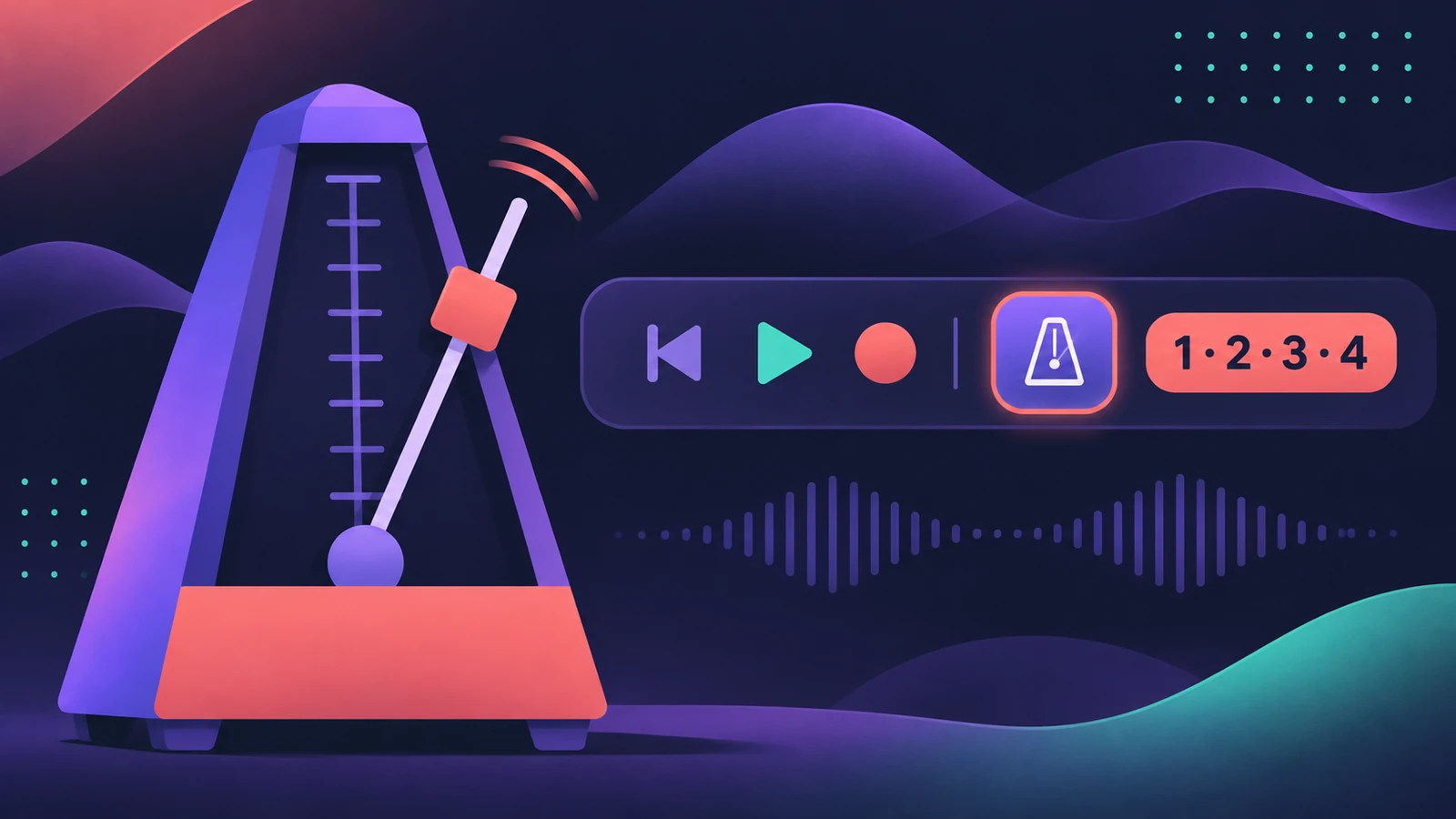
Where to find it
Control bar > Metronome button
Metronome settings worth knowing
| Setting | Where | What it does |
|---|---|---|
| On/off | K or the Metronome button | Clicks during playback and recording |
| Count-in | Shift-K | Clicks before recording starts |
| Count-in length | Record > Count-in | Bars or beats |
| Pre-roll | Project Settings > Recording | Replaces the count-in when selected |
| Tone and volume | Project Settings > Metronome | Changes the Klopfgeist click |
| Output | Project Settings > Metronome | Sends the click to other interface outputs |
The metronome always plays at the project tempo, including any tempo changes — set those in tempo, key and time signature.
Step by step
-
1
Turn the metronome on
Click the Metronome button in the control bar or press K.
-
2
Choose when it clicks
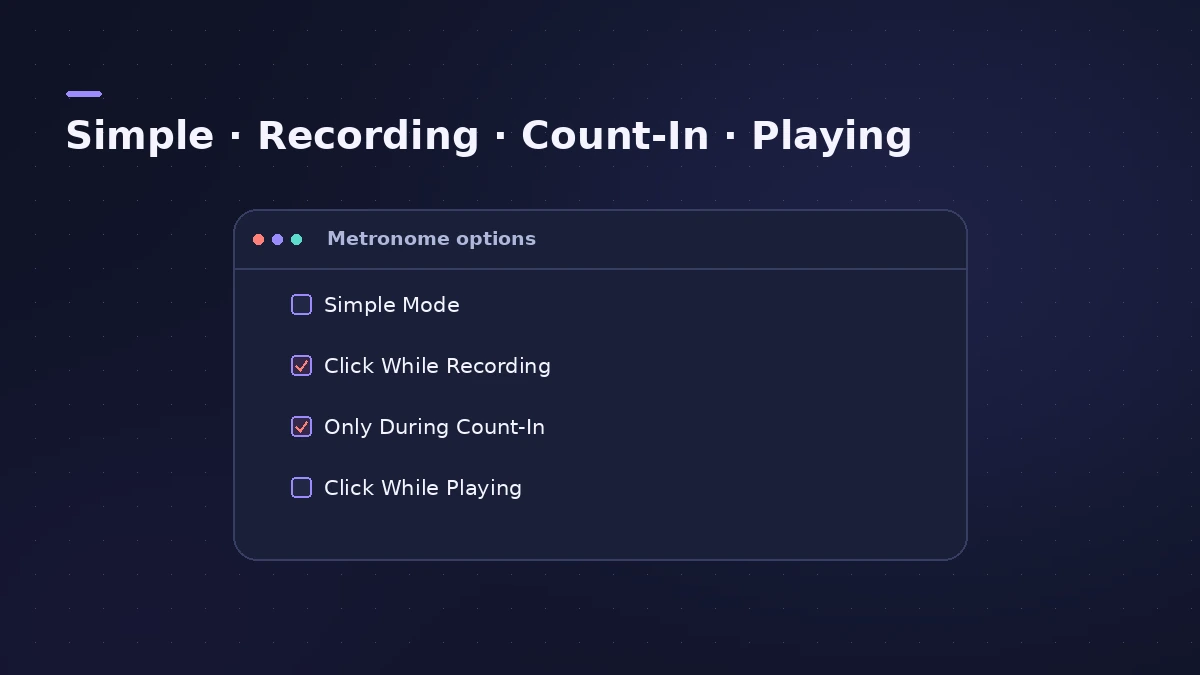
Control-click the Metronome button. Simple Mode clicks only when the metronome is on. Click While Recording clicks whenever you record, on or off. Only During Count-In needs Click While Recording selected too. Click While Playing works like the on/off switch.
-
3
Turn on the count-in
Click the Count-in button or press Shift-K.
-
4
Set the count-in length
Choose Record > Count-in and pick bars or beats, or set it in File > Project Settings > Recording. If Pre-roll is selected there, its length is used instead.
-
5
Change the click sound
Choose Metronome Settings from the button's menu (File > Project Settings > Metronome) to change the notes, tone and volume of the click and send it to a separate output.
Common mistakes
- Recording a microphone with the click playing through speakers — the click ends up in the take. Use headphones.
- Forgetting that Click While Recording ignores the on/off button.
- Hunting for the count-in button when it isn't in the control bar — add it by customising the control bar.
Recording without a click
If you'd rather play freely, Smart Tempo can analyse your recording and build a tempo map; the metronome and tempo-synced effects then follow it. See Apple's article on matching the tempo automatically and our tempo and key guide.
Sources
- Apple — Logic Pro User Guide (12.2): Use the metronome
- Apple — Logic Pro X 10.1 Help: Metronome project settings (old)
- Apple — Logic Pro for iPad User Guide: Metronome project settings
- Apple Support — Match the tempo automatically in Logic Pro for Mac
Checked November 2026. Logic ProFiles is independent of Apple; menu names can differ slightly between Logic Pro versions.
Frequently asked questions
What's the shortcut for the metronome in Logic Pro?
+
K turns the metronome on and off; Shift-K turns the count-in on and off.
Why does the metronome play when it's switched off?
+
Click While Recording is selected, so it clicks during every recording. Control-click the Metronome button and choose Simple Mode.
Can I change the metronome sound?
+
Yes. The click is generated by Klopfgeist; in the Metronome project settings you can change its notes, tone and volume or route it to other outputs.
Related
- How to record without a metronome in Logic ProRecord freely without a click in Logic Pro and let Smart Tempo build the tempo map: the Free Tempo Recording button, or Adapt/Auto mode with the metronome off.
- Logic Pro metronome not workingMetronome on but no click in Logic Pro? Check Click while playing and recording, the Audio Click source, the hidden Click channel strip and its output.
- How to set tempo, key and time signature in Logic ProSet tempo, key and time signature in Logic Pro from the LCD, add tempo and key changes later in the song, and see what each setting changes in playback.
- How to set up an audio interface in Logic ProConnect a USB or Thunderbolt audio interface to Logic Pro: choose input and output devices, set the I/O buffer, allow mic access and pick track inputs.
- Logic Pro tutorial for beginners — your first song in 9 stepsA Logic Pro tutorial for beginners: set up audio, create a project, set tempo and key, record, add a Session Player, edit, mix, master and bounce a song.
- Learn Logic Pro — tutorials for beginnersLearn Logic Pro on Mac: a beginner tutorial, the interface, the Logic Pro 13 Browser, audio interface setup, key commands, loops, patches and saving projects.