Recording
How to record a hardware synth in Logic Pro
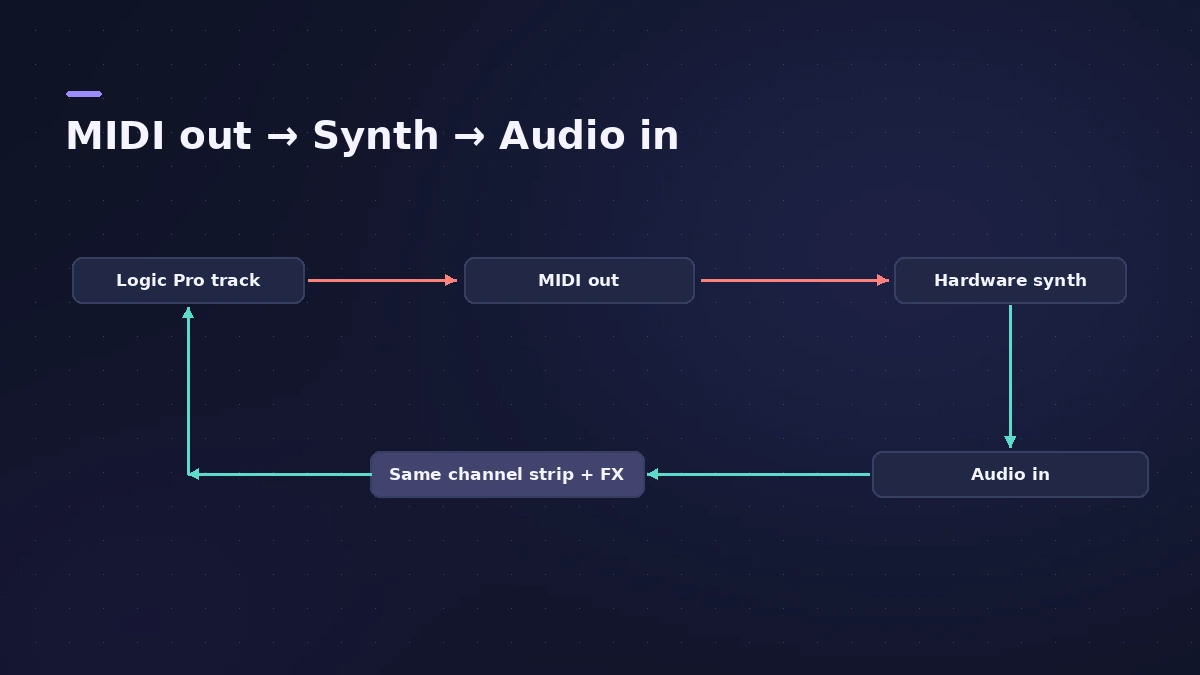
The External Instrument plug-in turns a hardware synth into something that behaves like a software instrument: MIDI goes out to the synth, its audio comes back into the same channel strip, and you can add Logic Pro effects. You record MIDI first — then print the sound to audio when the part is finished.
 Owen Hartley

Where to find it
Instrument slot > Utility > External Instrument
External Instrument settings
| Setting | What it does |
|---|---|
| MIDI Destination | The MIDI port the synth is on |
| MIDI Channel | The channel the synth listens on |
| Input | Interface input(s) the synth's audio comes back on |
| Input Volume | Level of the returning audio |
| Auto-Compensate Latency | Keeps the hardware's audio aligned |
Step by step
-
1
Connect the synth
Connect MIDI (USB or a MIDI interface) to the synth, and the synth's audio output, or output pair, to inputs on your audio interface.
-
2
Insert External Instrument
On a software instrument track, click the instrument slot and choose External Instrument.
-
3
Set MIDI and audio
Choose the MIDI Destination and MIDI Channel, then the audio Input the synth is plugged into, and set Input Volume.
-
4
Record MIDI
Arm the track and record as with any software instrument; the hardware synth plays the sound.
-
5
Print it to audio
Sound On Sound notes Bounce in Place doesn't work for external MIDI, so create an audio track on the synth's inputs and record the part in real time.
Common mistakes
- Leaving Auto-Compensate Latency on when the synth's audio returns on a separate aux — Apple says to turn it off there.
- Forgetting to print the synth to audio before you unplug or reuse it for another song.
Simple alternative
For a single synth, Sound On Sound suggests choosing External MIDI as the software instrument track's input. To process hardware outside Logic Pro, see the I/O utility.
Sources
- Apple — Logic Pro X 10.4 Help: Use the External Instrument plug-in (old)
- Apple — Time-align audio from external MIDI devices in Logic Pro for Mac
- Apple — Logic Pro for iPad Guide: External Instrument
- Sound On Sound — Logic Pro X: Using hardware synths and drum machines (2019)
- MusicTech — Hardware synthesisers in Logic Pro X
Checked November 2026. Logic ProFiles is independent of Apple; menu names can differ slightly between Logic Pro versions.
Frequently asked questions
Can I add Logic Pro effects to a hardware synth?
+
Yes. The synth's audio returns through the External Instrument channel strip, so you can insert effects there or use sends.
Why is my external synth slightly late?
+
Use the Auto-Compensate Latency option in External Instrument, available from Logic Pro 10.2.3.
Related
- Sync external gear to Logic Pro's MIDI clockSend MIDI clock from Logic Pro to drum machines, grooveboxes and synths: pick destinations, set delay and PDC per device, and choose Pattern or Song clock mode.
- How to record MIDI with a keyboard in Logic ProRecord MIDI from a keyboard in Logic Pro: arm an instrument track, record with a count-in, overdub, replace or take passes in Cycle mode, then quantize.
- I/O utility in Logic Pro — use hardware effectsUse outboard gear in Logic Pro with the I/O utility: wire the interface to the effect, insert I/O on an aux, choose outputs and inputs, then Ping latency.
- How to record multiple tracks at once in Logic ProRecord a band, drum kit or podcast in Logic Pro: one input and track per mic, arm them all, record in one pass, and add inputs with an aggregate device.
- Bounce in place in Logic Pro — print instruments and effects to audioTurn software instruments and effects into audio inside your Logic Pro project with Bounce in Place: every option explained, plus when to freeze instead.
- Recording in Logic ProHow to record in Logic Pro: vocals, electric and acoustic guitar, bass, drums and MIDI, plus cycle takes, punch-in, Flashback Capture and step input.