Plug-ins
Pitch Correction plug-in in Logic Pro
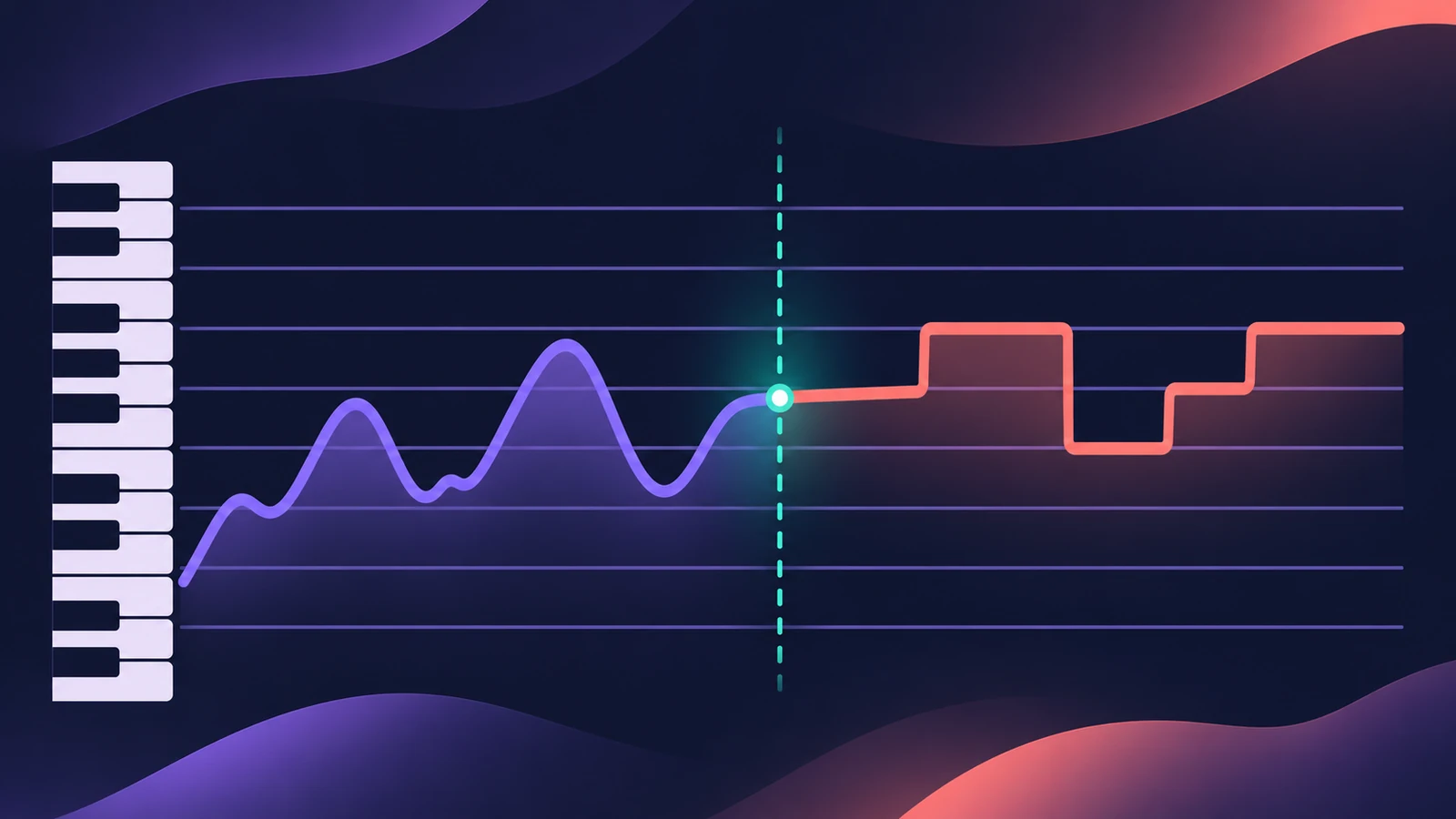
Pitch Correction is Logic Pro's real-time pitch-correction plug-in. It pulls a vocal towards the notes of a scale you choose, and one control — Response — decides whether that sounds like a gentle fix or the obvious stepped effect. It works on single voices, not chords or choirs on one track.
 Owen Hartley
Where to find it
Audio Effect slot > Pitch > Pitch Correction
Pitch Correction controls
| Control | What it does |
|---|---|
| Root / Scale | The key and the grid of notes the voice is pulled to |
| Keyboard | Edit a user scale, or bypass single notes |
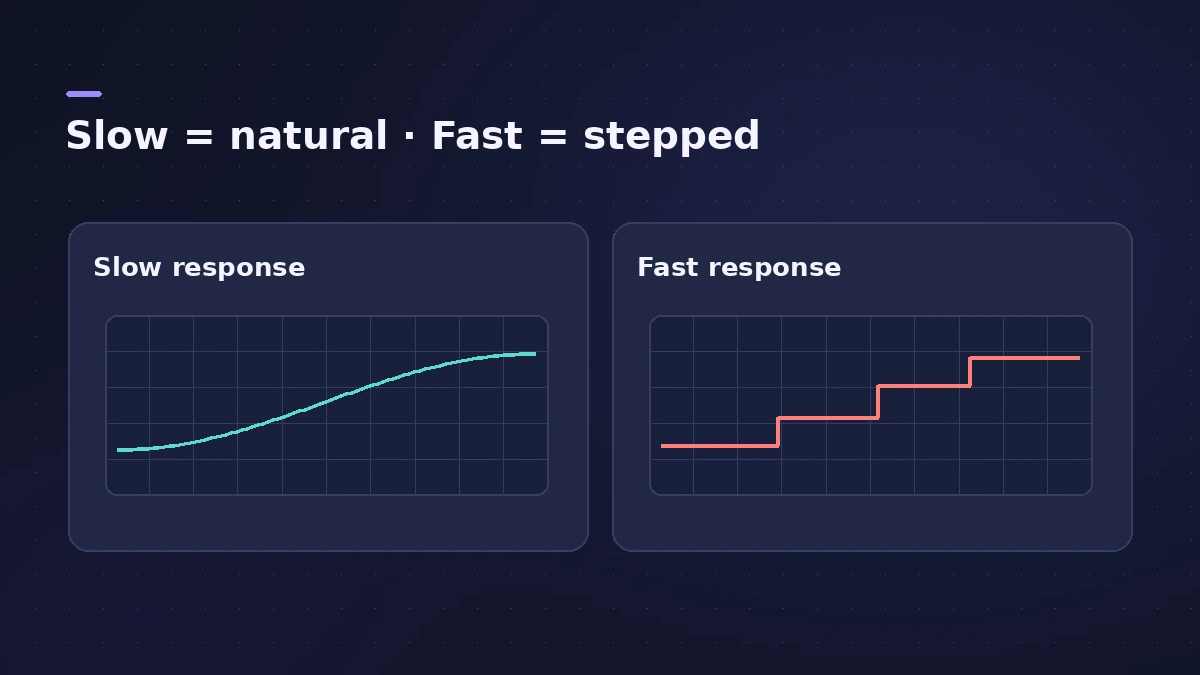
| Response | How fast the voice reaches the corrected pitch |
| Detune | Detunes the output by a set amount |
| Correction display | How much the pitch is being changed |
| Bypass All | Passes the signal through uncorrected |
| Global Tuning / Ref. Pitch | Use the project's tuning, or set a reference in cents |
| Pitch range (Normal/Low) | Low only for very low material; not needed with Neural Pitch Detection |
Natural vs hard tuning
For an overview of every way to tune vocals in Logic Pro, see autotune in Logic Pro.
| Goal | Scale | Response |
|---|---|---|
| Gentle fix on a ballad | The song's key | Slower — slides survive |
| Obvious tuned effect | The song's key | Fastest — notes jump in steps |
| Fix a few notes only | The song's key | Medium, with Bypass All automated |
The best Response setting depends on the singing style, tempo, vibrato and how accurate the take was, so listen in context.
When the singer is consistently sharp or flat
If a whole take sits slightly off, Apple suggests setting the reference tuning by the same number of cents so detection is more accurate. To keep the vocal in tune with instruments, turn on Global Tuning instead.
Step by step
-
1
Insert Pitch Correction first
On the vocal track choose Pitch > Pitch Correction in an Audio Effect slot. Put it before compression and EQ so they work on the tuned voice.
-
2
Set Root and Scale
Choose the song's root note and a scale from the Scale menu. The default is chromatic, which corrects to every semitone.
-
3
Adjust Response
Response sets how quickly the voice reaches the target pitch. Fast gives perfect intonation but turns slides into semitone steps — the hard-tuned effect. Slower settings keep slides natural.
-
4
Bypass notes you want left alone
Exclude notes from correction with the bypass keys, for example blue notes, or correct only the root, fourth and fifth.
-
5
Compare and automate
Use Bypass All to compare with the original, or automate it to correct only some phrases.
Common mistakes
- Leaving the scale on chromatic for a natural vocal, so wrong notes are pulled to the nearest semitone instead of the right note.
- Using it on a choir or chords on one track — Apple says polyphonic recordings can't be corrected to a pitch.
- Tuning every stacked harmony perfectly, which partly loses the choir effect; detune the corrections a little.
Need note-by-note control?
Pitch Correction works in real time on the whole track. To fix single notes, drift and vibrato by hand, use Flex Pitch — see Flex Pitch vs Melodyne for the difference. For a robotic or harmony effect instead, try Vocal Transformer.
Sources
- Apple — Logic Pro Effects 10.2: Pitch Correction parameters (old)
- Apple — Logic Pro for iPad User Guide: Pitch Correction parameters
- Apple — Logic Pro for iPad User Guide: Pitch Correction quantization
- Apple — Logic Pro for iPad User Guide: Pitch Correction quantization (Neural Pitch Detection)
- Apple — Logic Pro for iPad User Guide 3.0: Pitch Correction effect
- Apple — Logic Pro for iPad User Guide: Exclude notes from Pitch Correction
- Apple — Logic Pro for iPad User Guide: Pitch Correction reference tuning
Checked November 2026. Logic ProFiles is independent of Apple; menu names can differ slightly between Logic Pro versions.
Frequently asked questions
Does Logic Pro have auto-tune?
+
Yes. The built-in Pitch Correction plug-in corrects the pitch of a voice to a chosen scale in real time.
How do I get the hard auto-tune effect in Logic Pro?
+
Set Root and Scale to the song's key and make Response as fast as it goes. Slides then jump in semitone steps, which is the obvious tuned sound.
What is Neural Pitch Detection?
+
An option in Apple's guide that handles pitch tracking automatically; Apple recommends leaving it on. With it on you don't need to set the Normal/Low pitch range by hand.
Related
- Tuning settings in Logic ProChange Logic Pro's tuning: detune software instruments from A440 in cents, use User scales, or Hermode Tuning modes for purer thirds and fifths.
- Autotune in Logic Pro — Flex Pitch and Pitch CorrectionTune vocals in Logic Pro without extra plug-ins: fix notes by hand with Flex Pitch, or use the Pitch Correction plug-in for real-time autotune. Both explained.
- How to mix vocals in Logic ProMix vocals in Logic Pro with stock plug-ins: tune with Flex Pitch, clean up with Channel EQ, control level with Compressor, add reverb on a send and automate.
- Vocal Transformer in Logic ProUse Vocal Transformer in Logic Pro to shift a voice's pitch without changing its character, move formants for deep or tiny voices, double a vocal and Robotize.
- How to record vocals in Logic ProRecord vocals in Logic Pro: set up the mic and pop filter, arm an audio track, set the level, monitor without delay and record several takes to comp later.
- Plug-ins in Logic ProGuides to Logic Pro's stock plug-ins: Compressor, EQs, limiters, Pitch Correction, Amp Designer, Pedalboard, ChromaGlow, ChromaVerb, Space Designer and delays.