Mixing
Freeze tracks in Logic Pro
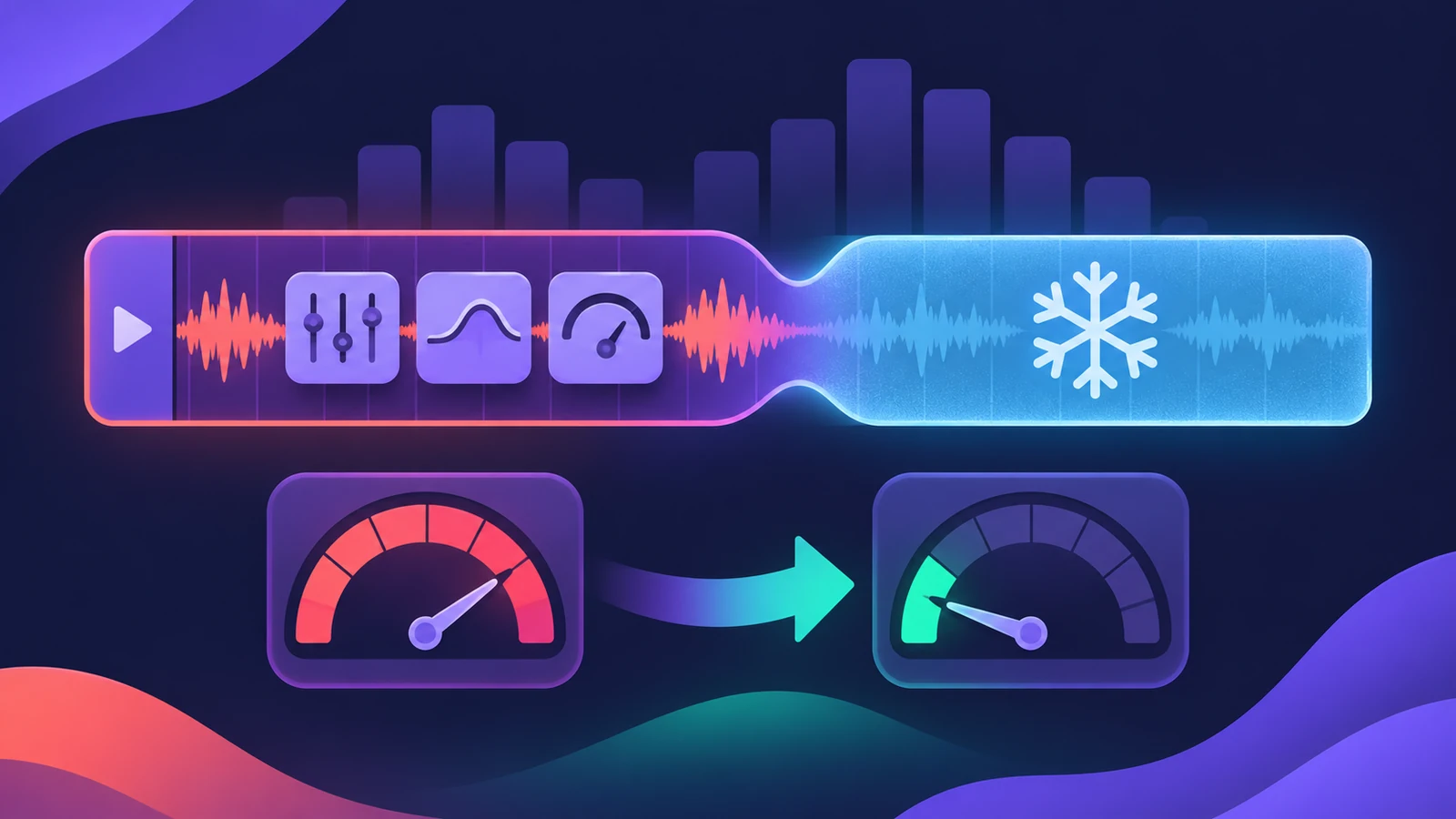
Freezing renders a track to a temporary file so its instruments and plug-ins stop using the processor. A frozen track uses about as much CPU as a plain audio track, however heavy its plug-ins are — a quick fix when a project starts to overload.
 Owen Hartley
Where to find it
Track header > Freeze button
Freeze modes
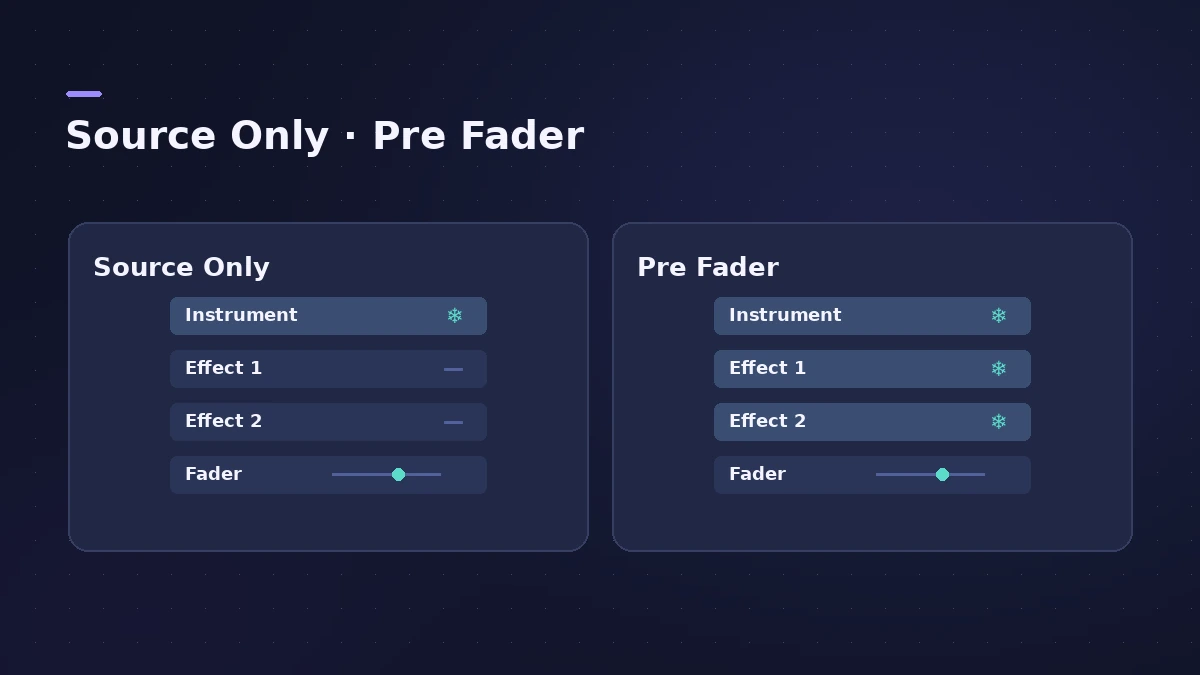
| Mode | What's frozen | Use it when |
|---|---|---|
| Source Only | The track signal before any effects | Heavy instruments or Flex, effects still to tweak |
| Pre Fader | The signal including all effect plug-ins | The sound is finished up to the fader |
On iPad you can also let Logic Pro freeze tracks automatically when the iPad can't keep up — see the General Audio settings.
Step by step
-
1
Show the Freeze button
If it isn't visible, add it to the track headers through the track header components settings.
-
2
Click Freeze
Click the Freeze button on each heavy track; you can drag across several buttons to set them all.
-
3
Choose the mode
In the Track inspector choose Source Only (without effects) or Pre Fader (including all effect plug-ins).
-
4
Press Play
Logic Pro renders the freeze files when you next press Play, so you can freeze many tracks in one go.
-
5
Unfreeze to edit
Click Freeze again to unfreeze; the freeze file is deleted and the track uses its full CPU again.
Common mistakes
- Trying to record on a frozen track — record-enable is hidden while it's frozen.
- Freezing Pre Fader when you still want to tweak the effects — use Source Only.
- Stopping the render halfway with Command-Period; the rest of the track then stays silent.
Still overloading?
See System Overload and latency for buffer settings. To commit a track permanently, use bounce in place.
Sources
- Apple — Logic Pro X 10.4 Help: Freeze tracks (old)
- Apple — Logic Pro X 10.1 Help: Freeze tracks (Source Only) (old)
- Apple — Logic Pro for iPad User Guide 1.1: Freeze tracks
- Apple — Logic Pro 9 User Manual: Freezing tracks (old)
Checked November 2026. Logic ProFiles is independent of Apple; menu names can differ slightly between Logic Pro versions.
Frequently asked questions
What's the difference between Source Only and Pre Fader?
+
Source Only freezes the track before its effects, so you can still change them; Pre Fader freezes the instrument and all effect plug-ins.
What can I still change on a frozen track?
+
Volume, mute, solo, pan and send levels, plus their automation. Plug-in and instrument parameters need the track unfrozen.
Where are freeze files stored?
+
In a Freeze Files folder in the project folder; Logic Pro manages and deletes them automatically.
Related
- Logic Pro system overload — how to find the cause and fix itLogic Pro says System Overload? Use the Performance Meter to see if CPU or disk is the cause, then fix it with the buffer, freezing and Sampler settings.
- Bounce in place in Logic Pro — print instruments and effects to audioTurn software instruments and effects into audio inside your Logic Pro project with Bounce in Place: every option explained, plus when to freeze instead.
- How much RAM do you need for Logic Pro?How much RAM for Logic Pro: 16 GB for MIDI and light plug-ins, 32 GB for mixing, 64 GB+ for big orchestral templates. Memory is fixed when you buy.
- Logic Pro latency — how to fix delay when recordingHearing a delay when you record in Logic Pro? Lower the I/O buffer, turn on Low Latency Monitoring Mode, use direct monitoring and avoid Bluetooth headphones.
- Mix and master in Logic ProMix and master songs in Logic Pro with stock tools: vocal tuning, EQ, compression, sends, automation, Mastering Assistant, LUFS targets and Dolby Atmos.