Logic Pro for iPad
Stem Splitter in Logic Pro for iPad
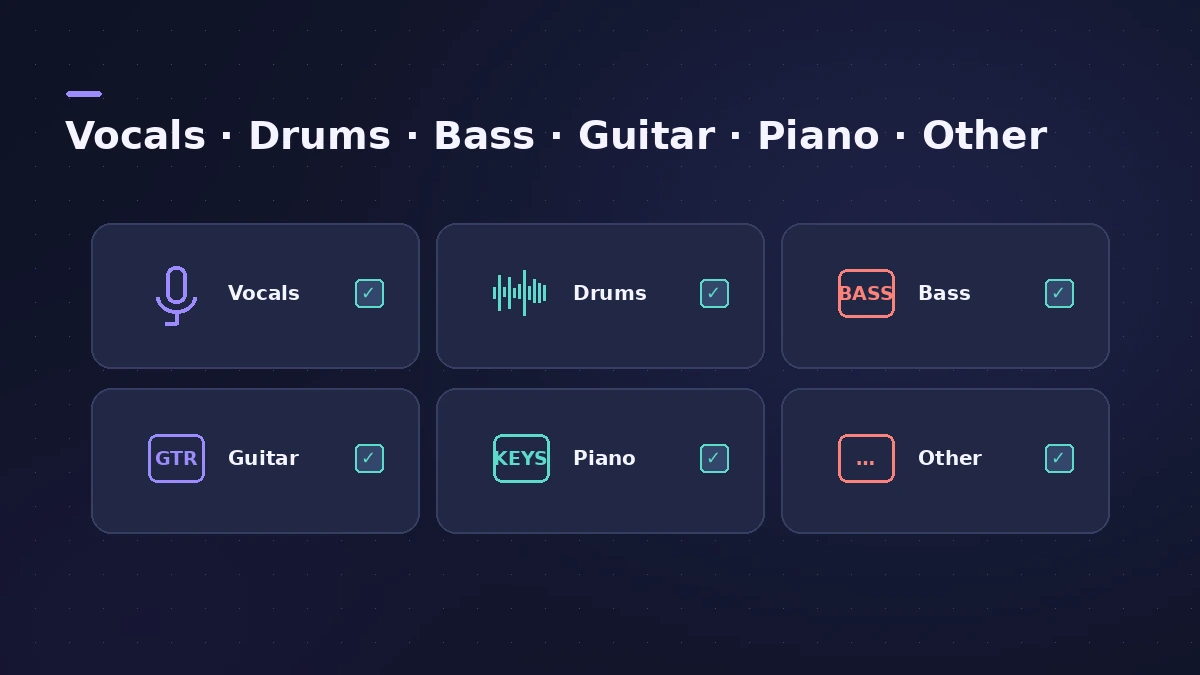
Stem Splitter separates a mixed audio region into stems — vocals, drums, bass, guitar, piano and other instruments — that you can edit like any other region. On iPad it needs an M1 or later Apple silicon chip.
 Owen Hartley
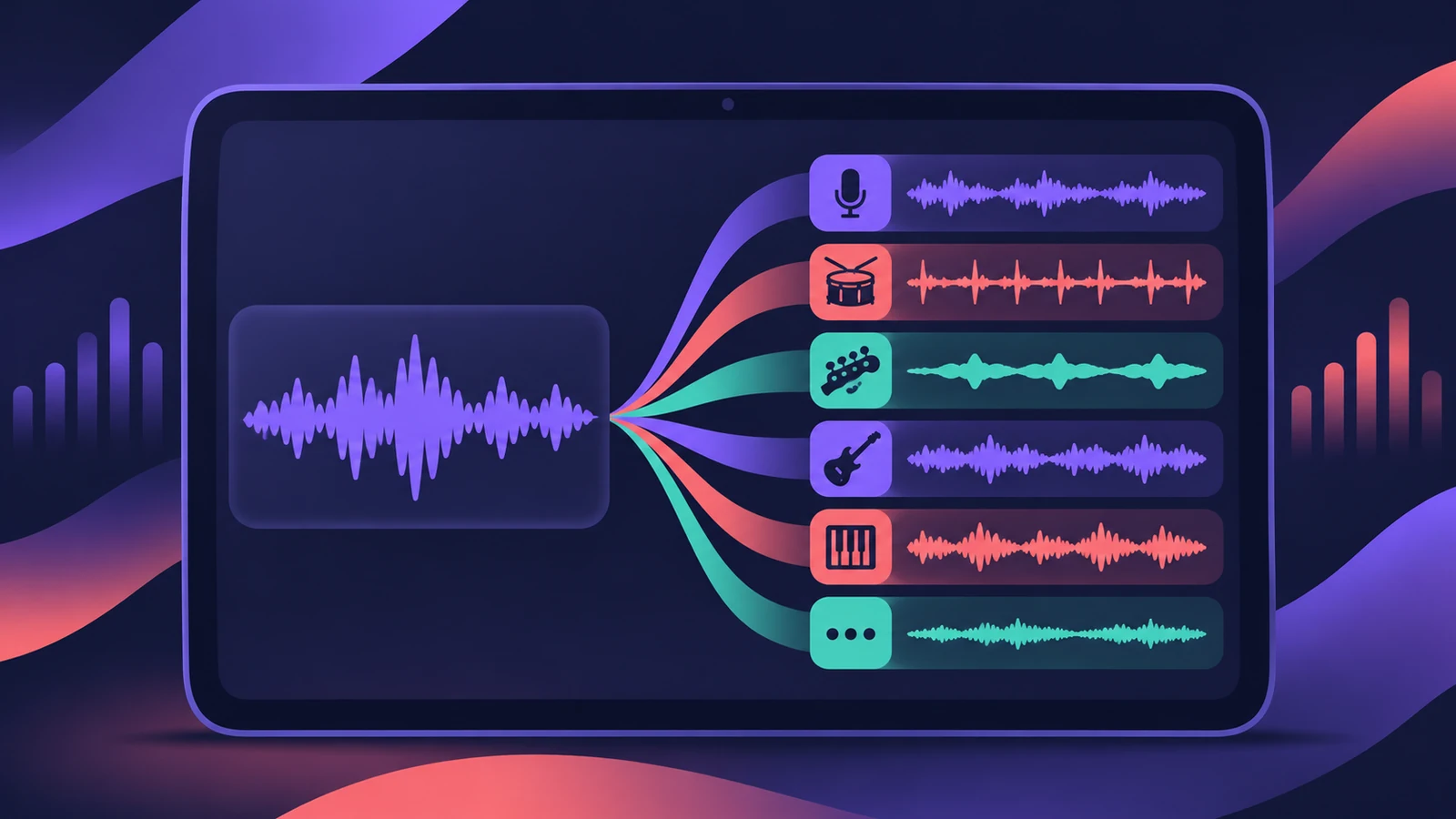
Where to find it
Tracks area > audio region > Stem Splitter
The stems
Step by step
-
1
Select the audio region
In the Tracks area, tap the audio region you want to split.
-
2
Open Stem Splitter
Tap the region again, then tap Stem Splitter.
-
3
Choose stems or a preset
Pick a preset from the Preset menu, or tick the stems you want. Two or more unticked stems are combined into a submix.
-
4
Split
Tap Split. The stems appear as audio regions you can solo, move, copy and edit.
Common mistakes
- Trying it on an older iPad: Stem Splitter is available on iPads with an M1 or later Apple silicon processor.
What you can do with stems
Apple suggests using Stem Splitter to recover moments from demos or unfinished projects and build new ideas on them. On a Mac, see Stem Splitter in Logic Pro.
Sources
- Apple — Logic Pro User Guide for iPad: Extract stems with Stem Splitter
- Apple — Logic Pro User Guide for iPad: Stem Splitter (six stems, presets)
- Apple — What's new in Logic Pro for iPad 2.2
Checked November 2026. Logic ProFiles is independent of Apple; menu names can differ slightly between Logic Pro versions.
Frequently asked questions
Which iPads support Stem Splitter?
+
iPads with an M1 or later Apple silicon processor.
How many stems can Stem Splitter extract on iPad?
+
Six since Logic Pro for iPad 2.2: vocals, drums, bass, guitar, piano and other.
Related
- How to remix a song in Logic Pro with Stem SplitterRemix a song in Logic Pro: match the tempo with Smart Tempo, split the mix with Stem Splitter, keep the vocal, change tempo with Flex and build new parts.
- Stem Splitter in Logic ProSeparate a song into vocals, drums, bass, guitar, piano and other with Logic Pro's Stem Splitter — and in Logic Pro 13 split drums into kick, snare and more.
- Which iPads run Logic Pro?Logic Pro for iPad needs an A12 Bionic or later: iPad Pro, iPad Air 3rd gen+, iPad mini 5th gen+, iPad 8th gen+. Session Players and Stem Splitter need M1.
- Stem Splitter or ChromaGlow missing in Logic ProCan't find Stem Splitter or ChromaGlow, or Mastering Assistant styles are greyed out? They need Apple silicon and don't work in Rosetta. Check your Mac.
- Logic Pro for iPadLogic Pro for iPad guides: subscription, compatible iPads, Mac round-trips, AUv3 plug-ins, audio interfaces, Stem Splitter, exporting and fixes.