Fix Problems
Audio Unit failed validation in Logic Pro — how to fix it
Logic Pro tests every Audio Units plug-in before it lets you use it. A plug-in that fails the test is marked in the Plug-in Manager and left out of your menus. A rescan fixes many cases. When it doesn't, the plug-in usually needs an update, an authorisation, a clean reinstall or Rosetta.
 Owen Hartley
Applies to: Logic Pro 13, 12 and 11 for Mac (alert wording as documented by Native Instruments).
Most likely causes
- Outdated plug-in after a Logic Pro or macOS update (most common)
- Plug-in not authorised or a damaged activation file (common)
- Intel-only plug-in on Apple silicon without Rosetta (common)
- Damaged Audio Units cache (occasional)
- 32-bit plug-in or a 32-to-64-bit wrapper (occasional)
After clearing the cache
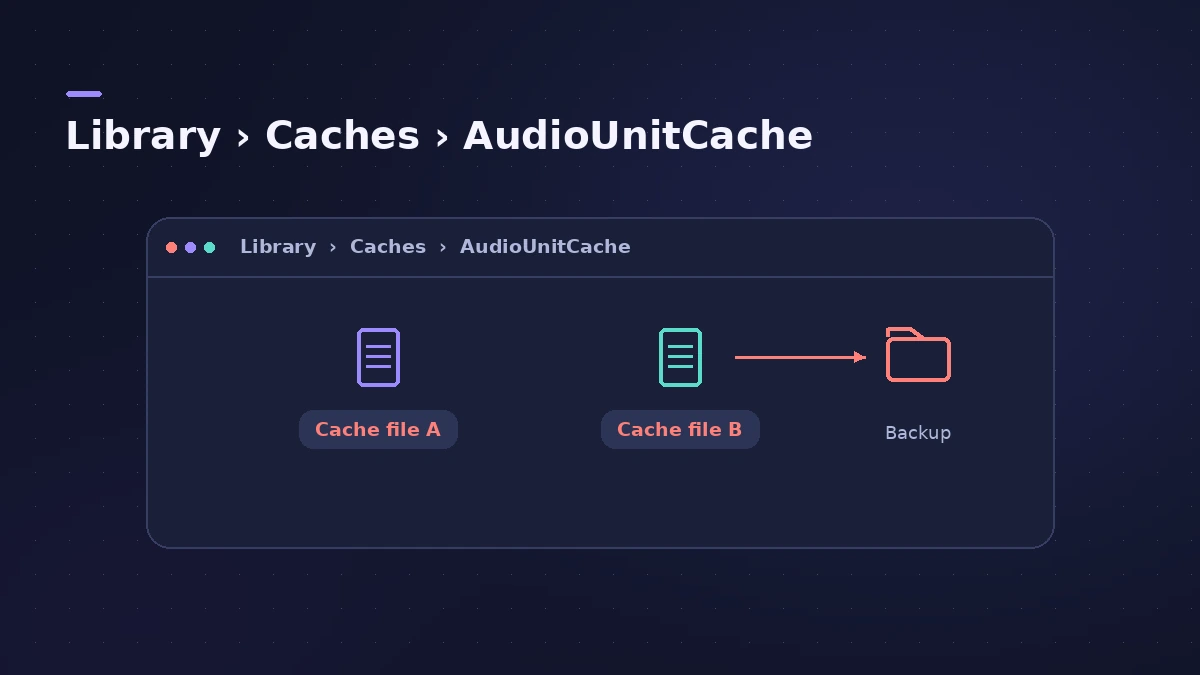
When you reopen Logic Pro after clearing the cache, it scans all your plug-ins again. Apple says this scan can take 10 minutes or more after an update, so give it time before deciding Logic Pro has frozen. If it does hang, see Logic Pro keeps crashing.
If the plug-in passes but still isn't in your Insert menu, check the Hide and Ignore columns described in plug-ins not showing.
Fixes, in order
1. Rescan the plug-in
When the alert appears, Native Instruments says to click Start Plug-In Manager. Or open Logic Pro > Settings > Plug-in Manager yourself, select the plug-in and click Reset & Rescan Selection.
2. Update the plug-in
Install the latest version from the maker's installer or app (for example Native Access for Native Instruments).
3. Authorise it
Apple's article says a plug-in marked "not authorised" needs the maker's activation steps first.
4. Reinstall cleanly
Akai's steps: authorise the plug-in, delete its
.componentfile from the Components folder, reinstall the latest version and restart Logic Pro.5. Clear the Audio Units cache
Arturia says to delete
com.apple.audiounits.cacheandcom.apple.audiounits.sandboxed.cachefrom~/Library/Caches/AudioUnitCache, then reopen Logic Pro.6. Give Logic Pro Full Disk Access
Native Instruments lists this for some of its plug-ins: System Settings > Privacy & Security > Full Disk Access.
7. Install Rosetta for Intel-only plug-ins
On Apple silicon, Intel-only Audio Units work only with Rosetta installed.
8. Remove wrappers and 32-bit plug-ins
Apple says 32-bit plug-ins aren't compatible and advises against 32-to-64-bit wrappers.
Sources
- Apple — If you can't find a recently installed plug-in for Logic Pro for Mac or MainStage (Apr 2025)
- Apple — Logic Pro User Guide: Use the Plug-in Manager in Logic Pro for Mac
- Native Instruments — My Native Instruments Plug-in Fails Validation in Logic Pro
- Arturia — Plug-ins not detected with Logic Pro, Mainstage or Garage Band
- Akai Pro — Solving Incompatible AU Validation Errors on macOS
- Apple — Third-party Audio Units and external device compatibility in Logic Pro and Final Cut Pro on Apple silicon (Aug 2023)
- Apple — If Logic Pro for Mac hangs after updating (Aug 2023)
Checked November 2026. Logic ProFiles is independent of Apple; menu names can differ slightly between Logic Pro versions.
Frequently asked questions
What does "failed validation" mean in Logic Pro?
+
Logic Pro's Audio Units test found a problem with the plug-in, so it isn't offered in your menus. Rescanning, updating or reinstalling the plug-in usually clears it.
Why did a plug-in fail validation after updating macOS?
+
Usually the installed version doesn't support the new macOS or Logic Pro. Apple asks you to check third-party Audio Units compatibility after every update, then install the maker's latest version.
Related
- Plug-in Manager in Logic ProUse Logic Pro's Plug-in Manager to check Audio Units compatibility, rescan a plug-in, run a full Audio Unit reset, disable plug-ins, add categories.
- Plug-ins not showing in Logic Pro — how to make them appearInstalled a plug-in but Logic Pro doesn't list it? Check it's an Audio Unit in the Components folder, then rescan in the Plug-in Manager or reset the AU cache.
- Logic Pro keeps crashing or won't open — 14 fixesLogic Pro crashing, quitting or stuck on launch? Follow Apple's order: restart, update, isolate plug-ins with startup keys, reset settings, reinstall.
- "Disk is too slow or System Overload (-10010)" in Logic ProLogic Pro says Disk is too slow or System Overload (-10010)? Check the Drive I/O meter, move projects and samples to a fast SSD and tune Sampler Virtual Memory.
- Fix Logic Pro problems — errors, crashes and no soundStep-by-step fixes for Logic Pro on Mac: system overload, disk too slow, no sound, crashes, latency, missing plug-ins, MIDI keyboards and recording problems.