Fix Problems
"Disk is too slow or System Overload (-10010)" in Logic Pro
The -10010 alert names two possible causes, and Logic Pro can't always tell them apart. Usually the drive can't read or write audio fast enough — a busy startup disk, a slow external drive or sample streaming. Confirm it with the Drive I/O meter, then move the heavy files somewhere faster.
 Owen Hartley

Applies to: Logic Pro 13 back to Logic Pro X (wording as users report it).
Most likely causes
- Project or samples on a slow or busy drive (most common)
- Sampler Virtual Memory streaming too much from disk (common)
- High sample rate for a large track count (common)
- Drive formatted with an unsupported file system (occasional)
- Processor overload reported under the same alert (occasional)
A drive layout that avoids -10010
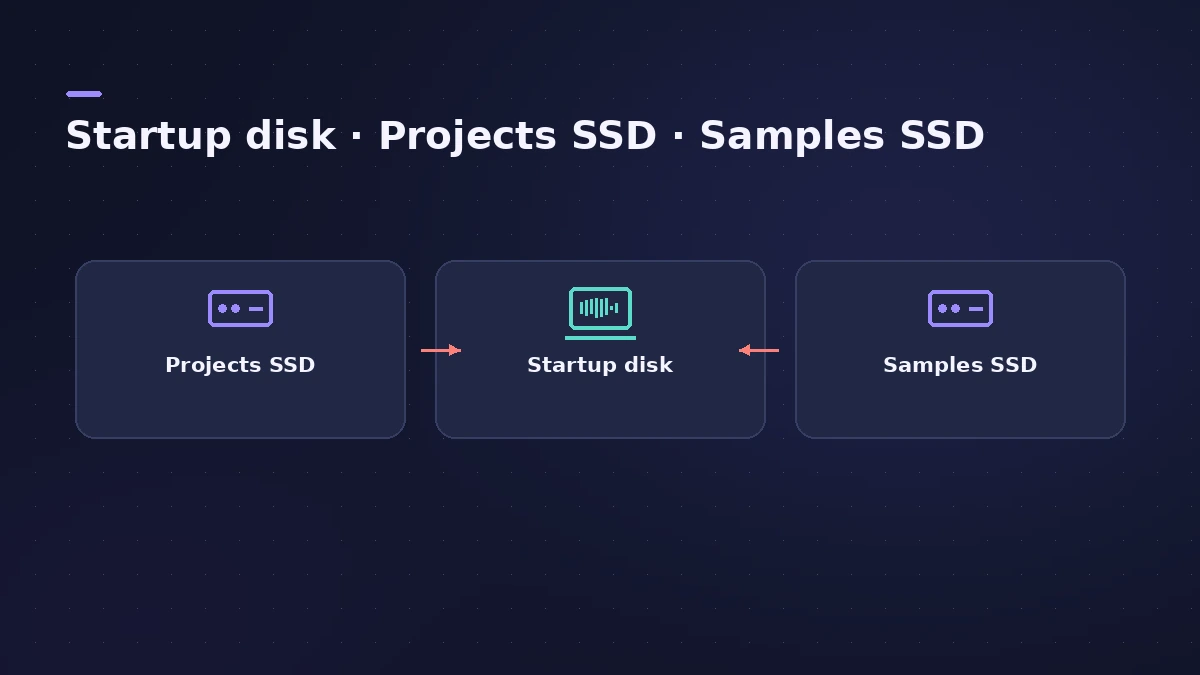
Apple's system overload article describes the same layout in three steps: keep large projects off the startup disk, put Sampler samples on their own drive, and use APFS or Mac OS Extended (Journaled). If you're short of internal space too, Logic Pro 12 and later can move the Sound Library to an external drive — see system requirements for the space it needs.
Still getting the alert?
If the Drive I/O meter stays low while the alert keeps appearing, the "System Overload" half of the message is the real cause. Work through the processor fixes in error -10011.
Fixes, in order
1. Confirm it's the disk
Open the Performance Meter (see our system overload guide) and play. If the Drive I/O meter peaks when the alert appears, the drive is the bottleneck. If a Processing Threads bar peaks, follow the CPU fixes instead.
2. Move the project to a dedicated SSD
Apple recommends saving high-track-count projects to a dedicated external drive, such as a USB-C SSD, rather than the startup disk.
3. Give samples their own drive
Use a separate drive for Sampler samples — Apple says always do this when Sampler Virtual Memory is on.
4. Check the drive format
Format project and sample drives as APFS or Mac OS Extended (Journaled). Apple's general troubleshooting article asks for APFS on external drives holding projects or the Sound Library.
5. Turn off Sampler Virtual Memory
In Logic Pro > Settings > Audio > Sampler > Virtual Memory, turn Active off when overloads line up with Drive I/O peaks.
6. Adjust Host Disk Activity
In the same tab, choose Less for projects with few audio tracks, or Average or Extensive for many.
7. Try a lower sample rate
Higher rates mean more data to stream. Apple suggests a lower rate if disk activity causes the alerts.
8. Don't freeze instrument tracks here
Frozen tracks play from disk. Apple advises against freezing software instrument tracks when overloads match Drive I/O peaks.
9. Leave free space on the startup disk
An older Sound On Sound guide (2008) recommends keeping space free on the boot drive for temporary files and virtual memory.
Sources
- Apple — Avoid system overloads in Logic Pro for Mac (May 2026)
- Sound On Sound — Looking After Logic (Dec 2008)
- Apple — If Logic Pro for Mac isn't working (Feb 2026)
Checked November 2026. Logic ProFiles is independent of Apple; menu names can differ slightly between Logic Pro versions.
Frequently asked questions
Does "Disk is too slow" mean my drive is failing?
+
Not necessarily. It means the drive couldn't keep up with Logic Pro at that moment. A busy startup disk or a slow external drive is the usual reason.
What drive should I use for Logic Pro projects?
+
Apple suggests a dedicated external drive such as a USB-C SSD, formatted as APFS or Mac OS Extended (Journaled), with samples on a separate drive.
Related
- Logic Pro system overload — how to find the cause and fix itLogic Pro says System Overload? Use the Performance Meter to see if CPU or disk is the cause, then fix it with the buffer, freezing and Sampler settings.
- Logic Pro error -10011 — what it means and how to fix itFix Logic Pro error -10011, when the audio engine can't process all required data in time. Raise the buffer, freeze tracks and cut CPU load step by step.
- Logic Pro system requirements (Mac and iPad, 2026)Logic Pro 13 system requirements: macOS 26.1 or later, Apple silicon on Apple's Creator Studio pages, 6 GB to about 72 GB of space. iPad: iPadOS 26 and A12.
- Fix Logic Pro problems — errors, crashes and no soundStep-by-step fixes for Logic Pro on Mac: system overload, disk too slow, no sound, crashes, latency, missing plug-ins, MIDI keyboards and recording problems.