Fix Problems
Logic Pro error -10011 — what it means and how to fix it
Error -10011 is the coded form of Logic Pro's system overload alert: the audio engine ran out of time to process the project. We found no Apple article that documents the code itself, but Apple's system overload article covers the cause and the fixes. They are below, CPU first.
 Owen Hartley
Applies to: Logic Pro 13 back to Logic Pro X (wording as users report it).
Most likely causes
- I/O buffer too small for the number of plug-ins (most common)
- Selected software instrument track using one CPU core heavily (common)
- Many CPU-heavy plug-ins on individual tracks (common)
- Other apps or background tasks using the Mac (occasional)
-10010 or -10011?
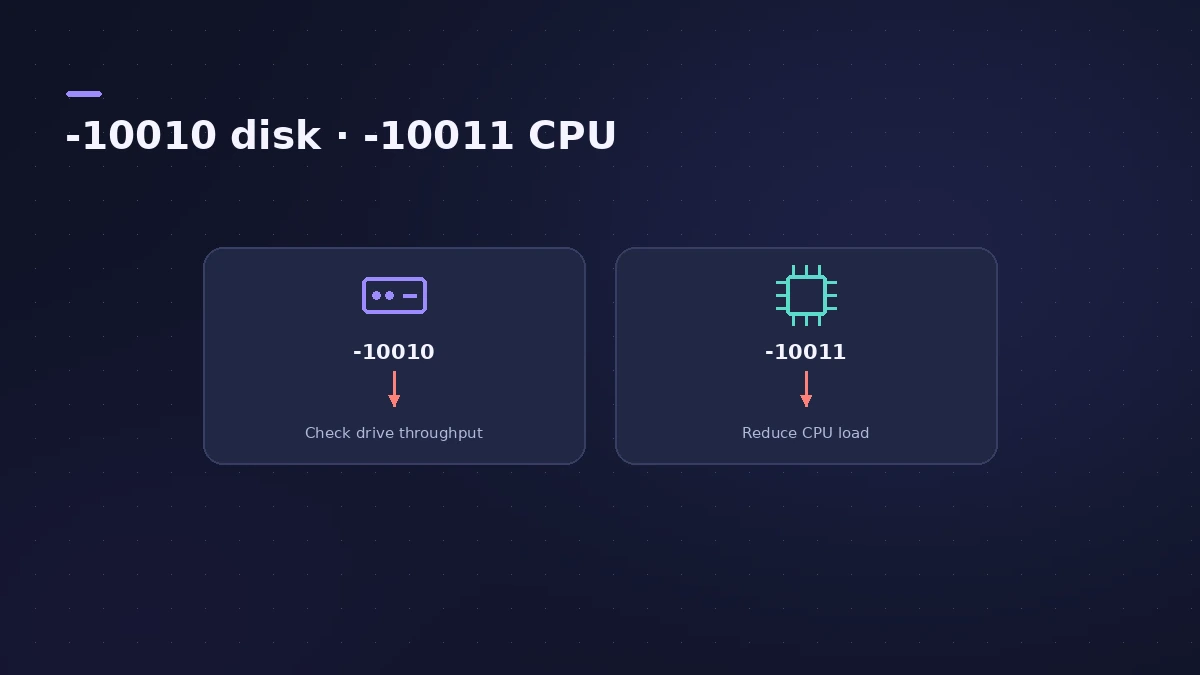
| Code | Alert starts with | Where to look |
|---|---|---|
| -10010 | "Disk is too slow or System Overload" | Drive speed, project location, sample streaming — see disk too slow |
| -10011 | "System Overload. The audio engine was not able to process…" | Processor load — the fixes on this page |
To be sure, open the Performance Meter as described in our system overload guide and see whether Processing Threads or Drive I/O peaks when the alert appears.
Older advice you'll still find
A widely shared 2014 blog post on -10011 adds tips that still make sense today: use stock plug-ins while you record, bounce software instruments to audio, and let Spotlight finish indexing before a session. It also suggested a buffer of no more than 128 samples for live recording. Apple's current article doesn't give a maximum — it suggests 256 samples for audio-only recording with Software Monitoring off — so treat 128 as a starting point, not a rule. The buffer latency calculator shows the delay each size adds.
Fixes, in order
1. Raise the I/O buffer
Logic Pro > Settings > Audio > Devices > I/O Buffer Size. Go up one step, test, and repeat until the alert stops.
2. Set Process Buffer Range to Large
Apple recommends Large in the same pane. It adds latency, so use it while mixing rather than recording.
3. Select an empty track before playing
A selected instrument track is processed differently and adds load. Click an empty audio track, then press play.
4. Freeze heavy tracks
Freeze tracks with lots of plug-ins so they play back as audio instead of running their effects live.
5. Share reverbs and delays on sends
One reverb on a send uses far less CPU than a reverb on every track.
6. Turn off sample-accurate automation
In Audio > General, set Sample Accurate Automation to Off if your automation doesn't need it.
7. Quit other apps
Apple says to close everything except your audio interface's software.
8. Add RAM if you use many plug-ins
Apple suggests more memory for projects with many plug-ins or Sampler instances.
Sources
- Apple — Avoid system overloads in Logic Pro for Mac (May 2026)
- Brian Li (personal blog) — How to fix Logic Pro's -10011 system overload error (Dec 2014)
- Apple — Logic Pro User Guide: Devices settings in Logic Pro for Mac
Checked November 2026. Logic ProFiles is independent of Apple; menu names can differ slightly between Logic Pro versions.
Frequently asked questions
What does Logic Pro error -10011 mean?
+
The audio engine couldn't process all the data it needed in time. A 2014 blog post on the error describes it as the Mac lacking resources for real-time audio. Apple treats it as a system overload.
Is -10011 the same as -10010?
+
Both are overload alerts. -10010 adds "Disk is too slow" and usually points at the drive; -10011 usually points at the processor.
Related
- Logic Pro system overload — how to find the cause and fix itLogic Pro says System Overload? Use the Performance Meter to see if CPU or disk is the cause, then fix it with the buffer, freezing and Sampler settings.
- "Disk is too slow or System Overload (-10010)" in Logic ProLogic Pro says Disk is too slow or System Overload (-10010)? Check the Drive I/O meter, move projects and samples to a fast SSD and tune Sampler Virtual Memory.
- Buffer latency calculatorConvert Logic Pro's I/O buffer size to milliseconds at any sample rate. See one-buffer and input-plus-output delay for 32 to 1024 samples, with the formula.
- Fix Logic Pro problems — errors, crashes and no soundStep-by-step fixes for Logic Pro on Mac: system overload, disk too slow, no sound, crashes, latency, missing plug-ins, MIDI keyboards and recording problems.