Bounce & Export
How to export a MIDI file from Logic Pro
A MIDI file carries notes, not sound, so another app can play your part with its own instruments. Logic Pro exports the MIDI regions you select with File > Export > Selection as MIDI File. Sound On Sound adds that a MIDI file also keeps tempo and time-signature changes for collaborators who don't use Logic Pro.
 Owen Hartley

Where to find it
File > Export > Selection as MIDI File
What a MIDI file keeps
According to Apple's help on standard MIDI files, the format stores your MIDI events plus marker names and positions, tempo changes and copyright marks. It doesn't store audio, plug-ins or mixer settings. For audio parts, export stems instead — see export stems.
Step by step
-
1
Select the MIDI regions
Select the regions to export in the Tracks area. Audio regions aren't included — only MIDI.
-
2
Normalize region parameters
Control-click the regions and choose MIDI > Normalize Region Parameters. Apple lists this as the first step in preparing regions for export.
-
3
Write instrument settings as events
Apple's preparation steps also include Functions > Insert Instrument MIDI Settings as Events in the Tracks area menu bar.
-
4
Export
Choose File > Export > Selection as MIDI File, pick a folder, name the file and click Save. Logic Pro saves a Format 1 file.
Common mistakes
- Selecting a track instead of its regions — Logic Pro needs MIDI regions selected.
- Expecting the sound of your software instrument in the file — MIDI only stores notes and controller data.
Format 0 or Format 1?
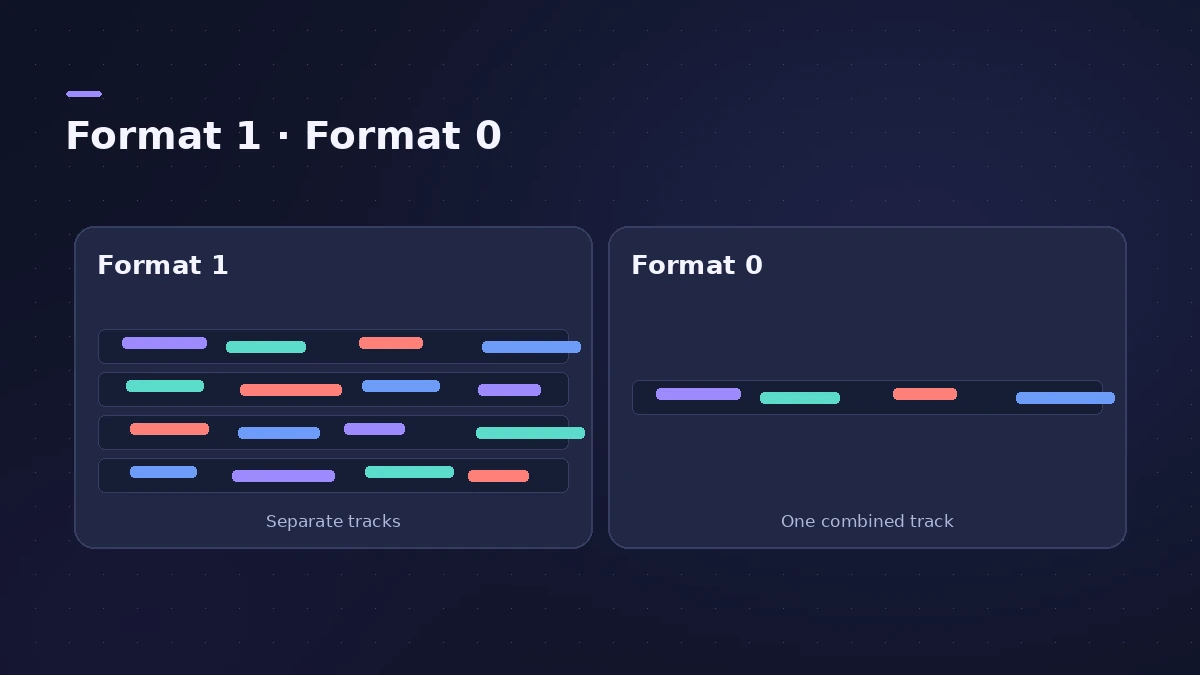
Format 1 keeps separate tracks; Format 0 puts all data in a single track. Because Format 0 can hold only one region, join your regions first (Edit > Join) and turn on "'Export MIDI File…' saves single MIDI Regions as Format 0" in the General settings under Project Handling. Apple's instructions for this come from the Logic Pro X 10.1 help, so menu names may differ slightly in Logic Pro 13.
Sources
- Apple — Logic Pro X 10.1 Help: Export MIDI regions as standard MIDI files (old)
- Sound On Sound — Logic Pro Bouncing And Export Options (Oct 2021)
Checked November 2026. Logic ProFiles is independent of Apple; menu names can differ slightly between Logic Pro versions.
Frequently asked questions
Can I export a whole Logic Pro project as MIDI?
+
Yes, if it's all MIDI. Select all MIDI regions and choose Selection as MIDI File; they're saved together as one Format 1 file.
Why does Logic Pro say to select a MIDI region?
+
The command exports regions, not tracks. Click the MIDI regions in the Tracks area first, then export.
Related
- Score Editor in Logic Pro — sheet music from MIDITurn MIDI into sheet music with Logic Pro's Score Editor: open it with Command-5, edit notes and symbols, add lyrics, tab and chord grids, then print or PDF.
- How to export stems from Logic ProExport every Logic Pro track as its own audio file for a mixer: All Tracks as Audio Files, the right options for effects, tails and naming, and Track Stacks.
- Send a Logic Pro project to Pro Tools — AAF or stemsMove a Logic Pro session to Pro Tools or another DAW: export an AAF with region positions and volume automation, or export every track as audio files.
- MIDI keyboard not working in Logic Pro — 9 fixesLogic Pro not responding to your MIDI keyboard? Check USB and drivers, rescan in Audio MIDI Setup, reset all MIDI drivers and arm a software instrument track.
- Bounce and export in Logic Pro — songs, stems, MIDI and AtmosHow to get audio out of Logic Pro on Mac: bounce a song to WAV or MP3, export stems and MIDI, deliver Dolby Atmos, send a project to Pro Tools or a video.