
Fix a problem / Mac
MIDI keyboard not working in Logic Pro: test notes before audio
Quick answer
Separate three questions: does the Mac receive MIDI, does Logic receive it on the intended track, and does that track generate audio? Test the connection in Audio MIDI Setup, then try one simple software instrument in a new project. MIDI note data is not an audio recording or a guarantee that a sound is loaded.
If Logic displays MIDI Services not available or Error initializing CoreMIDI, start with the MIDI service checks before changing an instrument.
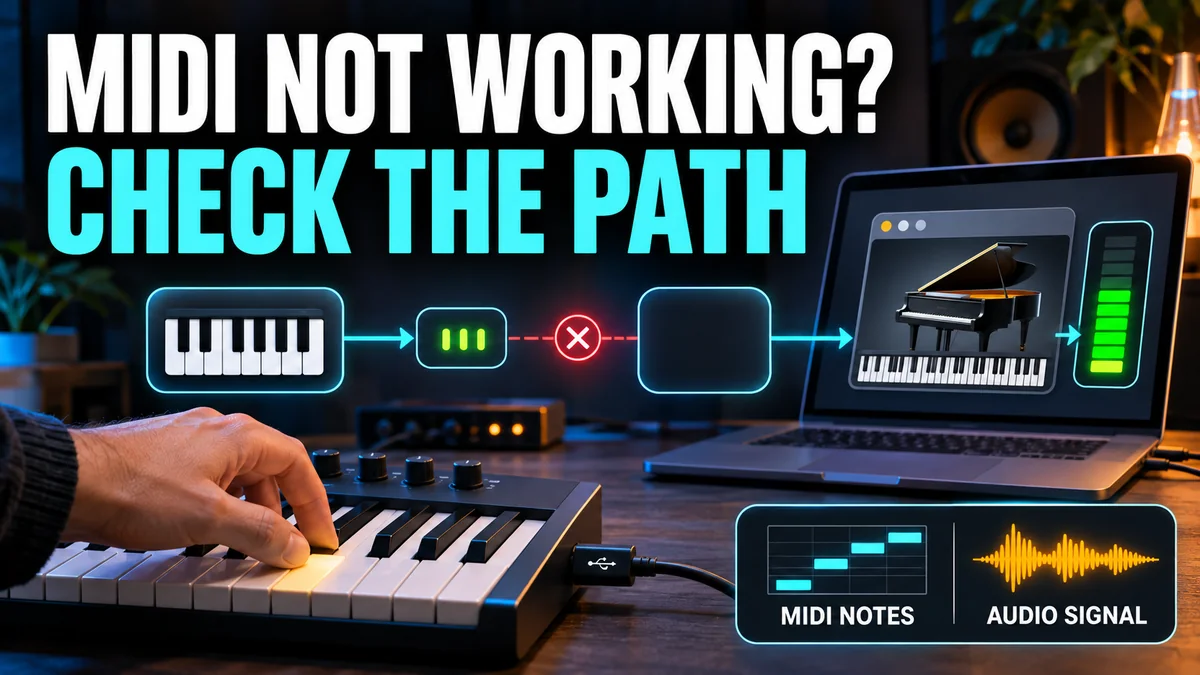
Match your symptom
| What happens | First check |
|---|---|
| MIDI Services not available / Error initializing CoreMIDI | Check the MIDI service and device setup before the instrument |
| No incoming MIDI activity | Check the connection at the Mac first |
| MIDI arrives but the instrument is silent | Select and inspect a software instrument track |
| Only one sound or project fails | Compare a stock instrument in a new project |
| You want the keyboard’s own hardware sound | Record its audio output separately |
MIDI Services not available or Error initializing CoreMIDI
If Logic reports a MIDI-service initialization error, check the Mac’s MIDI setup before replacing a software instrument. The alert does not identify a particular faulty keyboard, and it is different from an Audio/MIDI synchronization alert.
- Save your work, quit Logic and other MIDI apps, and restart the Mac. For a controlled comparison, disconnect external MIDI controllers and MIDI interfaces, then reopen Logic with a simple project. This does not disable installed virtual MIDI drivers.
- Open
Applications > Utilities > Audio MIDI Setup, thenWindow > Show MIDI Studio. If the service opens normally, reconnect one device at a time. Use Rescan MIDI for a connected device that is not shown, then test incoming MIDI. Turn the test off afterward. - If Logic opens, inspect its MIDI settings. Apple’s archived Logic Pro 10.7 guide documents Reset All MIDI Drivers under General MIDI preferences. If that control exists in your installed version, use it with playback stopped, then retest. Settings and available controls vary by version.
- If the alert persists without external devices, check third-party MIDI interfaces, virtual MIDI software and drivers for compatibility with your macOS and Logic versions. Follow the manufacturer’s supported update or uninstall procedure; do not delete driver folders or preference files at random.
Verify: Logic opens without the service alert, then receives notes from one connected controller in a new software-instrument project. If it still fails, record the exact alert, software versions and the result with devices disconnected for Apple or the driver manufacturer. If notes already arrive but there is no sound, continue with the instrument and output check.
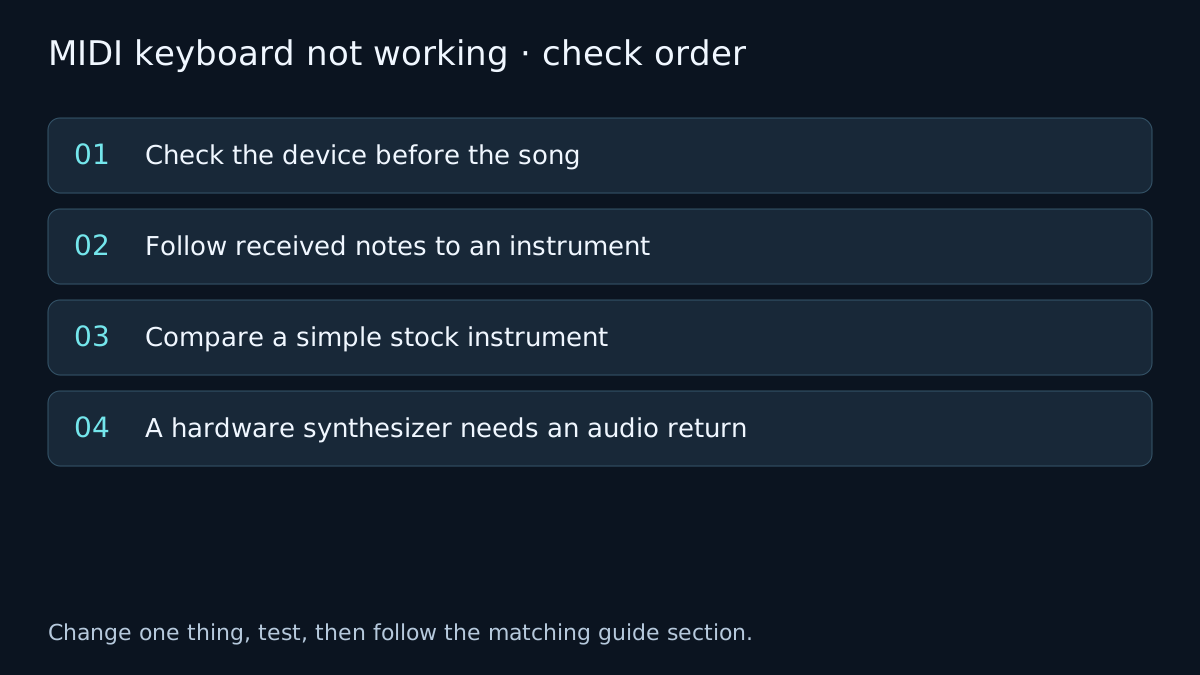
Check the device before the song
Confirm the controller has power and a data-capable connection. Compare a direct connection where practical, and use the driver and setup instructions for that device and macOS version. A charging cable is not proof of a working USB data path.
Open Audio MIDI Setup on the Mac and choose Window > Show MIDI Studio. Apple’s MIDI test procedure can show whether incoming messages reach the Mac when you play. Use the guide for your macOS version and turn test mode off afterward.
If MIDI does not reach the Mac, changing a plug-in or the audio buffer inside Logic is not the next useful test. Inspect the connection, power and device configuration first.
Follow received notes to an instrument
Select a software-instrument track with a known working instrument loaded. Confirm incoming MIDI activity in Logic and try a few notes in the instrument’s expected playable range. An audio track or an External MIDI track is not the same as an internal instrument that turns notes into sound.
If the instrument produces a track meter but there is no sound, follow the track-to-output route. If no audio is generated despite incoming MIDI, inspect the selected instrument, channel filtering, mute state and any MIDI processing in the track.
Compare a simple stock instrument
Make a new project, load one stock software instrument and test the same controller without third-party MIDI processing. If that works, compare the original project’s selected track and input processing rather than resetting all preferences.
If notes work with an on-screen or other known-good input but not the controller, return to the MIDI input path. If a specific third-party instrument cannot be loaded at all, use plug-in installation and validation checks.
Controller faders, pads, transport mapping and MIDI note input can behave differently. Identify the function that fails instead of treating a transport button that does nothing as proof that no MIDI arrives.
A hardware synthesizer needs an audio return
MIDI can tell an external instrument which note to play. To capture that instrument’s sound in Logic, connect its audio output to a suitable interface input and use the corresponding audio route. A USB connection may or may not carry audio; confirm the device specification.
Follow the audio-input guide to record the return. If the goal is synchronized external sequencers, use the device’s documented clock route and distinguish MIDI timing configuration from an audio sample-rate alert.
Verify the fix
- Play notes across the expected range and confirm MIDI activity and instrument audio separately.
- Record a short MIDI region and play it back through the instrument.
- Return to the original project and test the same track without reintroducing unrelated changes.
If the result changes, note which check changed it. If it does not, undo the test where appropriate and follow the next relevant branch. A failed test narrows the problem; it does not identify a component with certainty.
Frequently asked questions
What should I check when MIDI Services are not available?
Restart with work saved, compare with external MIDI devices disconnected, inspect MIDI Studio, and check installed MIDI drivers for version compatibility. A service alert is different from a silent software instrument or an Audio/MIDI sync alert.
Does a USB MIDI keyboard automatically send audio?
Not necessarily. Many controllers send notes and controls only. Check the device specification and record hardware audio through its supported audio route.
Why do I see MIDI activity but hear nothing?
The selected track may not have a working instrument or its audio may not reach the output. Test instrument generation and output routing separately.
Related guides
 Sound & recording
No input or no recording
Logic Pro not recording? Separate microphone permission, input-device selection, track input and record enable from monitoring and playback problems.
 Fix
Logic Pro has no sound: follow the signal chain
No sound in Logic Pro? Check the Output Device in Logic Pro > Settings > Audio > Devices, macOS Sound output, mute and solo, track routing and sample rate.
 Fix
Logic Pro plug-ins not showing: Audio Units and validation
Plug-in missing from Logic Pro? Check Audio Unit format, validation, installed locations and version compatibility. Understand when Rosetta is needed.
Choose a guided check · All troubleshooting topics · Search every guide
Sources and version notes
- Apple: MIDI Studio window and Rescan MIDI
- Apple: General MIDI preferences and Reset All MIDI Drivers (archived Logic Pro 10.7 guide)
- Apple: compare devices and check compatibility when Logic is not working
Based on Apple documentation; reviewed 8 November 2026. This is a documentation review, not a claim of hands-on testing on every Logic, macOS or interface version. Archived guides are labelled; confirm menu names in the help for your installed release.