
Fix a problem / Mac
Logic Pro audio and MIDI sync error: check rate, clock and device
Quick answer
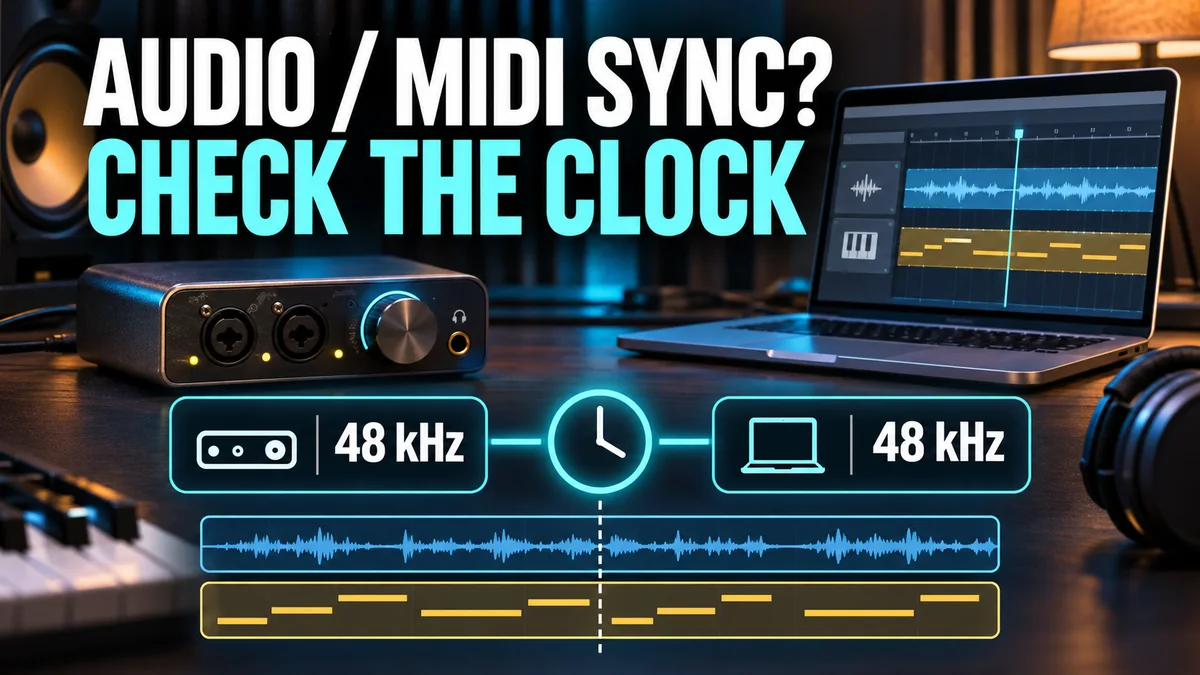
Copy the complete alert and note the project and interface sample rates. Apple associates this alert with an incoming rate that does not match, or fluctuates relative to, the project. Check the device and clock route, then compare a simple project and built-in audio. Do not convert or retune every recording just to remove the message.
Match your symptom
| What happens | First check |
|---|---|
| Alert follows one external interface | Compare its rate and a built-in-audio test |
| Digital devices are connected together | Check the intended clock source |
| Problem starts after an aggregate-device change | Inspect that aggregate configuration |
| Only one project or processor triggers it | Compare a simple project and isolate processing |
Record the exact alert and compare rates
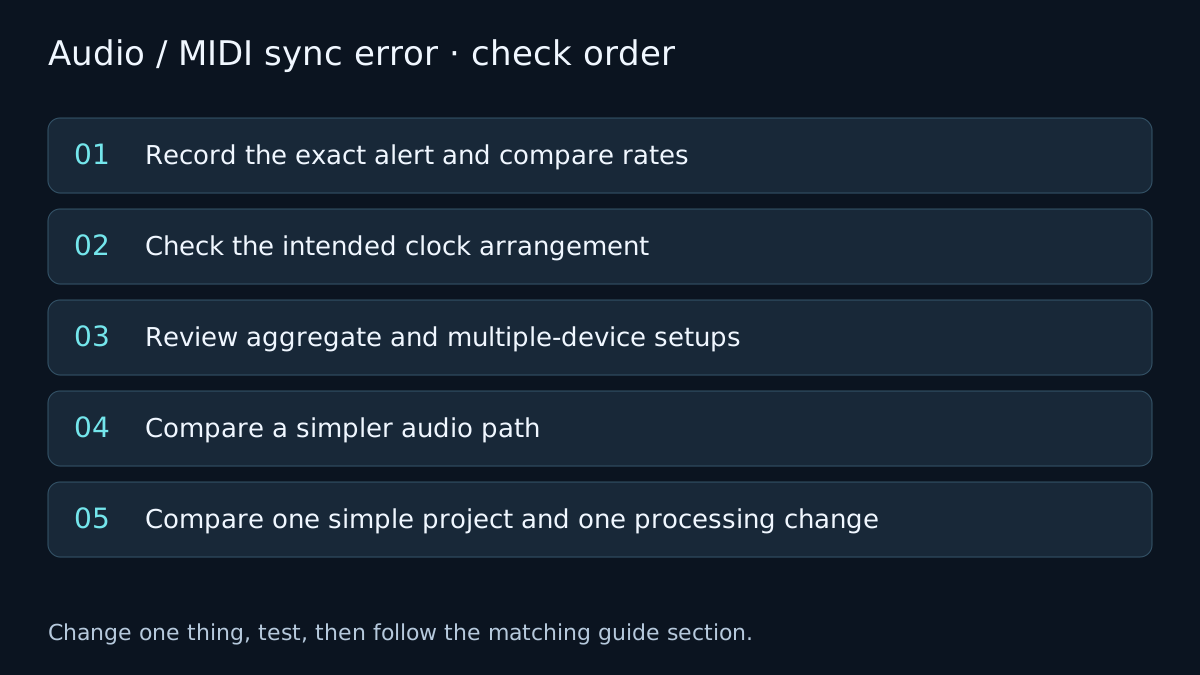
Write down the full message, the sample rate displayed in it, the project rate and the selected input/output devices. Note whether the failure happens immediately or only during a particular passage.
Inspect File > Project Settings > Audio and the sample rate reported by the interface or its control application. Verify the interface follows the intended project setup. Changing the project rate and converting the source files are separate operations; do not start batch conversion as a first response to a device-clock alert.
Check the intended clock arrangement
For digitally connected devices, follow the hardware documentation so that the intended clock source and the receiving devices agree. A device losing a digital clock when another unit stops can cause an intermittent failure rather than a permanently wrong rate.
Do not enable external synchronization on an ordinary standalone session as a generic repair. If the studio uses MTC, MIDI clock or word clock, document which device provides each signal. Audio sample clock and MIDI transport timing are related setup questions, not interchangeable controls.
Review aggregate and multiple-device setups
If the issue began after combining devices, inspect the aggregate in Audio MIDI Setup and the rate and clock/drift settings appropriate to its hardware. Preserve the working configuration before changing it. A quick comparison using one compatible device can distinguish the aggregate path from the project.
Use the device manufacturer’s current instructions for its digital connections. A blanket setting for every interface or aggregate is unlikely to be reliable.
Compare a simpler audio path
With the project protected, compare the Mac’s built-in input and output or another known-good supported route. If the alert disappears, focus on the external device configuration, connection and driver compatibility.
The result narrows the search; it does not prove that the interface must be replaced. Keep the exact reproduction conditions when contacting its manufacturer. If the symptom is delay without this alert, use latency troubleshooting instead.
Compare one simple project and one processing change
Test a new project with a simple stock instrument or short audio file. If it works, compare the affected project’s synchronization settings and recently changed processing. Bypass one suspected processor in a copy and replay the same range.
If the error accompanies unstable playback or overloads, inspect performance conditions as a separate branch. For crackles without an alert, use clicks and distortion diagnosis. Do not infer a MIDI-controller fault merely from the word MIDI in the alert.
Verify the fix
- Replay the same failing range through the intended device and clock route.
- Confirm rate and device settings after reopening the project.
- Document the stable setup and retain the original test conditions if the alert returns.
If the result changes, note which check changed it. If it does not, undo the test where appropriate and follow the next relevant branch. A failed test narrows the problem; it does not identify a component with certainty.
Frequently asked questions
Does this alert always mean the MIDI keyboard is faulty?
No. Apple describes an incoming audio rate mismatch or fluctuation as a cause. Check the audio-device and synchronization path.
Should I convert all audio to another sample rate?
Not as a first test. Establish whether the device and project configuration is stable before changing the recordings.
Related guides
 Sound & recording
Clicks, pops or distortion
Separate Logic Pro buffer dropouts, clipping, repeatable edit clicks and interface issues. Test a short range before changing project-wide settings.
 Fix
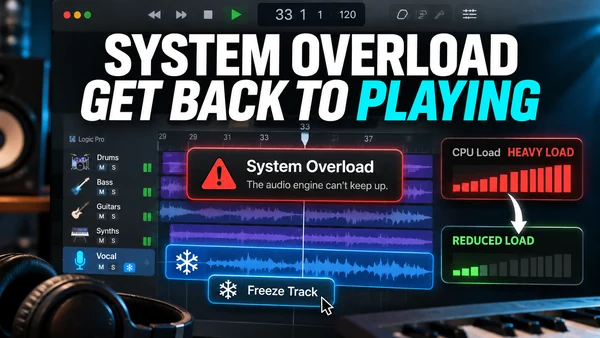
Logic Pro system overload: how to fix the error (-10011)
Fix the Logic Pro System Overload alert with Apple's steps: I/O Buffer Size, Process Buffer Range, Multithreading, Performance Meter, freeze tracks and sends.
 Fix
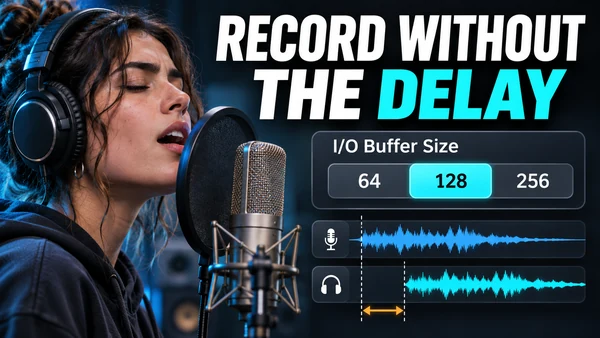
Logic Pro latency: buffer size table and how to get the delay down
Reduce Logic Pro latency: buffer-size table in ms at 44.1 and 48 kHz, Low Latency Mode, Software Monitoring vs direct monitoring, plug-in delay compensation.
Choose a guided check · All troubleshooting topics · Search every guide
Sources and version notes
Based on Apple documentation; reviewed 8 November 2026. This is a documentation review, not a claim of hands-on testing on every Logic, macOS or interface version. Archived guides are labelled; confirm menu names in the help for your installed release.