
Fix a problem / Mac
Logic Pro not recording audio: find where the input stops
Quick answer
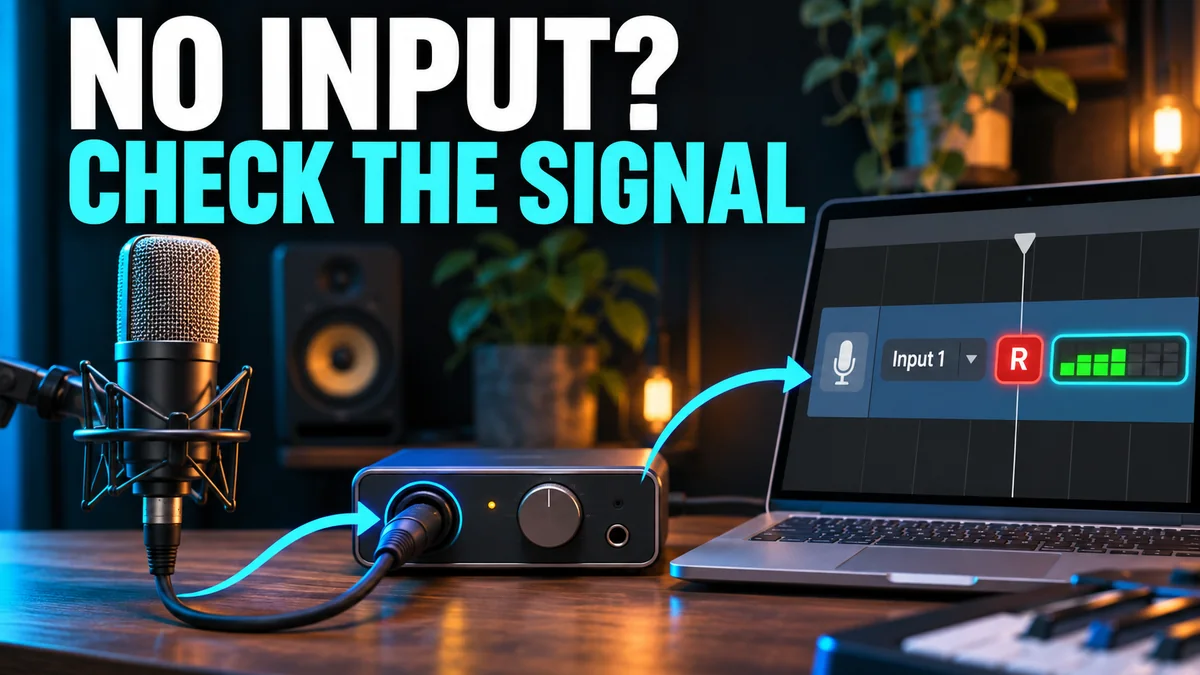
Make a new, empty audio project and follow the input signal: microphone or instrument, interface input, the input device selected in Logic, then the audio track. Check macOS microphone permission and the track’s input and record-enable state. Hearing direct monitoring from an interface does not prove Logic is receiving or recording that signal.
Match your symptom
| What happens | First check |
|---|---|
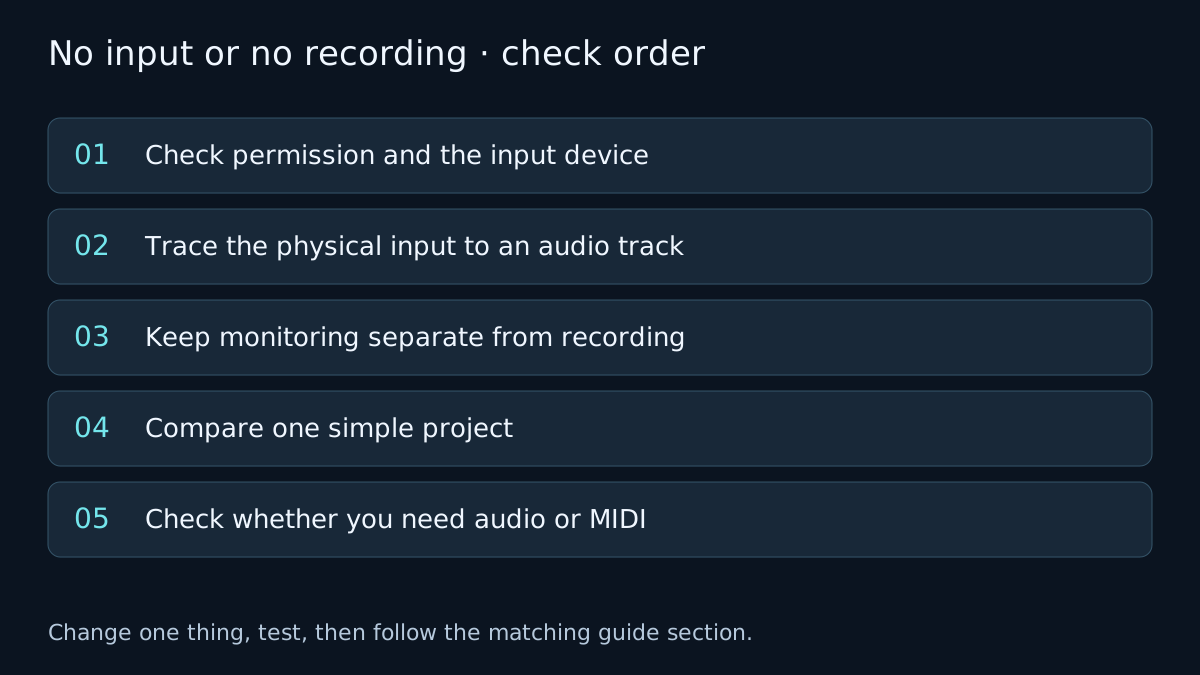
| No input meter in Logic | Confirm permission, device and input channel |
| A waveform records, but you hear nothing | Check monitoring and playback separately |
| Only one project will not record | Compare a new empty audio project |
| A keyboard records notes rather than a waveform | Decide whether the source is MIDI or audio |
Check permission and the input device
In macOS System Settings, open Privacy & Security, then Microphone. Allow Logic Pro to use audio input, and reopen it if the permission change requires that. A connected interface can still appear in a device list while the application lacks access to its inputs.
In Logic Pro > Settings > Audio > Devices, inspect the Input Device. It should be the device carrying your source, not merely the device you use for listening. On older macOS versions the menu may be called Preferences. Apple’s recording-permission article describes the OS requirement; the wording varies by macOS release.
Trace the physical input to an audio track
Confirm the interface receives the microphone or instrument: check its input indicator and the correct physical socket. Set instrument, microphone and line modes according to the interface manufacturer’s instructions. Connect the source before testing the software path.
Create an audio track, select the input corresponding to that socket and record-enable the track. A microphone on interface input 1 will not appear on a track listening only to input 2. Stereo input pairs and mono inputs are different choices; use the choice appropriate to the source.
Record a short test and stop. A newly recorded region with an appropriate waveform is stronger evidence than simply hearing headphones connected to an interface. If the file records but is silent, compare the input meter and the content of the recorded region.
Keep monitoring separate from recording
An interface can send its input directly to headphones without sending that same signal through Logic’s chosen input. Conversely, Logic can record successfully even when its output is routed to the wrong speakers. Check the recording and listening paths separately.
If you hear a doubled or delayed signal, avoid listening to both a hardware direct-monitor path and a software-monitor path at the same time. Use the latency guide to choose a monitoring route, and the no-sound signal path if the recording exists but playback is silent.
Compare one simple project
Use a new project with one audio track, no third-party processing and the same input device. Keep the original project open only as needed; do not reset or overwrite it during the comparison. If the test records, return to the affected project and compare its track input, routing and record state.
If neither project receives input, test the device and connection, then consult its supported driver and macOS versions. An interface appearing in a list is not proof that its driver is functioning correctly. The guided input checks can help you choose the next branch.
Check whether you need audio or MIDI
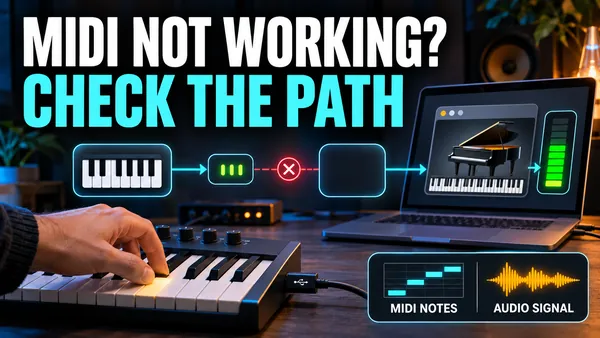
A USB keyboard commonly sends MIDI note information, not the sound of an internal instrument. To hear a software instrument, select a software-instrument track and load an instrument. To capture a hardware synthesizer’s sound, connect its audio outputs to audio inputs and record an audio track. Follow MIDI keyboard troubleshooting when notes are not arriving.
Verify the fix
- Record ten seconds into a new region and play it back after stopping.
- Confirm that the intended input, rather than another microphone, was captured.
- Return to the original project and repeat the same test without changing unrelated settings.
If the result changes, note which check changed it. If it does not, undo the test where appropriate and follow the next relevant branch. A failed test narrows the problem; it does not identify a component with certainty.
Frequently asked questions
Why can I hear my microphone but record silence?
The interface may be providing direct monitoring while Logic is listening to a different input or lacks microphone permission. Check the input path separately.
Does input monitoring need to be on for every recording?
Recording and monitoring are separate. Choose the listening path deliberately; do not assume hearing the interface proves that an audio region is being recorded.
Related guides
 Fix
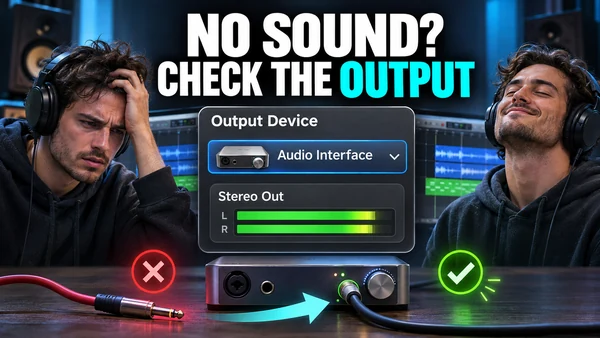
Logic Pro has no sound: follow the signal chain
No sound in Logic Pro? Check the Output Device in Logic Pro > Settings > Audio > Devices, macOS Sound output, mute and solo, track routing and sample rate.
 Fix
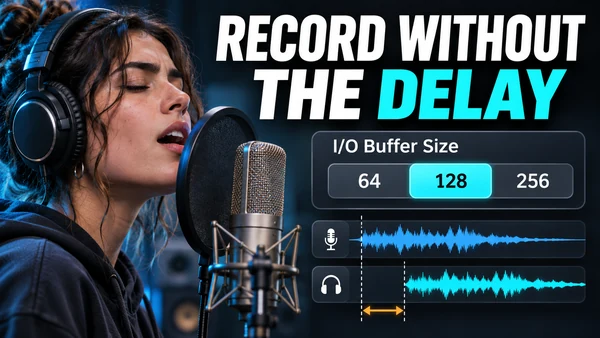
Logic Pro latency: buffer size table and how to get the delay down
Reduce Logic Pro latency: buffer-size table in ms at 44.1 and 48 kHz, Low Latency Mode, Software Monitoring vs direct monitoring, plug-in delay compensation.
 Plug-ins & instruments
MIDI keyboard not working
Check the MIDI connection, incoming notes, instrument track and audio route separately when a keyboard will not play sounds in Logic Pro.
Choose a guided check · All troubleshooting topics · Search every guide
Sources and version notes
Based on Apple documentation; reviewed 8 November 2026. This is a documentation review, not a claim of hands-on testing on every Logic, macOS or interface version. Archived guides are labelled; confirm menu names in the help for your installed release.