Learn Logic Pro
Logic Pro screensets — save and recall window layouts
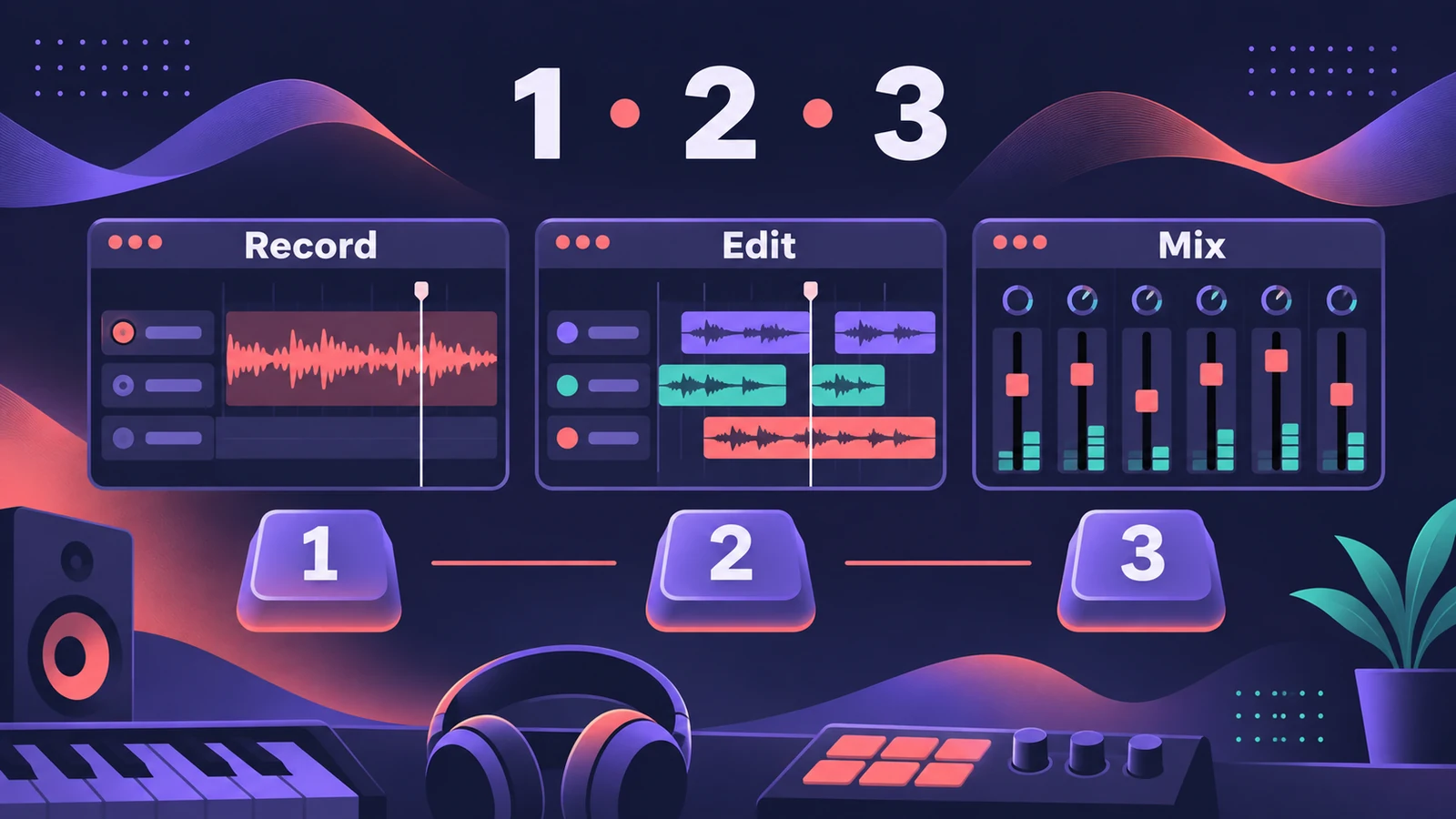
A screenset is a saved window layout: which windows are open, where they sit, their size and zoom. You can keep up to 99 per project and jump between them with the number keys — one for recording, one for editing, one for mixing. They're saved with the project and with templates.
 Owen Hartley
Where to find it
Number keys 1–9, Screensets menu
A simple screenset plan
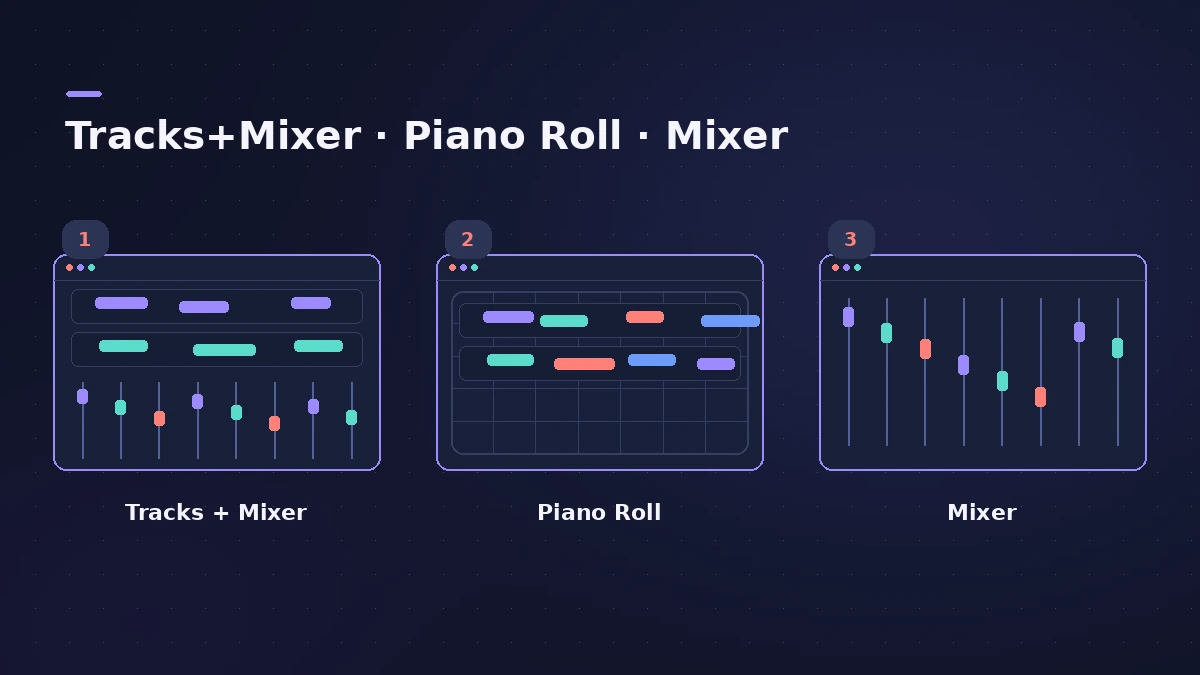
| Key | Layout | Use it for |
|---|---|---|
| 1 | Tracks area with inspector | Arranging and recording |
| 2 | Tracks area with a large editor | Editing MIDI or audio |
| 3 | Mixer | Mixing |
| 4 | Score Editor or Step Sequencer | Notation or beats |
Screensets remember window positions, sizes and zoom levels, so a screenset is the quickest way back to the view you work in most. The keys behind each window are listed in key commands.
Step by step
-
1
Set up your windows
Open and arrange the windows you want — for example the Tracks area with the Mixer below, or a large Piano Roll — including zoom levels.
-
2
Pick a screenset number
Press a number key from 1 to 9 (0 is Stop by default). For two-digit screensets, hold Control while typing the first digit. An unused number opens a maximised main window to start from.
-
3
Switch between screensets
Press the number of the screenset you want, or choose it from the Screensets menu.
-
4
Lock a layout you like
Lock the screenset so later window changes don't overwrite it. Use Revert to Saved to undo changes to an unlocked one.
Common mistakes
- Pressing 0 expecting screenset 10 — 0 stops playback by default.
- Changing a screenset by accident because it isn't locked.
- Rebuilding the same layouts in every project instead of saving them in a template.
Reuse screensets
Save a project with your screensets as a template, or import screensets from another project with the import settings. More on templates in new project settings.
Sources
- Apple — Logic Pro X 10.1 Help: Create, recall, and switch screensets (old)
- Apple — Logic Pro 9 manual: Using Screensets (old)
- Apple — Logic Pro User Guide for Mac (table of contents)
- Apple — Logic Pro X 10.1 Help: Save projects (old)
- Apple Support — Logic Pro for Mac release notes
Checked November 2026. Logic ProFiles is independent of Apple; menu names can differ slightly between Logic Pro versions.
Frequently asked questions
How many screensets can a Logic Pro project have?
+
Up to 99, numbered 1 to 99.
Why do my number keys open windows instead of screensets?
+
The 1–9 keys are key commands called Recall Screenset 1–9, so they can be reassigned in the Key Commands window — check whether someone changed them.
Do number keys switch screensets in the Play Surface?
+
In Logic Pro 13's Play Surface, number keys are used for pitch bend and modulation while musical typing is active.
Related
- The Logic Pro interface explainedA tour of the Logic Pro window: control bar and LCD, Tracks area, inspector, Library, Browser, Mixer, editors and Smart Controls, with keys to toggle them.
- How to create a new project in Logic ProCreate a new Logic Pro project with the right settings: template or empty project, tempo and key, sample rate, Flex Time and where the project is saved.
- Logic Pro shortcuts — the default key commands worth learningThe Logic Pro key commands worth learning first: transport, recording, windows, editing, tracks and export from Apple's U.S. preset, and how to change them.
- Learn Logic Pro — tutorials for beginnersLearn Logic Pro on Mac: a beginner tutorial, the interface, the Logic Pro 13 Browser, audio interface setup, key commands, loops, patches and saving projects.